Did your Windows PC start running slow after a recent update? Maybe it takes longer to boot, apps open slowly, the system freezes, or the fan runs loudly. This problem is common after major Windows updates, and thankfully, it’s usually fixable.
Updates are designed to improve performance and security, but sometimes they cause temporary slowdowns due to background processes, compatibility issues, or system reconfiguration.
In this complete guide, you’ll learn:
- Why Windows becomes slow after an update
- Quick fixes you can apply immediately
- Advanced troubleshooting steps
- When to roll back an update
Let’s fix your PC step by step.
Why Is Windows Slow After an Update?
After a Windows update, your computer may slow down because:
- Background update processes are still running
- Drivers are incompatible
- Startup programs increased
- Windows indexing is rebuilding
- Temporary files are overloaded
- Disk usage spikes to 100%
- Antivirus conflicts occur
The slowdown is often temporary, but if it continues, follow the solutions below.
1. Restart Your PC
After installing updates, Windows may need a proper restart to complete background processes.
What to do:
- Click Start
- Select Power
- Click Restart
Avoid using “Shut Down” only always choose Restart.
2. Wait for Background Updates to Finish
Sometimes Windows continues optimizing after installation.
Check this:
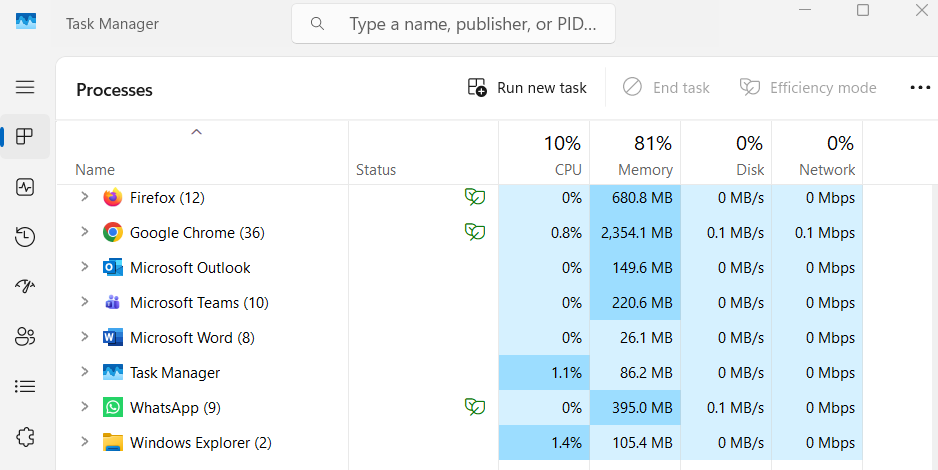
- Press Ctrl + Shift + Esc
- Open Task Manager
- Look for high CPU or Disk usage
If “Windows Modules Installer” or “System” is using high resources, let it finish.
3. Disable Unnecessary Startup Programs
Updates sometimes enable startup apps automatically.
Steps:
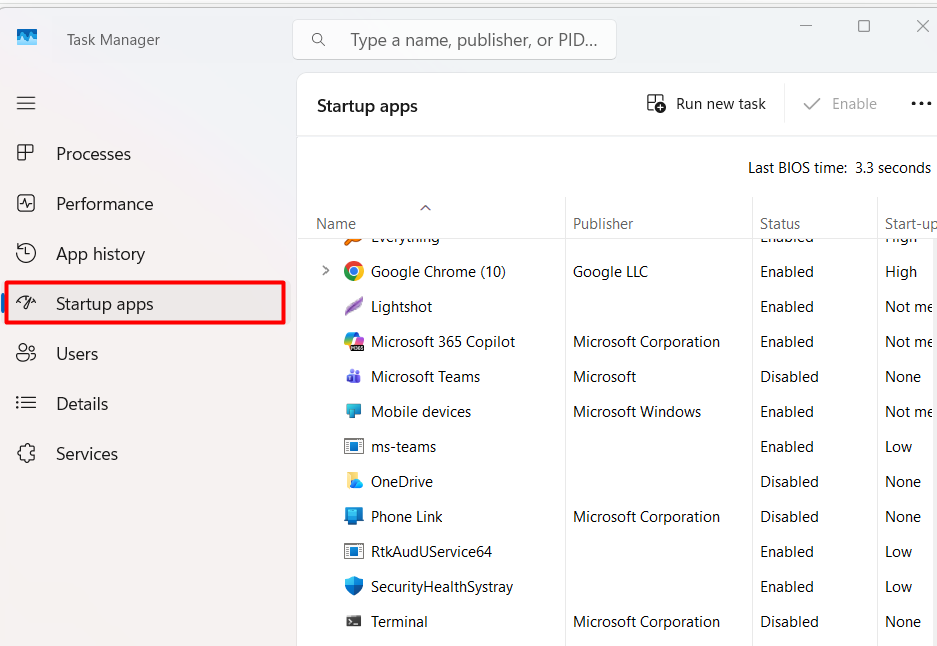
- Press Ctrl + Shift + Esc
- Go to Startup tab
- Disable unnecessary apps
- Restart your PC
This significantly improves boot time.
4. Check for Driver Updates
Outdated drivers can cause performance issues after updates.
Steps:
- Right-click Start
- Select Device Manager
- Look for yellow warning signs
- Update drivers
Pay special attention to:
- Graphics drivers
- Network drivers
- Storage controller drivers
5. Run Disk Cleanup
Temporary update files can slow down your system.
Steps:
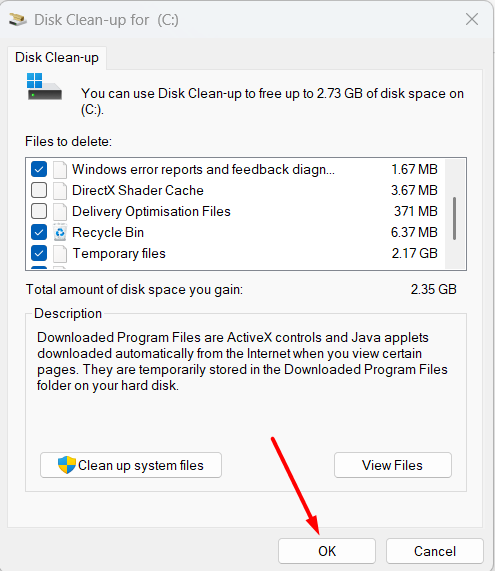
- Type “Disk Cleanup” in search
- Select your system drive (usually C:)
- Check:
- Temporary files
- Windows update cleanup
- Recycle bin and other necessary options
- Click OK
This frees space and improves performance.
6. Disable Background Apps
Too many background apps can consume RAM.
Steps:
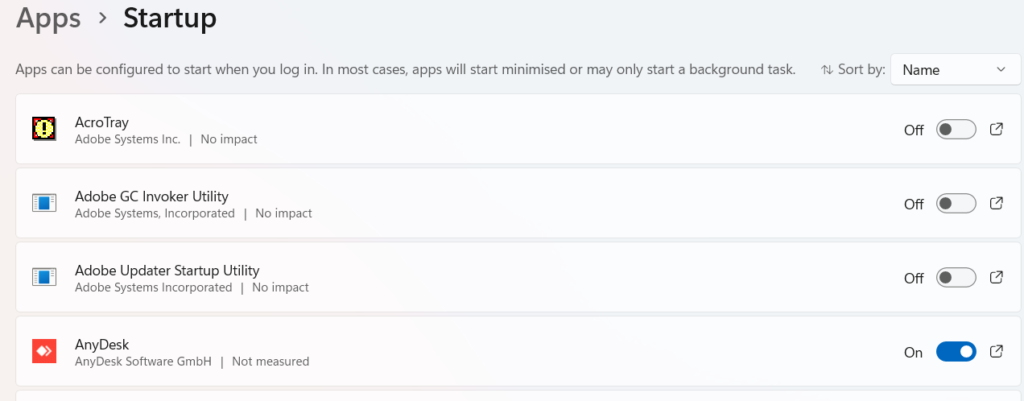
- Go to Settings
- Click Apps
- Select Startup or Background apps
- Disable unnecessary apps
Less background activity = smoother performance.
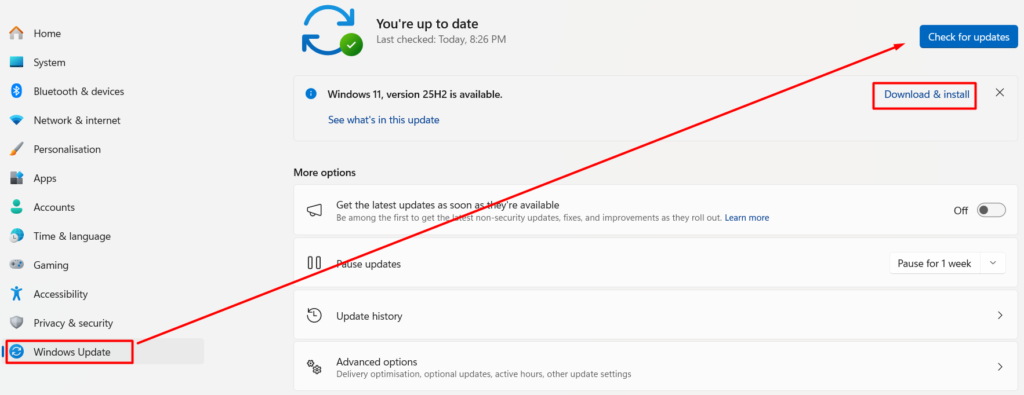
7. Check for Windows Bugs or Patches
Sometimes Microsoft releases quick patches for buggy updates.
Steps:
- Open Settings
- Click Windows Update
- Check for new updates
Install any available fixes.
8. Adjust Visual Effects
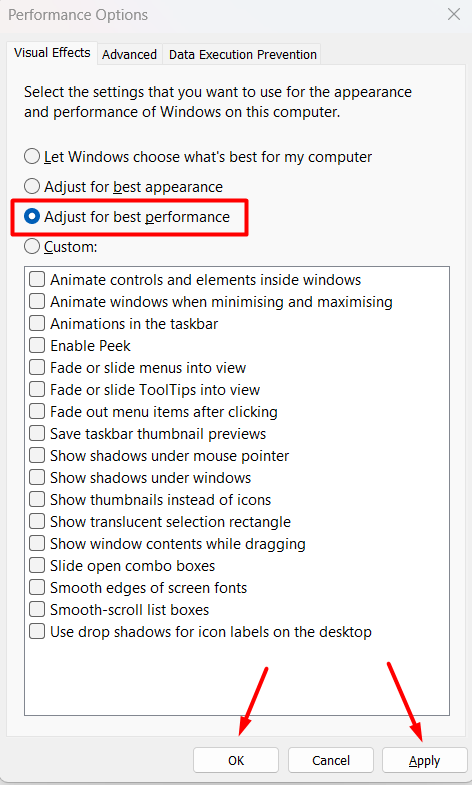
Windows animations can slow older PCs.
Steps:
- Type “Performance” in search
- Click “Adjust appearance and performance”
- Select “Adjust for best performance”
- Click Apply
This improves speed, especially on low-RAM systems.
9. Scan for Malware
Occasionally, malware activates during updates.
Use:
- Windows Security
- Or trusted antivirus software
Run a full system scan.
10. Check Disk Usage (100% Disk Problem)
If your PC feels extremely slow, disk usage may be stuck at 100%.
Fix:
- Press Ctrl + Shift + Esc
- Open Task Manager
- Click Disk column
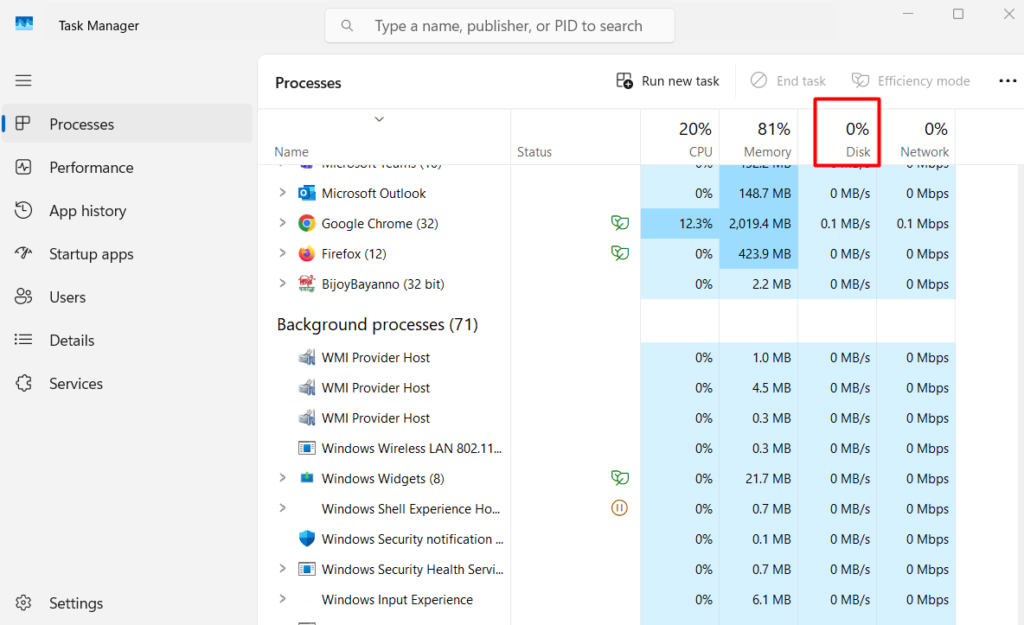
If usage is constantly 100%:
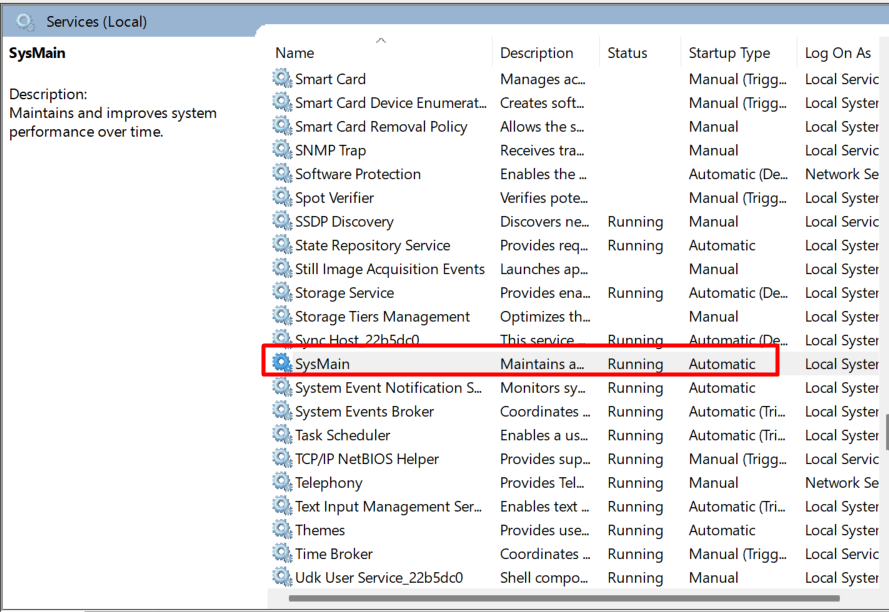
- Disable SysMain service
- Disable Windows Search temporarily
To disable SysMain:
- Press Windows + R
- Type services.msc
- Find SysMain
- Stop and Disable
11. Uninstall the Recent Update (If Necessary)
If the slowdown started immediately after an update and nothing helps, rolling back may fix it.
Steps:
- Go to Settings
- Click Windows Update
- Select Update History
- Click Uninstall Updates
- Remove the latest update
Restart your PC after uninstalling.
12. Run System File Checker (Advanced Fix)
Corrupted system files may cause slow performance.
Steps:
- Type “cmd” in search
- Right-click Command Prompt
- Select Run as Administrator
- Type:
sfc /scannow
Press Enter and wait for the scan to complete.
13. Upgrade Hardware (If PC Is Old)
If your PC has:
- 4GB RAM
- HDD instead of SSD
- Old processor
Updates may push it beyond its limits.
Consider:
- Upgrading to SSD
- Increasing RAM to 8GB or more
Hardware upgrades dramatically improve speed.
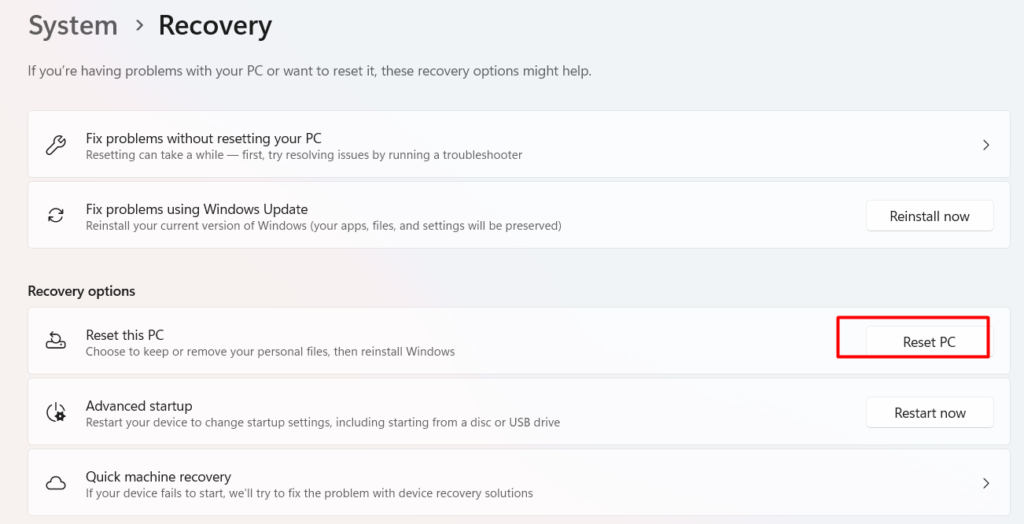
14. Reset Windows (Last Option)
If performance remains poor:
Steps:
- Go to Settings
- Click System
- Select Recovery
- Choose Reset this PC
You can choose “Keep my files.” Only use this if all other fixes fail.
How to Prevent Slowdowns After Updates
✔ Keep at least 20% storage free
✔ Update drivers regularly
✔ Avoid too many startup programs
✔ Use SSD instead of HDD
✔ Restart PC weekly
✔ Install updates promptly
Proper maintenance prevents the issue with your windows PC running slow
Conclusion
If your Windows PC is running slow after an update, don’t panic. Most slowdowns are temporary and caused by background optimization or minor software conflicts.
Start with simple fixes like restarting and disabling startup apps. Move to advanced solutions only if necessary. In most cases, your PC will return to normal performance within a few days.
If the issue persists, rolling back the update or upgrading hardware may be the best solution. Learn about to solve windows internet issues
Frequently Asked Questions (FAQ)
Because background processes, indexing, or driver conflicts may temporarily slow the system.
Usually 1–3 days, depending on system performance.
Only if the slowdown is severe and other fixes do not work.
No, but buggy updates may temporarily affect performance.
Yes, especially if your system has 4GB or less.
Yes, if the issue is software-related.