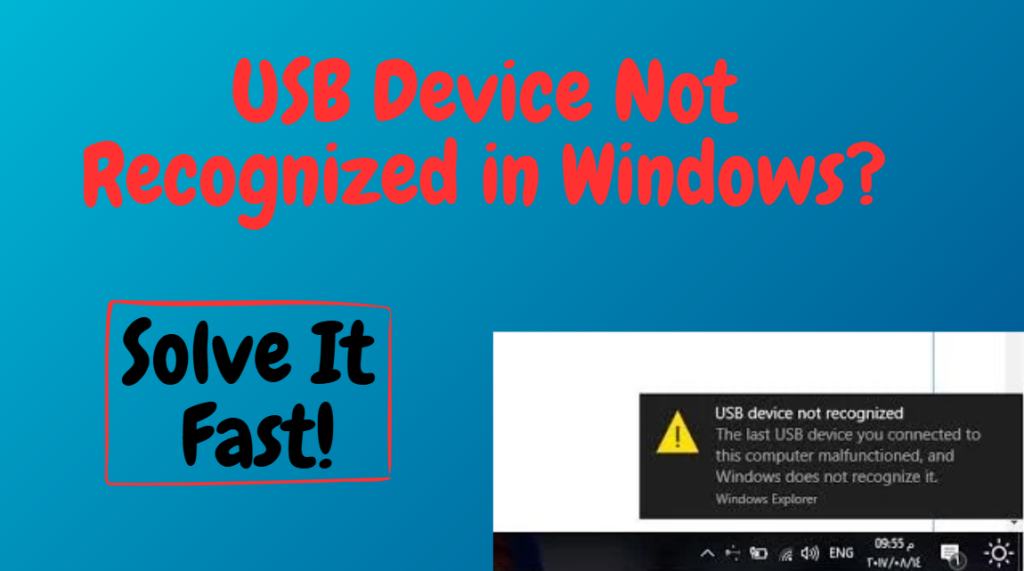
Seeing the message “USB Device Not Recognized” on your Windows computer can be frustrating. You plug in your USB flash drive, keyboard, mouse, or external hard drive, and suddenly Windows shows an error notification. The device either doesn’t appear in File Explorer or stops working entirely.
The good news? In most cases, this problem is caused by driver issues, power settings, or temporary system glitches, not hardware damage.
In this complete guide, you’ll learn:
- Why Windows doesn’t recognize USB devices
- Quick fixes that work immediately
- Advanced troubleshooting methods
- When the USB port or device might be faulty
Let’s fix the issue step by step.
Why Does Windows Say USB Device Not Recognized?
This error usually happens because of:
- Corrupted or outdated USB drivers
- Faulty USB port
- Power supply issues
- Damaged USB cable
- Windows update conflicts
- File system corruption
- USB device malfunction
Before assuming the device is broken, try the solutions below.
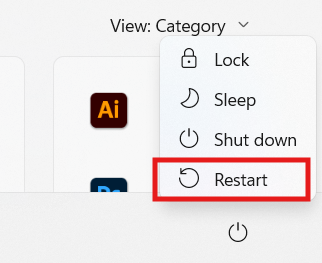
1. Restart Your Computer
A simple restart can fix temporary system glitches.
What to do:
- Click Start
- Select Power
- Click Restart
After rebooting, plug in the USB device again.
2. Try a Different USB Port
Sometimes the problem is the USB port, not the device.
- Plug the device into another USB port
- Try both front and back ports
- Avoid USB hubs (connect directly to PC)
If it works in another port, the original port may be faulty.
3. Test the USB Device on Another Computer
To check if the device itself is damaged:
- Connect it to another PC
- See if it’s recognized
If it doesn’t work anywhere, the device may be faulty.
4. Disconnect Other USB Devices
Too many connected devices can cause power or driver conflicts.
- Unplug all USB devices
- Restart the PC
- Plug in only the problematic device
This can reset USB controller conflicts.
5. Update USB Drivers
Outdated or corrupted drivers are the most common cause.
Steps:
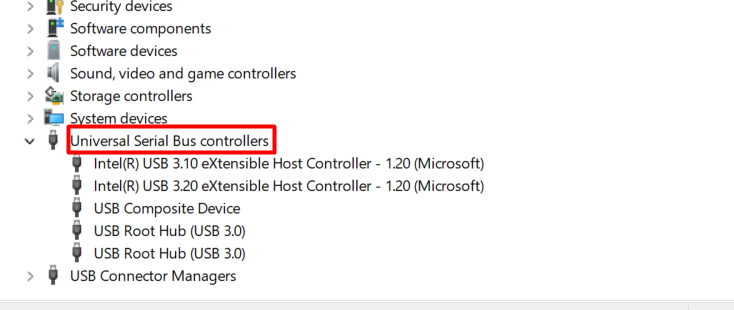
- Right-click Start
- Select Device Manager
- Expand Universal Serial Bus controllers
- Right-click USB device
- Select Update driver
Restart your PC afterward.
6. Uninstall USB Controllers
Reinstalling USB controllers often fixes the issue.
Steps:
- Open Device Manager
- Expand Universal Serial Bus controllers
- Right-click each USB Root Hub
- Select Uninstall device
- Restart your PC
Windows will automatically reinstall drivers.
7. Disable USB Selective Suspend
Windows may turn off USB ports to save power.
Steps:
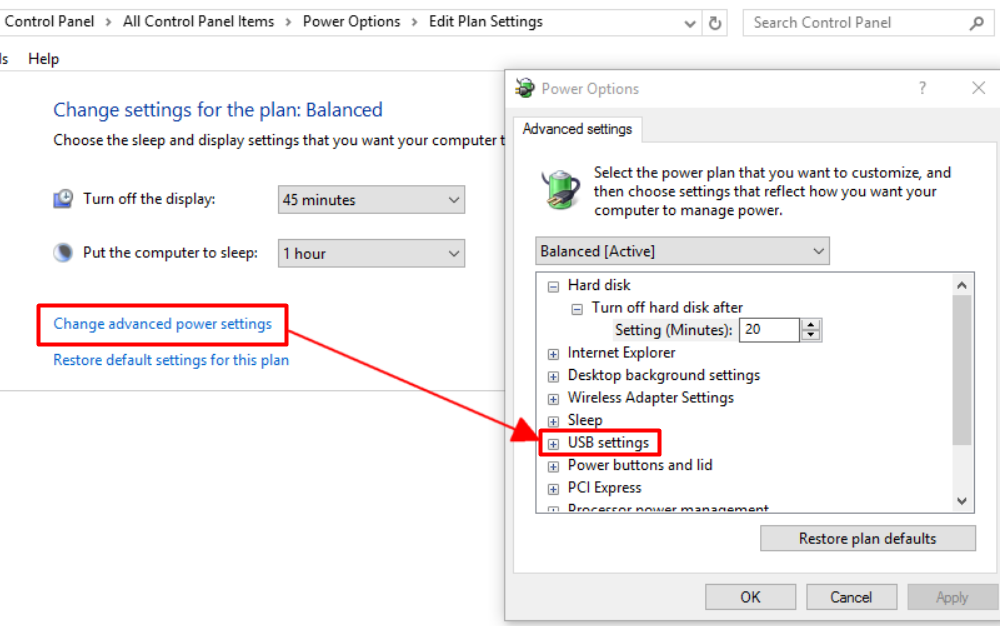
- Open Control Panel
- Click Power Options
- Select Change plan settings
- Click Change advanced power settings
- Expand USB settings
- Disable USB selective suspend
Click Apply and restart.
8. Check Disk Management
Sometimes the USB device is detected but not assigned a drive letter.
Steps:
- Press Windows + X
- Click Disk Management
- Look for your USB drive
- If no drive letter appears:
- Right-click
- Select Change Drive Letter and Paths
- Assign a letter
This often solves the issue instantly.
9. Run Hardware and Devices Troubleshooter
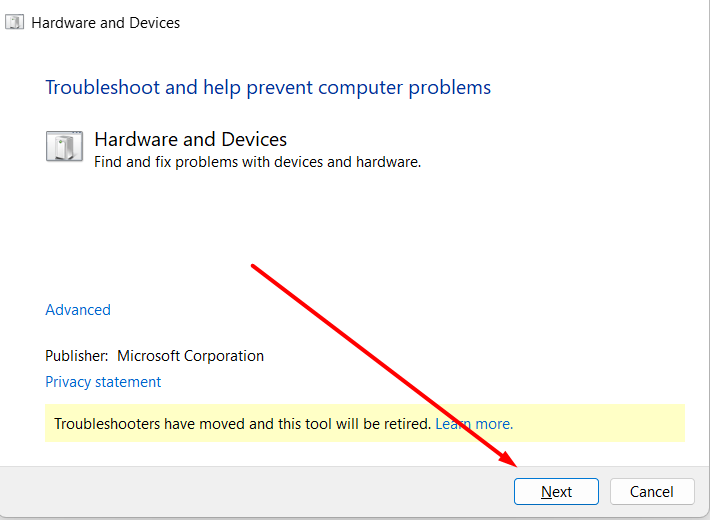
Windows has a built-in troubleshooting tool.
Steps:
- Press Windows + R
- Type: msdt.exe -id DeviceDiagnostic
- Press Enter
- Follow on-screen instructions
Let Windows automatically detect and fix issues.
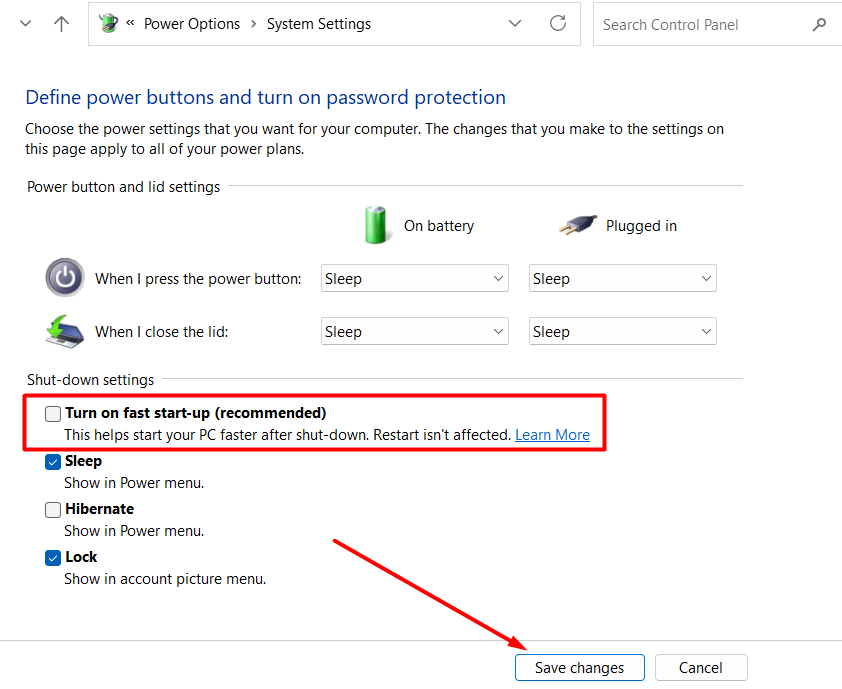
10. Disable Fast Startup
Fast Startup sometimes prevents proper USB detection.
Steps:
- Open Control Panel
- Click Power Options
- Select Choose what the power buttons do
- Click Change settings currently unavailable
- Uncheck Turn on fast startup
- Save changes and restart
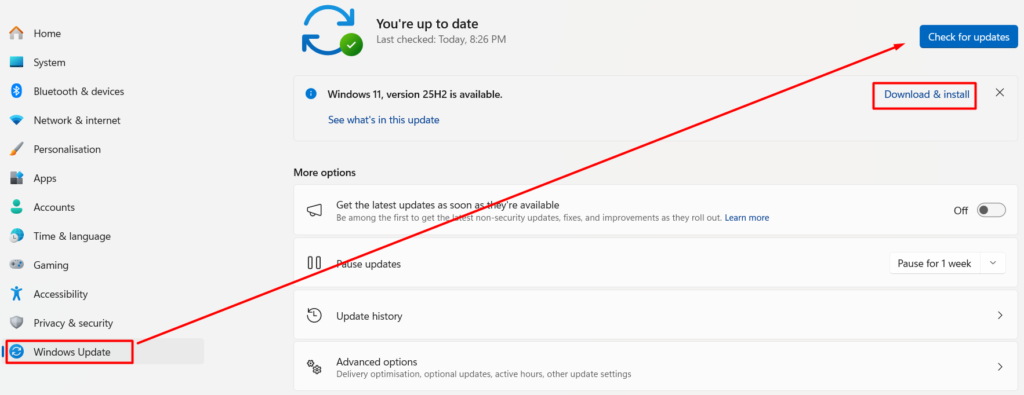
11. Update Windows
Sometimes a Windows bug causes USB errors.
Steps:
- Go to Settings
- Click Windows Update
- Check for updates
- Install any available updates
Restart after updating.
12. Run System File Checker
Corrupted system files can cause USB recognition problems.
Steps:
- Open Command Prompt as Administrator
- Type: sfc /scannow
- Press Enter
- Wait for the scan to complete
Restart your PC after scanning.
13. Check for Physical Damage
If nothing works, inspect:
- Bent USB pins
- Loose cable connection
- Broken USB drive casing
- Burn marks in USB port
Physical damage requires hardware repair.
14. Format the USB Drive (If Detected)
If the USB appears but shows errors:
Steps:
- Open File Explorer
- Right-click USB drive
- Select Format
- Choose file system (NTFS or exFAT)
- Click Start
⚠ This deletes all data.
When Is It a Serious Problem?
You may need professional repair if:
- All USB ports stop working
- Device Manager shows constant driver errors
- USB ports feel loose
- Device doesn’t work on any computer
In rare cases, the motherboard USB controller may be damaged.
How to Prevent USB Recognition Issues
✔ Safely eject USB devices
✔ Keep drivers updated
✔ Avoid cheap USB hubs
✔ Don’t force plug devices
✔ Keep Windows updated
✔ Avoid virus-infected USB drives
Good maintenance prevents most USB problems.
Final Thoughts
The “USB Device Not Recognized” error in Windows is common but usually easy to fix. Most cases are caused by driver conflicts, power settings, or temporary glitches.
Start with simple fixes like restarting and trying another USB port. Move to advanced solutions like updating drivers or running system scans if necessary.
In most cases, you don’t need professional repair. Learn more about the tips to make your PC faster here
Frequently Asked Questions (FAQ)
Usually due to driver corruption, power issues, or faulty USB ports.
Check Disk Management and assign a drive letter.
Yes, sometimes updates introduce driver conflicts.
Yes, outdated drivers are one of the main causes.
It may be a motherboard issue or USB controller failure.
Only if it’s detected but shows file system errors.