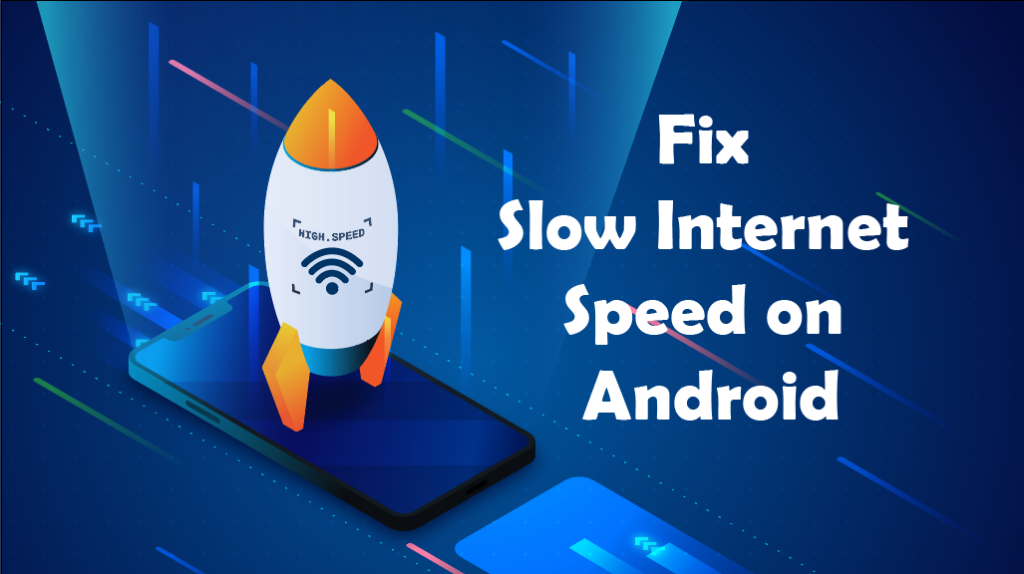
Slow internet speed on your Android phone can be extremely irritating. Videos keep buffering, websites take too long to load, and apps don’t work properly. Even when you have a good data plan or strong Wi-Fi signal, the speed may suddenly become very slow.
If you are facing this problem, don’t worry. In most cases, slow internet on Android is caused by simple issues that can be fixed easily without going to a technician.
In this complete guide, you will learn:
- Why your Android internet is slow
- Common causes behind the problem
- Step-by-step solutions to improve speed
Let’s get started.
Common Signs of Slow Internet on Android
You may have slow internet if:
- YouTube videos keep buffering
- Pages load very slowly
- Apps fail to refresh
- Downloads take too much time
- Online games lag
- Video calls freeze
These are clear signs that your internet connection is not working properly.
Main Causes of Slow Internet Speed on Android
Before fixing the problem, it’s important to understand why it happens.
- Weak Network Signal: Low signal strength reduces internet speed, especially in closed rooms or rural areas.
- Network Congestion: Too many users on the same network can slow down your connection.
- Background Apps Using Data: Some apps use internet silently in the background.
- Outdated Software: Old Android versions may have network bugs.
- Cache and Junk Files: Excess cache can slow system performance and internet.
- VPN Interference: VPNs often reduce speed.
- Wrong Network Settings: Incorrect APN or DNS settings affect performance.
- ISP Throttling: Some providers limit speed after data usage.
Solution 1: Check Your Network Signal Strength
First, check your signal bars.
What to do:
- Move router near windows
- Go to open space
- Avoid basements
- Switch to better location
Better signal = better speed.
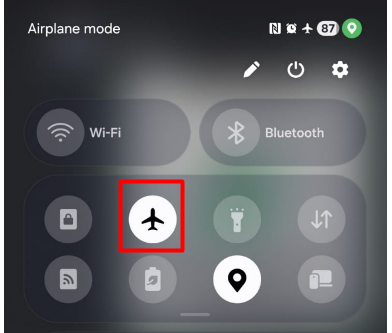
Solution 2: Turn Airplane Mode On and Off
This refreshes your network connection.
Steps:
- Enable Airplane Mode
- Wait 20 seconds
- Disable it
- Turn data/Wi-Fi back on
This often improves speed instantly.
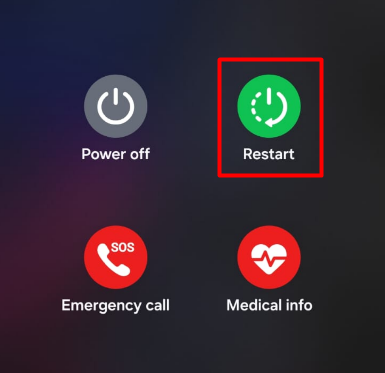
Solution 3: Restart Your Phone
Restarting clears temporary bugs.
Steps:
- Press power button
- Select Restart
- Wait for reboot
Do this at least once a week.
Solution 4: Close Background Apps
Some apps consume data secretly.
Steps:
- Open Recent Apps
- Close unused apps
- Settings → Apps → Data usage
- Restrict unnecessary apps
This frees up bandwidth.
Solution 5: Clear Cache and Junk Files
Cache buildup slows performance.
Steps:
- Settings → Storage
- Clear cached data
- Use trusted cleaner app (additional) if needed
Avoid unknown cleaner apps.
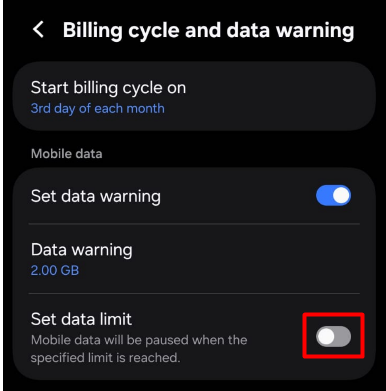
Solution 6: Check Data Usage and Limits
Your speed may be reduced after limit.
Steps:
- Settings → Connection → Data usage
- Billing cycle and data warning
- Disable data limit
Contact ISP if speed is capped.
Solution 7: Disable VPN and Proxy
VPNs route traffic through servers, slowing speed.
Steps:
- Turn off VPN app
- Remove proxy in Wi-Fi settings
- Restart connection
Use VPN only when needed.
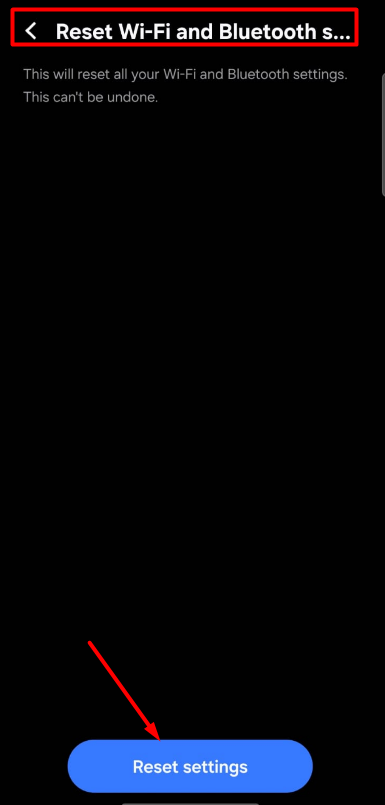
Solution 8: Reset Network Settings
This fixes hidden configuration problems.
Steps:
- Settings → System
- Reset options
- Reset Wi-Fi, mobile & Bluetooth
- Confirm
It does not delete personal data.
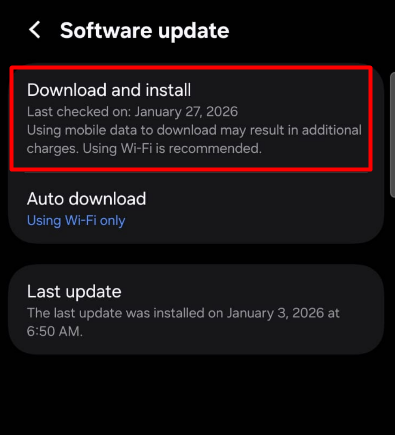
Solution 9: Update Android and Apps
Updates fix bugs and improve connectivity.
Steps:
- Settings → Software Update
- Update system
- Update Play Store apps
Always keep your phone updated.
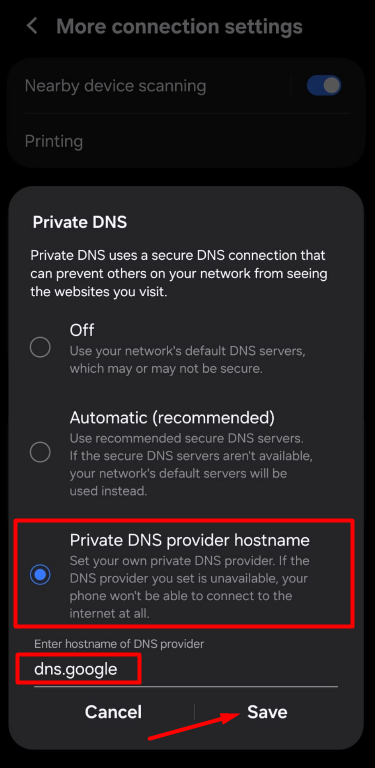
Solution 10: Change DNS for Better Speed
DNS affects browsing speed. For more details visit here
Steps:
- Settings → Private DNS
- Select Private DNS provider
- Enter: dns.google
- Save
This improves website loading.
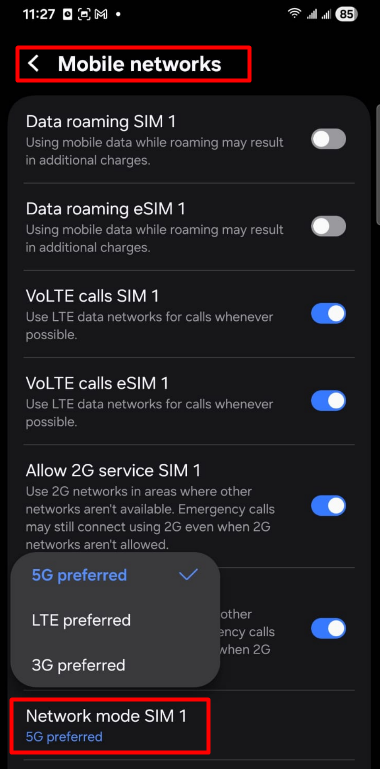
Solution 11: Switch Network Mode (4G/5G/3G)
Sometimes automatic mode causes issues.
Steps:
- Settings → Mobile Network
- Preferred network type
- Select 4G/5G manually
- Restart
Choose the strongest available network.
Solution 12: Check Wi-Fi Router Position
For Wi-Fi users:
✔ Place router in center
✔ Keep away from walls
✔ Avoid metal objects
✔ Keep elevated
Better placement = better speed.
Solution 13: Test Internet Speed
- Check if problem is real.
- Use trusted speed test apps and compare with your plan.
- If speed is far lower, contact ISP.
Solution 14: Factory Reset (Last Option)
Use only if nothing works.
⚠️ Backup data first. Factory reset removes all bugs but deletes data.
When to Contact Your Internet Provider
Contact your ISP if:
- Speed is always slow
- All devices are affected
- Data is throttled
- Network drops frequently
They can fix network-side problems.
How to Prevent Slow Internet in Future
✔ Restart phone weekly
✔ Update regularly
✔ Avoid unnecessary apps
✔ Monitor data usage
✔ Use trusted VPN only
✔ Keep router updated
Final Thoughts
Slow internet on Android is a common problem, but it is rarely serious. In most cases, it happens due to weak signal, background apps, cache buildup, or wrong settings.
By following the steps in this guide, you can easily improve your internet speed and enjoy smooth browsing, streaming, and gaming.
Try the simple fixes first before moving to advanced options.
Frequently Asked Questions (FAQ)
Your phone may have software issues, background apps, or wrong network settings.
Yes. It removes junk files and improves performance
Yes. VPNs usually reduce speed by routing traffic.
Mobile networks depend on signal strength and congestion.
Yes. It only removes saved networks and Bluetooth devices.
Older phones may struggle with newer networks and apps.