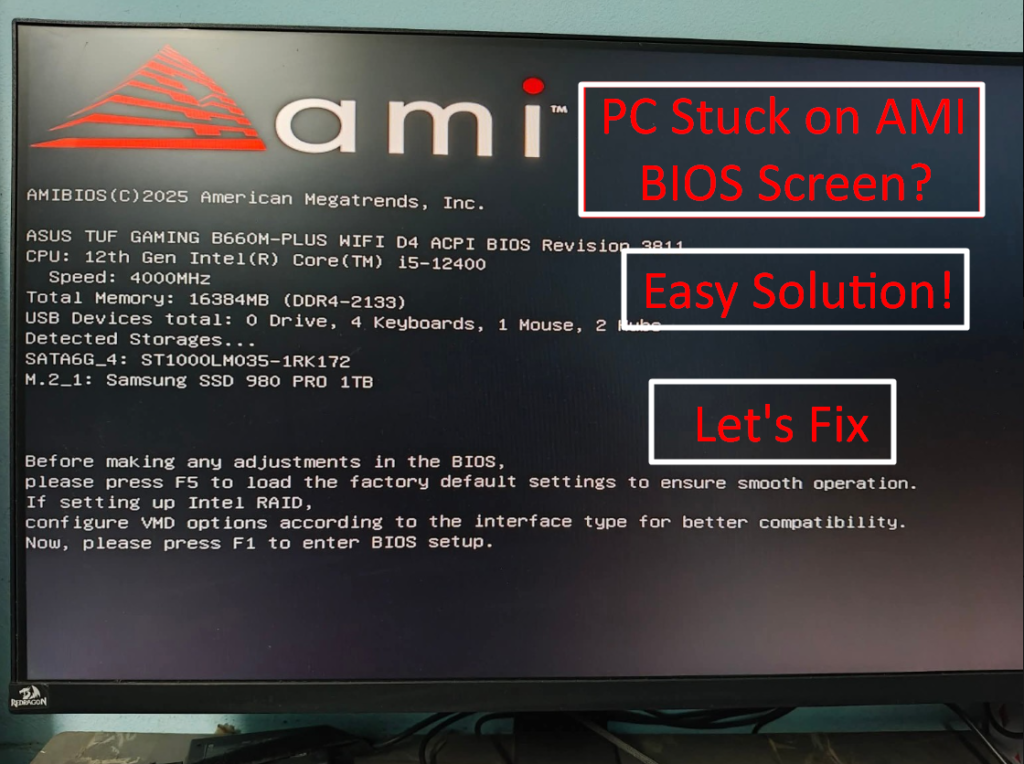
When you turn on your computer expecting Windows to load, but instead, you’re seeing your pc stuck on AMI BIOS screen. The screen says something like “Press F1 to enter BIOS setup.” Your keyboard works, your SSD is detected, but Windows just won’t start.
Don’t panic.
This issue is more common than you think, especially on ASUS and other modern motherboards. In most cases, the fix is simple and does not require replacing hardware.
In this guide, I’ll explain why your PC is stuck on the AMI BIOS screen and show you exactly how to fix it step by step.
What Is the AMI BIOS Screen?
AMI (American Megatrends Inc.) BIOS is the firmware that runs before Windows loads. It checks your hardware like:
- CPU
- RAM
- SSD / HDD
- USB devices
If something isn’t configured properly, BIOS stops the boot process and asks you to press F1 to enter setup.
That’s exactly what’s happening here, your system detects hardware, but something is preventing it from booting into Windows automatically.
Why Is Your PC Stuck on the AMI BIOS Screen?
Here are the most common reasons:
1. Boot Order Is Incorrect
If Windows Boot Manager is not set as the first boot device, your PC won’t load Windows.
This often happens after:
- Power failure
- BIOS update
- CMOS battery reset
2. BIOS Settings Reset
If your CMOS battery is weak or removed, BIOS settings reset to default every time. When that happens, your system may stop at the BIOS screen.
3. VMD / RAID Setting Changed
On many Intel motherboards, there’s an option called VMD (Volume Management Device).
If this setting is enabled or disabled incorrectly compared to how Windows was installed, your PC won’t boot even though the SSD is detected.
4. Corrupted Windows Bootloader
Sometimes Windows files become corrupted due to:
- Improper shutdown
- Power interruption
- Disk errors
In this case, BIOS works fine but Windows cannot start.
Step-by-Step Fix Guide
Now let’s solve the problem. Follow these steps carefully.
Step 1: Enter BIOS Setup
When the screen says: “Press F1 to enter BIOS setup”
Press F1.
You will enter the BIOS menu.
Step 2: Load Optimized Default Settings
This solves the issue in many cases.
- Inside BIOS, press F5
- Select Load Optimized Defaults
- Confirm
- Press F10 to Save & Exit
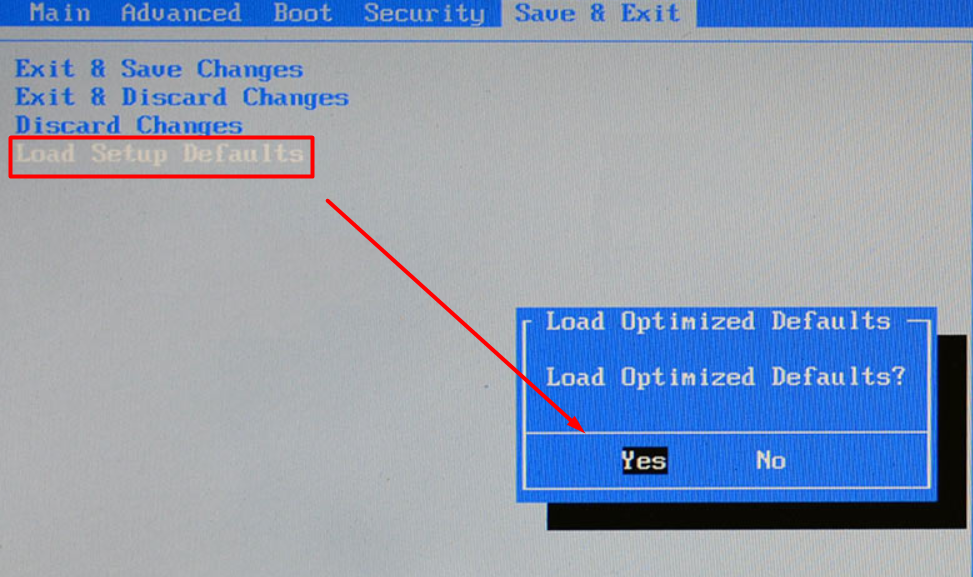
Your PC will restart. If Windows loads normally, the problem is fixed.
If not, continue.
Step 3: Check Boot Priority
This is very important.
- Go to the Boot tab
- Look for Boot Option #1
- Make sure it is set to: Windows Boot Manager (Your SSD Name)
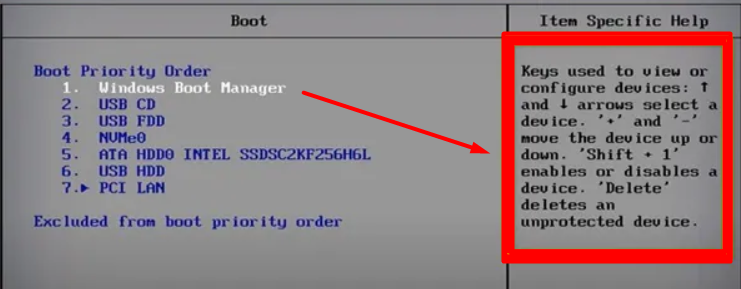
If your SSD is listed but Windows Boot Manager is not selected, change it and then:
- Press F10
- Save and Exit
Restart and check.
Step 4: Check VMD Setting (Important for Intel Systems)
If you are using:
- Intel 10th, 11th, 12th, or newer CPU
- NVMe SSD
Then VMD setting might be the issue.
Go to: Advanced → PCH Storage Configuration → VMD Setup
Try this:
- If VMD is Enabled → Disable it
- If VMD is Disabled → Enable it
Save and restart.
⚠ Important: Only change this if Windows was previously working and suddenly stopped.
Step 5: Check Date and Time
If BIOS date/time resets every restart, your CMOS battery may be dead.
Signs of CMOS battery failure:
- Date resets to old year
- BIOS settings don’t save
- PC always asks to press F1
Solution: Replace the small round battery (CR2032) on your motherboard.
It is cheap and easy to replace.
Step 6: Repair Windows (If Still Not Booting)
If none of the above works, your Windows boot files may be corrupted. You will need a Windows bootable USB drive
Steps:
- Insert USB
- Boot from USB
- Select Repair your computer
- Choose Startup Repair
This usually fixes bootloader issues without deleting your data.
When Should You Worry?
You may need professional help if:
- SSD is not detected in BIOS
- PC keeps restarting automatically
- You hear clicking noise from HDD
- System freezes inside BIOS
But if your SSD is detected and hardware looks normal, the problem is usually software-related.
Will You Lose Data?
In most cases, no.
Loading default BIOS settings does not delete data. Only reinstalling Windows without backup may remove files.
If your drive is detected, your data is still there.
Conclusion
Seeing your PC stuck on the AMI BIOS screen can be scary, especially if you’re not sure what went wrong.
But remember, in most cases, this issue is caused by:
- Boot order problem
- BIOS reset
- VMD configuration
- Minor Windows boot error
Start with loading optimized defaults. Then check boot priority. These two steps fix the problem in 80–90% of cases. Take your time and follow each step carefully. Your system is likely fine, it just needs the correct settings.
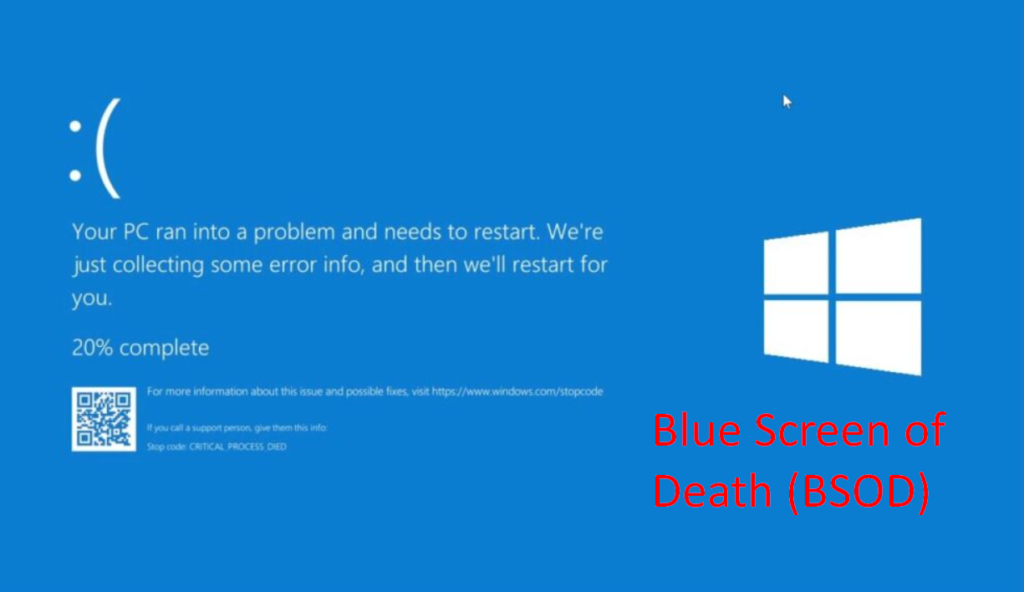
If you face problem related to blue screen error, visit here to solve
Frequently Asked Questions (FAQ)
Usually because BIOS settings were reset or boot priority is incorrect. It can also happen if CMOS battery is weak.
No. If BIOS detects the SSD, the hardware is fine. The issue is likely boot configuration or Windows corruption.
No. Loading default BIOS settings only resets motherboard configuration, not your data.
Common reasons include power failure, BIOS update, hardware change, or sudden shutdown.
Not always. Try Startup Repair first. Reinstallation should be the last option.