Audio problems on a computer can be extremely annoying. You may open a video, start a meeting, or play music and suddenly realize that your Windows PC has no sound at all. This issue is actually very common among both Windows 10 and Windows 11 users. Fortunately, most sound problems are related to incorrect settings, driver issues, or temporary system errors, which means they can usually be solved within a few minutes.
This guide will walk you through practical and easy methods to restore sound on your Windows computer.
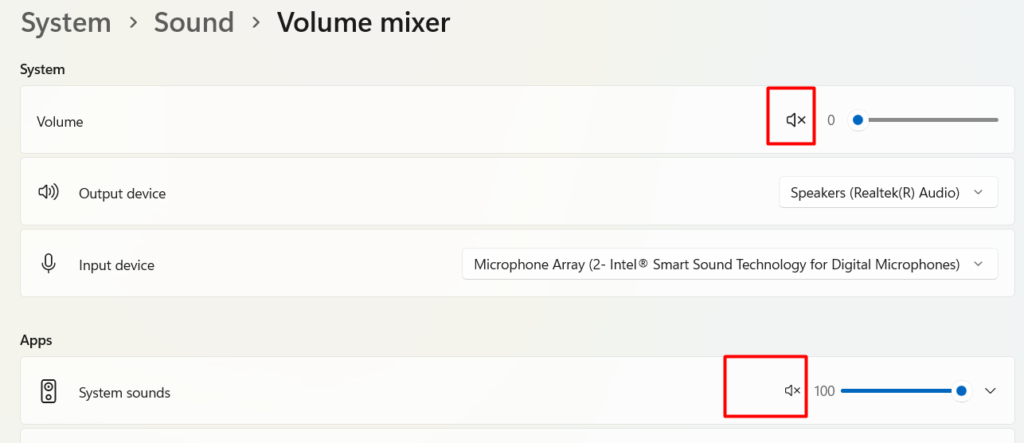
1. Make Sure the System Volume Is Not Muted
The first thing to verify is the system volume. Many users overlook this simple check.
What you should do:
- Look at the speaker icon on the bottom-right corner of the taskbar.
- Click the icon to open the volume slider.
- Ensure the sound is not muted and the level is high enough.
You should also check whether a specific application is muted.
Check application volume
- Right-click the speaker icon.
- Select Volume Mixer.
- Confirm that the program you are using is not muted.
Sometimes only one application loses sound while the rest of the system works normally.
2. Inspect the Audio Device Connection
If you are using external speakers, headphones, or USB audio devices, the problem might be related to a loose or incorrect connection.
Check the following:
- The audio cable is firmly plugged in
- The correct audio jack is used
- USB speakers are properly connected
- Bluetooth devices are paired correctly
If possible, try another headset or speaker to determine whether the problem comes from the device itself.
3. Restart the Computer
A simple system restart can solve many unexpected problems. When Windows runs for a long time, certain services may stop responding properly. Restarting the PC refreshes these services and sometimes brings the sound back immediately.
Steps
- Open the Start menu
- Select Restart
- Wait for the computer to boot again
After restarting, test the sound again.
4. Choose the Correct Playback Device
Modern computers can have several audio outputs, such as:
- Internal speakers
- Headphones
- HDMI monitor audio
- Bluetooth devices
Windows may accidentally switch to another output device.
To fix this:
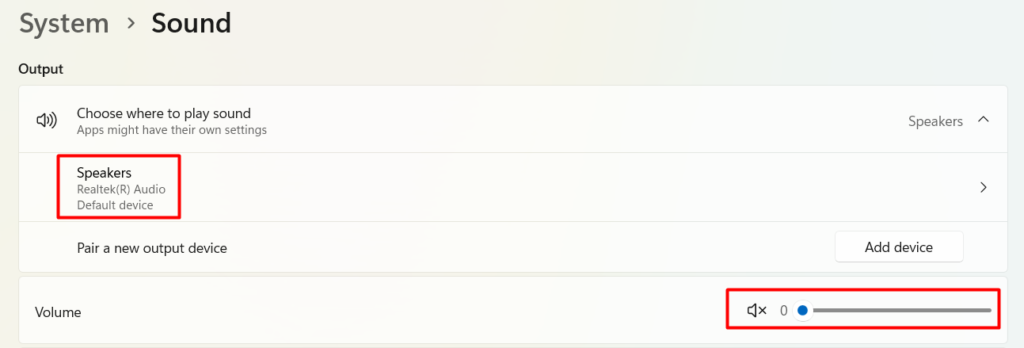
- Right-click the speaker icon
- Open Sound Settings
- Under Output, choose the correct device
For example, if your headphones are connected but the system is using HDMI audio, you will hear no sound.
5. Use Windows Built-in Audio Troubleshooter
Windows includes a troubleshooting tool designed to identify common sound issues automatically.
How to run it:
- Open Settings
- Select System
- Click Troubleshoot
- Choose Other troubleshooters
- Find Playing Audio
- Click Run
The tool will scan your system and apply recommended fixes.
6. Update the Audio Driver
Drivers are responsible for communication between the hardware and the operating system. If the audio driver becomes outdated or corrupted, sound problems may occur.
Update steps:
- Press Windows + X
- Select Device Manager
- Expand Sound, Video and Game Controllers
- Right-click your sound device
- Choose Update Driver
- Select Search automatically
Windows will install the latest available version.
7. Reinstall the Sound Driver
If updating does not resolve the problem, reinstalling the driver can often fix it.
Follow these steps:
- Open Device Manager
- Expand Sound, Video and Game Controllers
- Right-click the audio device
- Select Uninstall device
- Restart your computer
After restarting, Windows will detect the hardware and reinstall the driver automatically.
8. Restart the Windows Audio Service
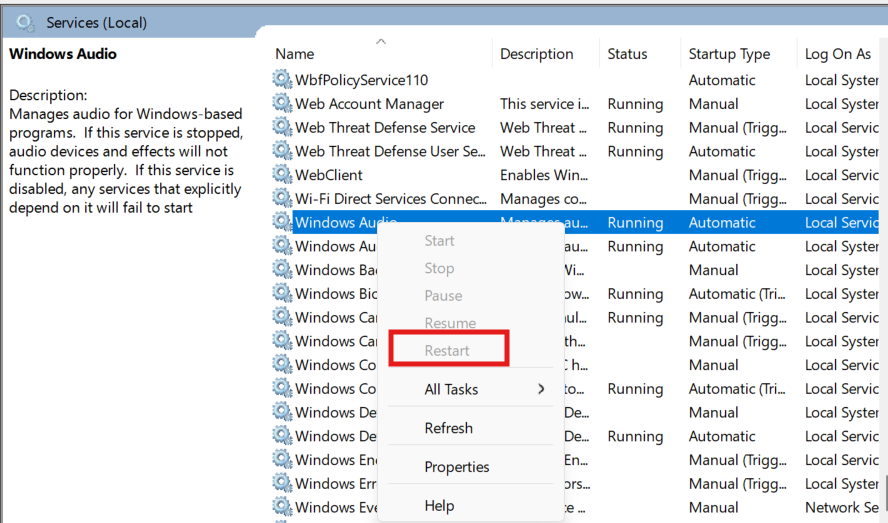
The Windows Audio Service is responsible for managing sound in the operating system. If this service stops or crashes, the system will not produce audio.
Restart procedure:
- Press Windows + R
- Type services.msc
- Press Enter
- Locate Windows Audio
- Right-click the service
- Click Restart
This step frequently solves sound issues instantly.
9. Turn Off Audio Enhancements
Some sound drivers include audio enhancement features. While these are meant to improve sound quality, they may cause compatibility issues.
To disable them:
- Right-click the speaker icon
- Open Sound Settings
- Click Sound Control Panel
- Select your playback device
- Click Properties
- Go to the Enhancements tab
- Enable Disable all enhancements
Save the changes and test your audio.
10. Install the Latest Windows Updates
Operating system updates often include bug fixes and performance improvements. If your system is outdated, audio problems may appear.
Check for updates:
- Open Settings
- Go to Windows Update
- Click Check for Updates
- Install any available updates
After the installation, restart your computer.
Extra Tips for Persistent Sound Issues on Windows PC
If none of the previous solutions work, try the following additional checks:
- Update motherboard chipset drivers
- Check BIOS audio settings
- Disable unused audio devices
- Reset Windows sound configuration
- Test the system with another speaker or headphone
In rare cases, the problem could be related to hardware damage, such as a faulty sound card.
Conclusion
Losing sound on a Windows computer can interrupt work, entertainment, and online communication. However, most of these problems are caused by simple configuration errors or driver issues.
By checking volume settings, verifying device connections, updating drivers, and restarting audio services, you can usually fix the issue within minutes. Following the steps in this guide should help you restore audio on your Windows PC without complicated troubleshooting. If you face windows running slow then visit here to solve
Frequently Asked Questions (FAQ)
This usually happens due to muted volume settings, incorrect playback device selection, outdated drivers, or audio service errors.
First check the volume, restart the computer, and confirm the correct output device is selected. These three steps solve many audio issues.
Yes. Updating or reinstalling the sound driver often resolves compatibility issues and restores audio functionality.
Your system may still be using another output device. Go to Sound Settings and set the headphone as the default playback device.
If the problem persists, test with another audio device or check the computer hardware. You may also consider contacting professional technical support.