Is your Android phone becoming slow, laggy, or unresponsive? Apps take longer to open, scrolling feels choppy, and sometimes the phone freezes for a few seconds. This problem is very common, especially on older devices. Here we will learn how to speed up a slow Android Phone.
The good news is you don’t need any third-party apps to fix it. Many “cleaner” or “booster” apps actually slow your phone down even more. Android already has built-in tools that can help you improve performance safely.
In this guide, you’ll learn:
- Why Android phones slow down
- How to speed up your device without installing apps
- Simple settings you can change right now
- Tips to keep your phone fast long-term
Let’s make your phone smooth again.
Why Do Android Phones Become Slow?
Before fixing the issue, it’s important to understand the cause.
Common reasons include:
- Too many background apps
- Low storage space
- Too many animations
- Outdated software
- System cache buildup
- Too many widgets
- Old hardware limitations
Over time, even powerful phones can slow down if not maintained properly.
1. Restart Your Phone Regularly
Many people never restart their phone. Restarting clears temporary files and refreshes system memory.
What to do:
- Press and hold the Power button
- Tap Restart
- Wait for reboot
Try restarting at least once a week.
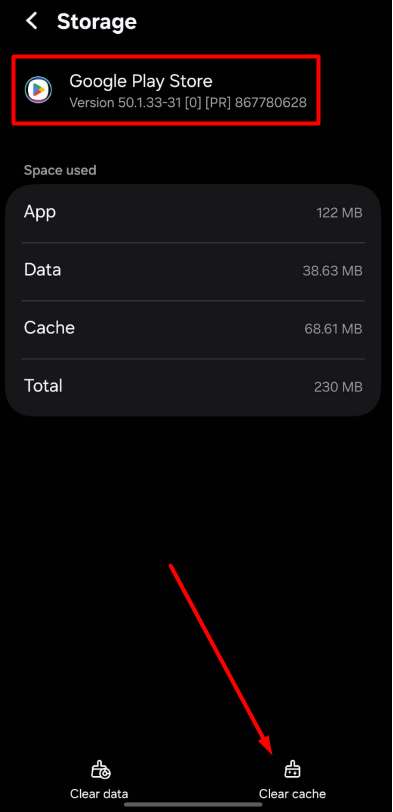
2. Clear App Cache (Not Data)
Apps store temporary files called cache. Too much cache can slow performance.
Steps:
- Open Settings
- Tap Apps
- Select an app (like Chrome or Facebook)
- Tap Storage
- Tap Clear Cache
Do this for heavy apps. ⚠ Do NOT tap “Clear Data” unless necessary.
3. Free Up Storage Space
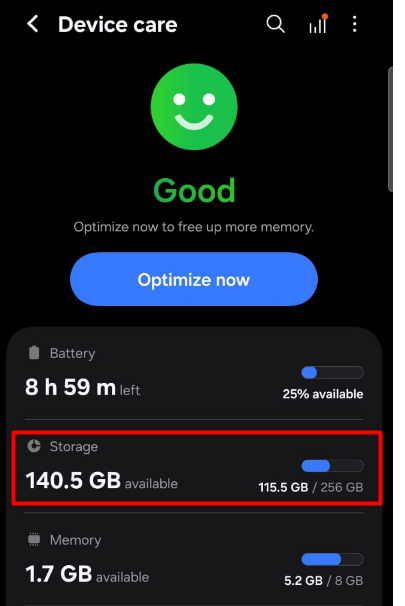
Low storage directly affects speed. Android needs free space to run smoothly.
Steps:
- Go to Settings
- Tap Device Care
- Tap Storage
- Check available space
If storage is almost full:
- Delete unused apps
- Remove old videos
- Clear large downloads
- Empty trash folders
Try to keep at least 20% storage free.
4. Disable or Remove Unused Apps
Many apps run in the background even if you don’t open them.
Steps:
- Go to Settings
- Tap Apps
- Select unused app
- Tap Disable or Uninstall
This reduces memory usage.
5. Reduce or Turn Off Animations
Animations look nice but slow older devices. You can reduce them through Developer Options.
Steps:
- Go to Settings
- Tap About Phone
- Tap Build Number 7 times
- Go back to Settings
- Open Developer Options
- Find:
- Window animation scale
- Transition animation scale
- Animator duration scale
- Set all to 0.5x or Off
This makes your phone feel much faster instantly.
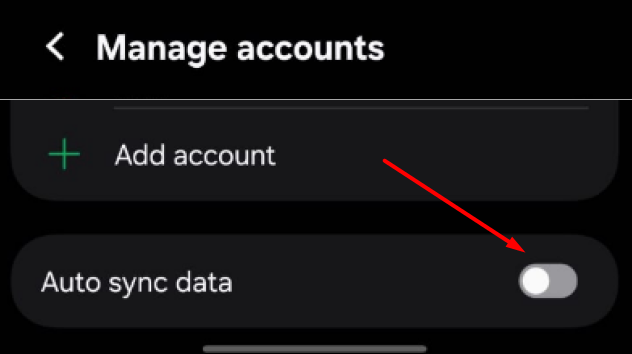
6. Turn Off Auto-Sync
Auto-sync updates apps in the background.
Steps:
- Go to Settings
- Tap Accounts
- Disable Auto-sync
You can manually refresh apps when needed.
7. Limit Background Processes
Reducing background processes improves performance.
Steps:
- Open Developer Options
- Find Background usage limits
- Set to “At most 2 processes”
This helps low-RAM devices.
8. Remove Live Wallpapers and Widgets
Live wallpapers and multiple widgets use RAM constantly.
What to do:
- Switch to static wallpaper
- Remove unnecessary widgets
- Keep home screen clean
Simple layout = faster phone.
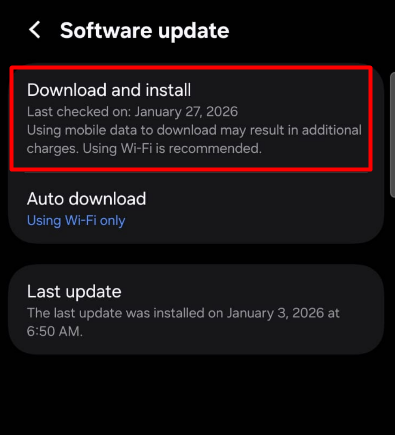
9. Update Android System
Sometimes slow performance is due to software bugs.
Steps:
- Go to Settings
- Tap Software Update
- Install updates if available
Updates improve stability and performance.
10. Turn Off Bluetooth, GPS, and NFC When Not Needed
Background wireless features use system resources.
Turn off:
- Bluetooth
- Location (GPS)
- NFC
Enable them only when required.
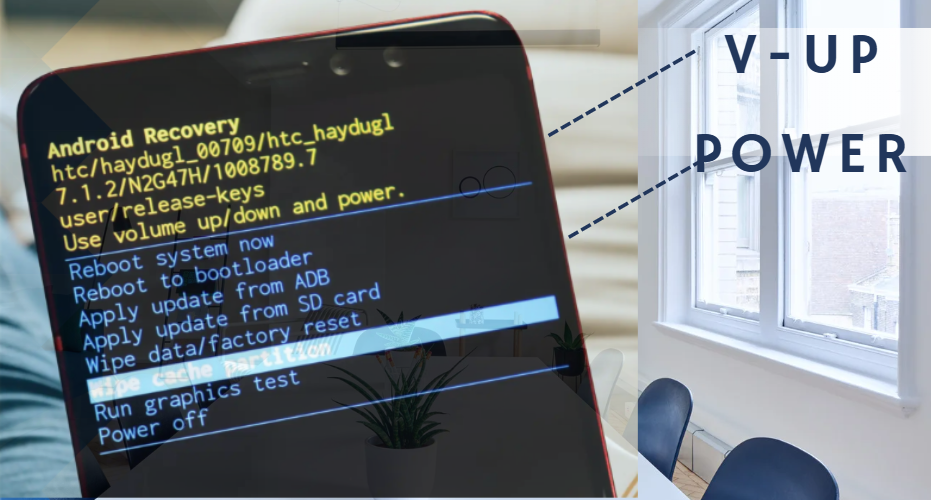
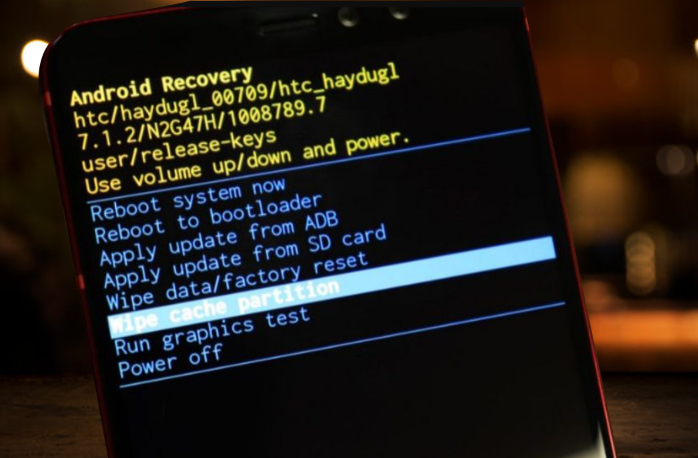
11. Clear System Cache (Recovery Mode)
This clears temporary system files.
Steps:
- Turn off phone
- Press Power + Volume Up (varies by brand)
- Enter Recovery Mode
- Select “Wipe Cache Partition”
- Restart device
This does NOT delete personal data.
12. Disable Auto-Start Apps
Some apps start automatically after reboot.
Steps:
- Go to Settings
- Tap Apps
- Check Auto-start permissions
- Disable unnecessary apps
This speeds up boot time and performance.
13. Use Lite Versions of Apps
Some apps have lighter versions:
- Facebook Lite
- Messenger Lite
- YouTube Lite
Lite apps use less RAM and storage.
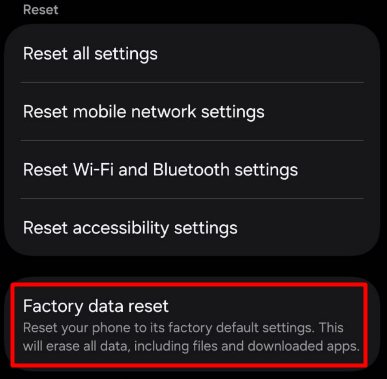
14. Factory Reset (Last Option)
If your phone is extremely slow and nothing works, factory reset may help.
⚠ Backup data first.
Steps:
- Go to Settings
- Tap System
- Select Reset
- Tap Factory Data Reset
This removes all junk and restores performance.
What NOT to Do
Avoid:
❌ Installing random cleaner apps
❌ Using task killer apps
❌ Installing RAM booster apps
❌ Downloading unknown optimization tools
Most of these slow your phone further.
How to Keep Your Android Phone Fast Long-Term
✔ Restart weekly
✔ Keep storage free
✔ Uninstall unused apps
✔ Avoid heavy games on low-end devices
✔ Keep software updated
✔ Use simple home screen layout
Small habits make a big difference.
Final Thoughts
A slow Android phone can be frustrating, but you don’t need third-party apps to fix it. Android already provides powerful built-in tools to improve speed and performance.
By clearing cache, reducing animations, freeing storage, and limiting background processes, you can make your phone feel almost like new again.
Start with simple steps and move to advanced fixes only if needed.
Frequently Asked Questions (FAQ)
Yes. It removes temporary files that may slow performance.
Most booster apps do not help and may slow your device further.
At least 20% of total storage should remain free.
Yes. It only changes visual effects and improves speed.
Yes. It removes all junk and restores system performance.
The device hardware may be outdated or overloaded with heavy apps.