If your Android phone has become slow, laggy, or buggy, it is important to clear cache partition which can often fix the problem without deleting your personal data. Many Android users don’t even know this option exists, but it’s one of the safest and most effective troubleshooting steps. You may follow the step by step guide to learn about the cleaning process of cache partition if you face any issues like the phone is not properly working, delaying to response etc.
I’ve personally used this method after software updates once my phone started freezing and apps began crashing, this method is worked perfectly.
In this guide, you’ll learn:
- What cache partition is
- When you should clear it
- And how to clear cache partition on any Android phone. Let’s get started step-by-step process.
What Is Cache Partition on Android?
The cache partition stores temporary system files that Android uses to run apps and processes faster. These files help your phone to load things quickly, but over time, they can become:
- Corrupted
- Outdated
- Too large
When that happens, your phone may start showing problems like:
- Lagging or freezing
- Apps crashing
- Battery draining faster
- Phone heating issues
- Random system glitches
Clearing the cache partition only removes temporary system files, not your photos, videos, apps, personal data, or any other information.
Is Clearing Cache Partition Safe?
Yes, 100% safe. Clearing cache partition:
❌ Does NOT delete apps
❌ Does NOT remove photos or files
❌ Does NOT reset your phone
It simply clean system junk files so Android phone can rebuild fresh cache automatically.
When Should You Clear Cache Partition?
You should clear cache partition if:
- Phone is slow after an Android update
- Apps keep crashing
- Phone freezes randomly
- Battery drains unusually fast
- Touch response feels delayed
- Internet or system features behave abnormally
It’s also a good maintenance step to do it every few months.
Important Note Before You Start
⚠️ Button combinations differ by brand and model.
⚠️ Some newer phones do not show “Wipe cache partition” unless connected to a PC. I’ll explain both methods below.
Method 1: Clear Cache Partition Using Recovery Mode (Most Android Phones)
This method actually works for Samsung, Xiaomi, Realme, Oppo, Vivo, Motorola, and others.
Step-by-Step Instructions:
- Power off your Android phone completely
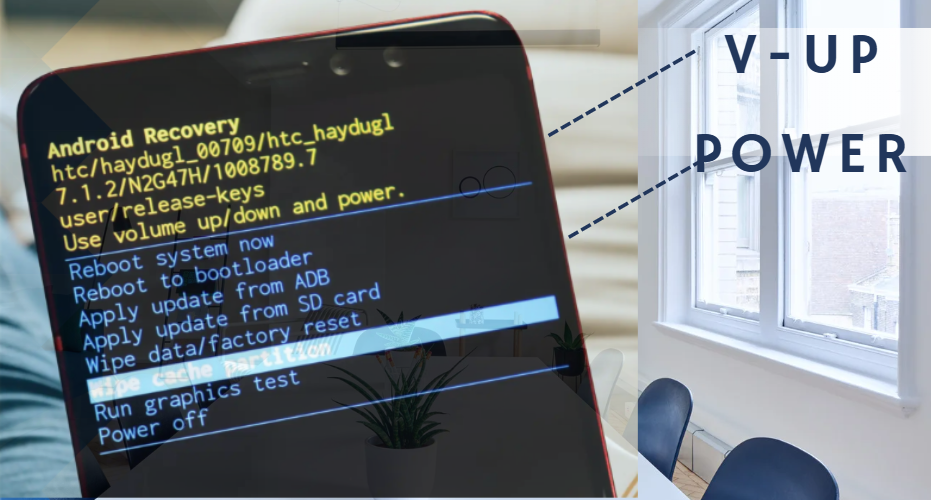
- Press and hold Power + Volume Up (Some models use Power + Volume Down)
- Release buttons when the Android logo appears
- You will enter Recovery Mode
- Use Volume buttons to navigate
- Highlight Wipe cache partition
- Press Power button to confirm
- Select Yes
- Once done, choose Reboot system now
⏳ The process takes only a few seconds.
Method 2: Clear Cache Partition on Samsung (Newer Models)
For newer Samsung phones (Android 12+):
Steps:
- Turn off phone
- Connect phone to PC, laptop, or USB headphones
- Press and hold: (Power + Volume Up)
- Release when Recovery Mode appears
- Select Wipe cache partition
- Confirm and reboot
Samsung hides recovery mode without a cable, so don’t skip this step.
Method 3: If “Wipe Cache Partition” Option Is Missing
Some Android versions remove this option. In that case, what you can do instead:
- Clear app cache individually
- Reset network settings
- Restart phone regularly
Still, many brands continue to support cache partition cleaning.
Difference Between App Cache and Cache Partition
| Feature | App Cache | Cache Partition |
|---|---|---|
| Affects | Individual apps | Entire system |
| Deletes data | No | No |
| Helps system bugs | Limited | Yes |
| Requires recovery mode | No | Yes |
👉 Cache partition is more powerful for system-wide issues.
What to Do After Clearing Cache Partition?
After reboot –
- Phone may feel slightly slow for a few minutes
- Android rebuilds fresh cache automatically
- Performance usually improves within minutes
This is completely normal.
Common Problems Fixed by Clearing Cache Partition
- Android phone lagging
- Random reboots
- Google Play Services errors
- Battery drain issues
- Wi-Fi or mobile data glitches
- App freezing issues
Many users see improvement immediately.
Does Clearing Cache Partition Fix All Problems?
No, but it fixes many common software-related issues. If problems continue after clearing cache partition, you may need:
- Network reset
- App update
- Software update
- Factory reset (last option)
Always try cache partition before factory reset.
Conclusion
As a Android phone user it is very important to learn how to clear cache partition on any Android phone, which gives you a powerful troubleshooting experience without risk of losing your data.
It’s very safe, fast, and effective especially after Android phone getting updates or when your phone starts behaving strangely.
If your phone feels slow or buggy, this should be one of the best & first fixes step you may try.
Frequently Asked Questions (FAQ)
No, it won’t remove personal files or apps.
Every 2–3 months or after major updates.
Most phones support it, but steps vary slightly.