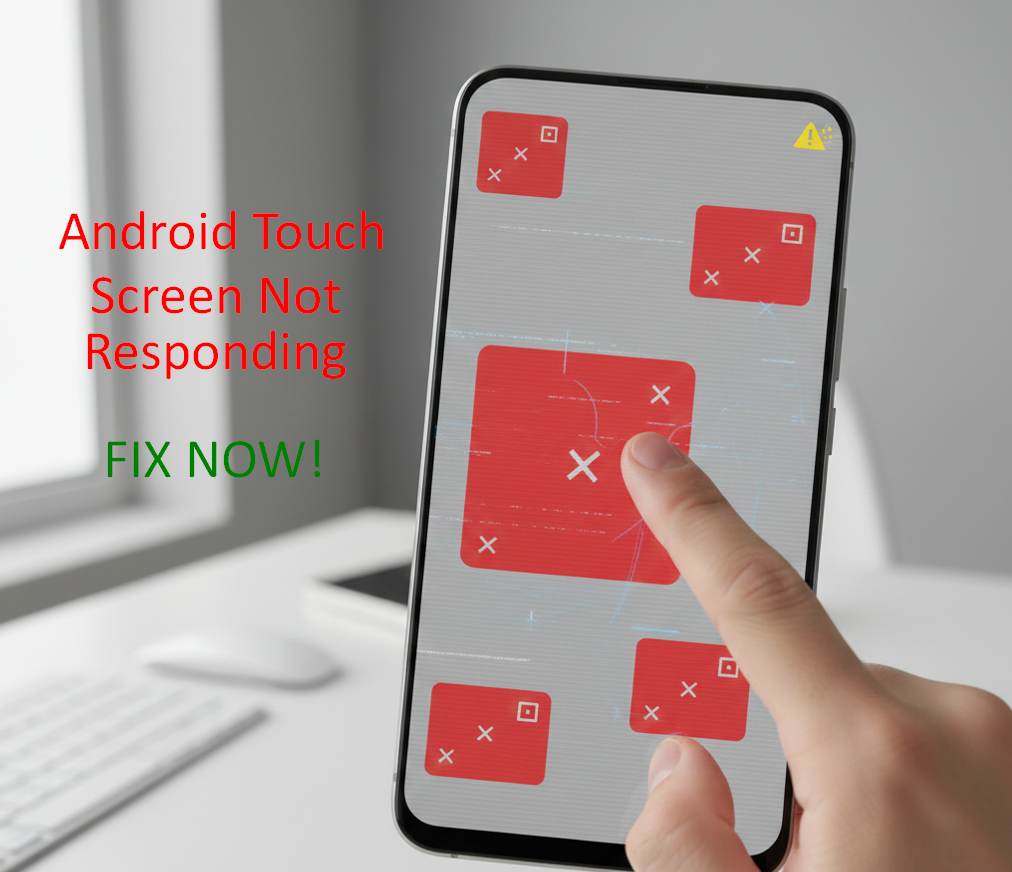
Is your Android touch screen not responding properly? Maybe the screen freezes, taps don’t register, or it reacts randomly without you touching it. This issue can be extremely frustrating, especially when you need your phone urgently.
The good news is that in most cases, touch screen problems are caused by software glitches, dirt, screen protectors, or minor system issues, not serious hardware damage.
In this complete guide, you will learn:
- Why your Android touch screen is not working properly
- Common causes of the issue
- Easy step-by-step solutions
- When the problem might be hardware-related
Let’s fix your phone.
Why Is My Android Touch Screen Not Responding?
There are several reasons why your Android screen may stop responding or behave strangely.
Common causes include:
- Temporary software glitch
- Low RAM or overloaded system
- Screen protector issues
- Dirt, oil, or moisture on screen
- Faulty charger causing ghost touch
- Outdated Android version
- Corrupted apps
- Physical screen damage
Before assuming hardware damage, try the simple solutions below.
1. Restart Your Android Phone
This is the simplest and most effective fix. Restarting clears temporary system bugs that may affect touch responsiveness.
Steps:
- Press and hold the Power button
- Tap Restart
- Wait for the device to reboot
Test the screen after restarting.
2. Clean the Screen Properly
Dust, oil, and moisture can interfere with touch sensors.
What to do:
- Turn off the phone
- Use a microfiber cloth
- Gently wipe the screen
- Remove any water droplets
Avoid using harsh chemicals.
3. Remove Screen Protector or Case
Cheap or damaged screen protectors often cause touch issues.
Try this:
- Remove the screen protector
- Remove the phone case
- Test the screen again
If the issue disappears, replace with a better-quality protector.
4. Check for Overheating
Overheating can cause temporary touch problems.
If your phone feels hot:
- Remove the case
- Stop heavy apps or games
- Let the phone cool down
Avoid direct sunlight and gaming while charging.
5. Disconnect Faulty Charger
Sometimes cheap or damaged chargers cause “ghost touch” — where the screen responds automatically.
What to do:
- Unplug charger
- Test screen while not charging
If problem stops, replace the charger.
6. Close Background Apps
Too many apps running in the background can overload RAM.
Steps:
- Tap Recent Apps
- Close all unnecessary apps
This improves performance and responsiveness.
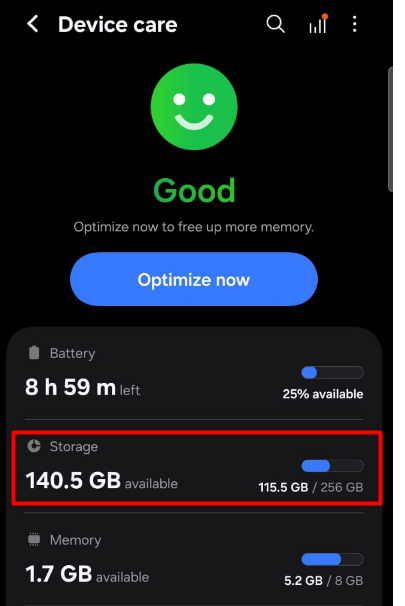
7. Free Up Storage Space
Low storage affects system performance.
Steps:
- Go to Settings
- Tap Device Care > Storage
- Delete unnecessary files
- Remove unused apps
Keep at least 20% storage free.
8. Update Android Software
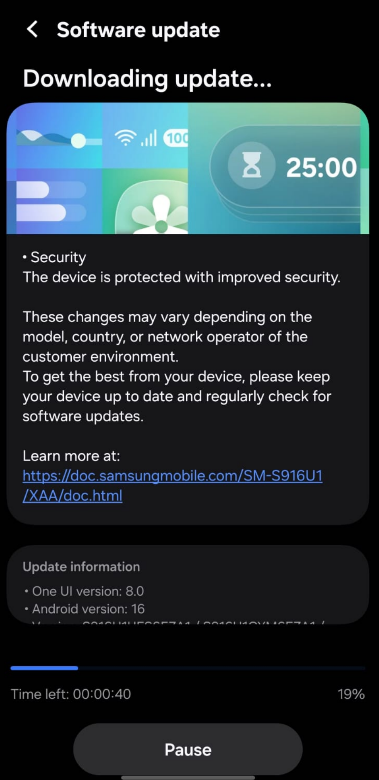
Software bugs can affect screen behavior.
Steps:
- Open Settings
- Tap Software Update
- Check for updates
- Install if available
Restart after updating.
9. Enable Safe Mode
Safe Mode helps identify if a third-party app is causing the problem.
Steps:
- Press and hold Power button
- Tap and hold Power Off
- Select Safe Mode
- Restart
If touch works normally in Safe Mode, uninstall recently installed apps.
10. Calibrate Touch Screen (If Available)
Some phones allow touch calibration. Check under:
- Settings → Display
- Or search “Calibration” in settings
Not all devices support this feature.
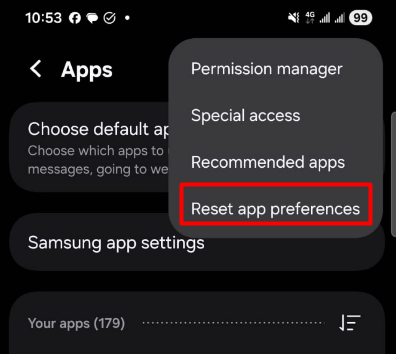
11. Reset App Preferences
Sometimes system apps cause conflicts.
Steps:
- Go to Settings
- Tap Apps
- Tap three-dot menu
- Select Reset App Preferences
This won’t delete personal data.
12. Wipe Cache Partition
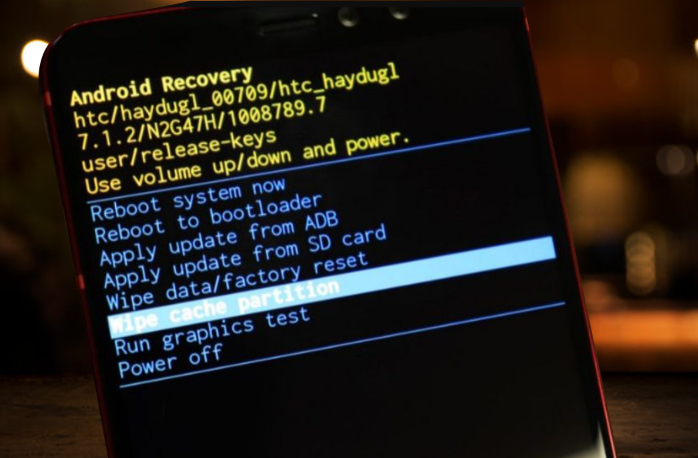
Clearing system cache can solve deeper glitches.
Steps:
- Turn off phone
- Press Power + Volume Up (varies by brand)
- Enter Recovery Mode
- Select Wipe Cache Partition
- Restart
This does NOT delete personal files. Learn more about clear cache partition here.
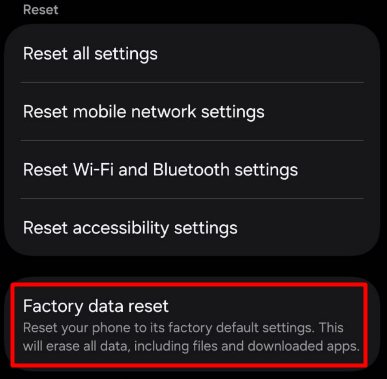
13. Factory Reset (Last Option)
If nothing works, factory reset may fix software corruption.
⚠ Backup all data first.
Steps:
- Go to Settings
- Tap System
- Select Reset
- Tap Factory Data Reset
Only use this if other solutions fail.
Signs of Hardware Damage
If your screen:
- Has visible cracks
- Shows black spots
- Responds only in certain areas
- Doesn’t respond at all
The issue may be hardware-related.
In this case, visit an authorized service center.
How to Prevent Touch Screen Problems
✔ Use good-quality screen protector
✔ Avoid cheap chargers
✔ Keep screen clean
✔ Don’t overload storage
✔ Update Android regularly
✔ Avoid overheating
Small habits help maintain smooth performance.
Final Thoughts
If your Android touch screen is not responding properly, don’t panic. In most cases, the problem is software-related and can be fixed easily with a restart, cleaning, or system update.
Only consider hardware repair if none of the software solutions work. Start with simple fixes and move to advanced steps if needed.
Frequently Asked Questions (FAQ)
This is usually caused by low RAM, background apps, or software bugs
Yes. Low-quality or damaged protectors often reduce touch sensitivity.
Ghost touch happens when the screen responds without being touched, often due to charger issues or hardware damage.
Yes, if the issue is software-related.
A faulty charger or voltage fluctuation may cause this issue.
If certain areas don’t respond or you see cracks or black spots, it may be hardware damage.