Is your phone having problem with Android Storage Full even though you can’t see many files? You check your photos, videos, and downloads — but nothing seems large enough to fill your storage. Yet your phone keeps warning you about low space.
This is a very common Android issue. The storage is not actually empty, it’s being used by hidden system files, app cache, WhatsApp media, updates, and temporary data.
The good news? You can free up a lot of space without deleting important files.
In this guide, you’ll learn:
- Why Android says storage is full
- What’s secretly using your space
- Step-by-step ways to free storage
- How to prevent this issue in the future
Let’s fix it.
Why Does Android Say Storage Is Full?
Even if you don’t see large files, storage may be used by:
- App cache files
- System update files
- Hidden app data
- WhatsApp images & videos
- Duplicate media files
- Trash or recently deleted files
- Offline downloads (YouTube, Spotify, Netflix)
- “Other” system storage
Android storage is divided into categories, and many of them aren’t visible in your normal file manager.
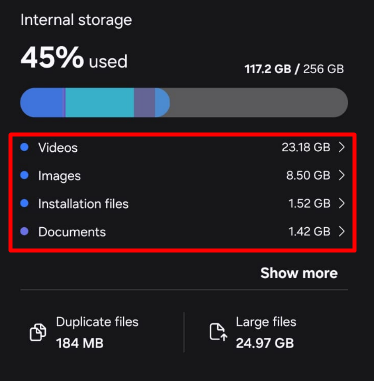
Step 1: Check What’s Using Storage
Before deleting anything, check storage breakdown.
Steps:
- Go to Settings
- Tap Storage
- Wait for analysis
You’ll see categories like: Apps, Images, Videos, Audio, System, Other
If “Other” or “Apps” is very large, that’s usually the issue.
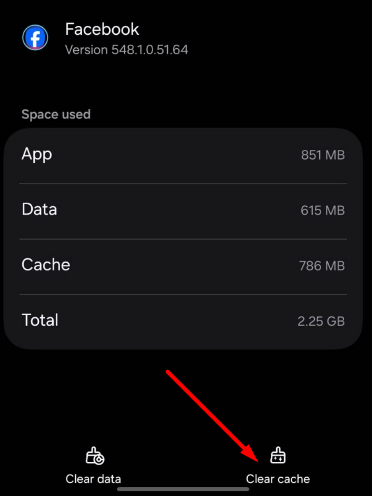
Step 2: Clear App Cache (Safe & Effective)
App cache builds up over time and can consume several GBs.
Clear cache for individual apps:
- Go to Settings
- Tap Apps
- Select app (like Chrome, Facebook, Instagram)
- Tap Storage
- Tap Clear Cache
⚠ Do NOT tap Clear Data unless necessary. Clearing cache is safe and does not delete personal files. Learn more about cache
Step 3: Clear All App Cache at Once (If Available)
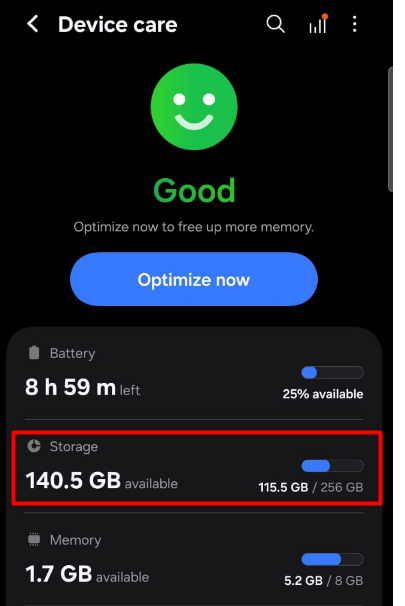
Some Android phones allow clearing all cache together:
- Go to Storage
- Tap Cached Data
- Confirm
If your phone doesn’t show this option, clear large apps manually.
Step 4: Check WhatsApp Storage
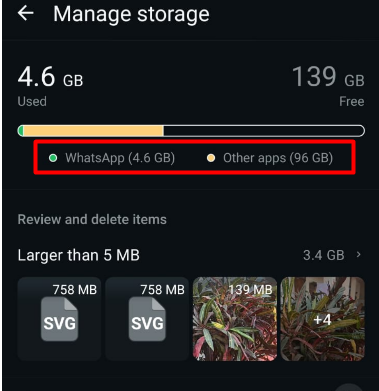
WhatsApp is often the hidden storage culprit.
Steps:
- Open WhatsApp
- Tap Settings
- Tap Storage and Data
- Tap Manage Storage
You’ll see:
- Large files
- Forwarded media
- Chats using most storage
Delete unnecessary videos and duplicate media.
Step 5: Empty Trash / Recently Deleted Folder
Deleted files often stay in trash for 30 days.
Check:
- Gallery Trash
- Google Photos Trash
- File Manager Recycle Bin
Delete permanently to free space.
Step 6: Delete Offline Downloads
Streaming apps download content for offline viewing.
Check:
- YouTube offline videos
- Spotify downloads
- Netflix downloads
- Amazon Prime downloads
Delete unused downloads.
Step 7: Remove Unused Apps
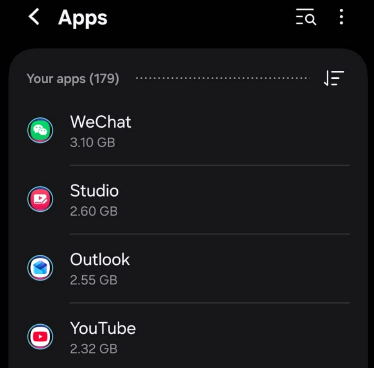
Apps themselves take space, and they store hidden data.
Steps:
- Go to Settings
- Tap Apps
- Sort by size
- Uninstall unused large apps
Focus on games, they often use 1–3GB each.
Step 8: Move Files to Cloud Storage
If you want to keep files but free space:
- Upload photos to Google Photos
- Move files to Google Drive
- Transfer files to computer
After backing up, delete them from your phone.
Step 9: Delete Duplicate Files
Duplicate photos and videos consume hidden storage.
Use:
- Built-in duplicate finder (if available)
- File manager apps with duplicate scan
Manually review before deleting.
Step 10: Clear Download Folder
Your Downloads folder may contain forgotten files.
Steps:
- Open File Manager
- Open Downloads
- Delete unnecessary files
PDFs, APK files, and old images often accumulate here.
Step 11: Clear System Cache (Advanced)
System cache can grow large after updates.
Steps:
- Turn off phone
- Press Power + Volume Up (varies by brand)
- Enter Recovery Mode
- Select Wipe Cache Partition
- Restart
This does NOT delete personal data.
Step 12: Check “Other” Storage
“Other” storage includes system logs, temporary files, and hidden app data.
To reduce it:
- Clear app cache
- Delete old backups
- Remove unused apps
- Restart phone
Sometimes “Other” shrinks automatically after cleanup.
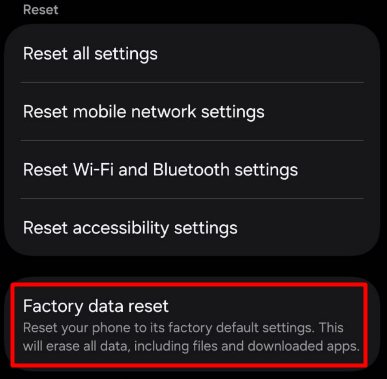
Step 13: Factory Reset (Last Option)
If storage still shows full even after cleanup:
⚠ Backup all important data first.
Steps:
- Go to Settings
- Tap System
- Select Reset
- Tap Factory Data Reset
Use this only if storage remains incorrectly full.
Why Storage Still Shows Full After Deleting Files?
This may happen because:
- Trash not emptied
- Cloud apps still syncing
- System cache not cleared
- Storage calculation not refreshed
Try restarting your phone to refresh storage calculation.
How to Prevent Storage Full Issue
✔ Clear cache monthly
✔ Delete unused apps
✔ Back up photos regularly
✔ Avoid downloading unnecessary files
✔ Monitor WhatsApp media
✔ Keep at least 20% storage free
Preventive maintenance keeps your phone running smoothly.
Final Thoughts
If your Android phone says “Storage Full” but no files are visible, don’t panic. The space is usually consumed by hidden cache files, app data, and system storage.
Start with clearing app cache and WhatsApp storage. Then remove unused apps and empty trash folders. In most cases, you can free several gigabytes within minutes.
Only consider factory reset if the issue persists after trying all solutions.
Frequently Asked Questions (FAQ)
Hidden cache files, app data, and system storage are using space.
Yes, clearing cache is safe and does not delete personal data.
It includes system files, temporary data, and hidden app storage.
Yes, but remember to empty the trash folder.
Because it automatically saves images, videos, and forwarded files.
Only if all other solutions fail.