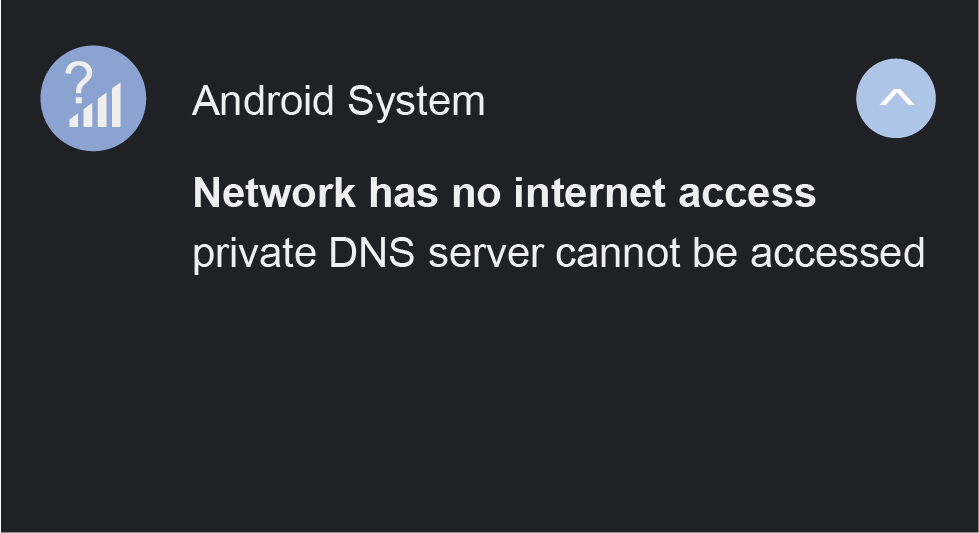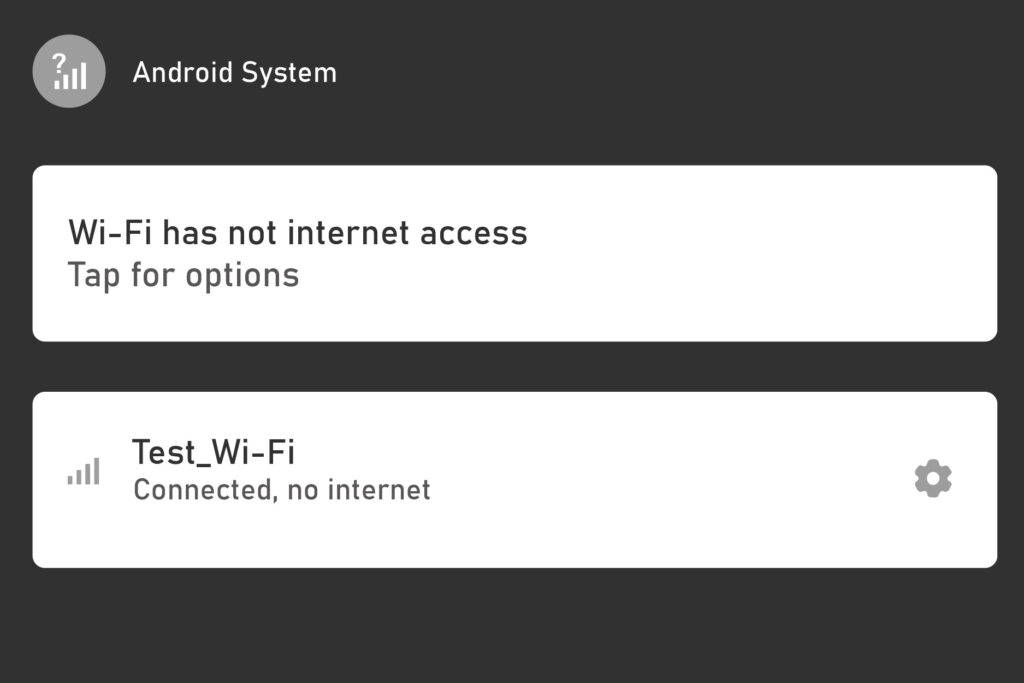
Have you ever faced a situation where your Android Phone Connected to Wi-Fi but No Internet? The Wi-Fi icon looks normal, but websites won’t load, apps can’t refresh, and YouTube keeps buffering.
I’ve personally faced this type of issue multiple times — especially after changing routers or connecting to public Wi-Fi. The good news is, this is a very common Android problem, and in most cases, it can be fixed simply within a few minutes.
In this complete guide, I’ll explain:
- Why this problem happens
- What you need to check first
- And step-by-step solutions that actually work and resolve the issue.
Let’s fix it properly.
Why My Android Connected to Wi-Fi but No Internet?
This problem usually happens due to one or more of the following reasons:
- Router internet issue.
- Incorrect network configuration.
- DNS or IP conflict.
- Android cache or system glitch.
- VPN or Private DNS interference.
- Router firmware or ISP issue.
Your phone is connected to the router, but the router itself may not have proper internet access or your phone can’t communicate correctly with it.
Step 1: Check If Wi-Fi Internet Is Actually Working
Before changing or configuring phone settings, confirm whether the Wi-Fi has internet.
What to do:
- Connect another device (laptop or another phone) to the same Wi-Fi
- Open any website
👉 If other devices also have the same problem (no internet), the issue is router or ISP-related, not your phone.
Solution 1: Turn Wi-Fi Off and On (Simple but Effective)
This sounds very basic, but it works surprisingly often.
Steps:
- Turn Wi-Fi OFF
- Wait 10 seconds
- Turn Wi-Fi ON again
- Reconnect to the network
If the issue was a temporary network handshake problem, this step fixes it instantly.
Solution 2: Turn Airplane Mode On and Off
This resets all network connections at once.
Steps:
- Enable Airplane Mode
- Wait 15–20 seconds
- Disable Airplane Mode
- Reconnect to Wi-Fi
I personally use this method first because it’s quick and mostly effective.
Solution 3: Restart Your Android Phone
A simple restart can fix following issues:
- Network cache issues
- Background service conflicts
- Temporary Android bugs
Steps:
- Press and hold Power button
- Tap Restart
- Reconnect to Wi-Fi after reboot
Never underestimate a restart 🙂
Solution 4: Restart the Wi-Fi Router
If your phone connects but shows “No Internet”, the router might be the problem.
Steps:
- Turn OFF the router
- Unplug it from power
- Wait 1–2 minutes
- Plug it back in and turn ON
- Wait until all lights stabilize
This step will refreshes the router’s IP and internet connection.
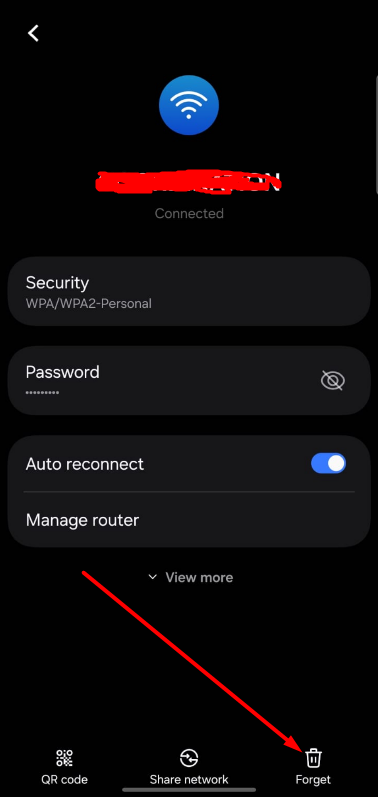
Solution 5: Forget Wi-Fi Network and Reconnect
Saved network data can sometimes become corrupted.
Steps:
- Go to Settings → Wi-Fi
- Tap the connected network
- Select Forget
- Restart your phone
- Reconnect to Wi-Fi and enter password again
This method fixes many persistent Wi-Fi issues.
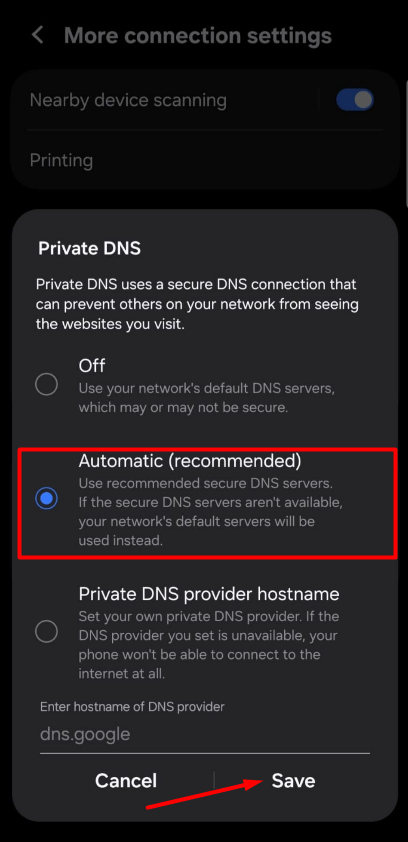
Solution 6: Disable Private DNS (Very Important)
Private DNS is a common reason behind Wi-Fi no-internet problems.
Steps:
- Settings → Network & Internet
- Tap Private DNS
- Select Off or Automatic
- Save settings
If your Wi-Fi provider blocks DNS over TLS, Private DNS will break internet access. For more details visit the complete solution for private DNS
Solution 7: Disable VPN or Ad-Blocking Apps
VPNs and firewall apps often interfere with Wi-Fi.
What to do:
- Turn OFF any VPN
- Disable DNS-based ad blockers
- Restart Wi-Fi
After disabling, connect and test your internet again.
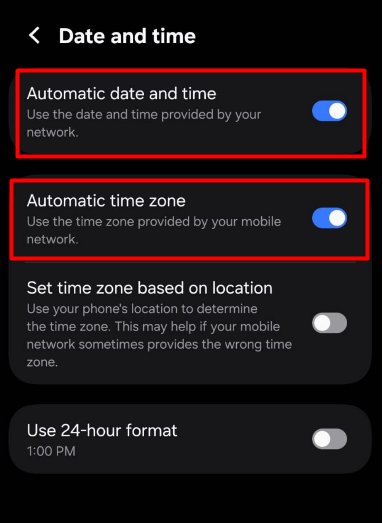
Solution 8: Check Date & Time Settings
Incorrect system time and date can break secure internet connections.
Steps:
- Settings → Date & Time
- Enable:
- Automatic date & time
- Automatic time zone
This fix works especially for HTTPS websites not loading.
Solution 9: Change Wi-Fi Network Settings (Advanced)
If your router uses advanced security system, then try this:
On Router (if possible):
- Change Wi-Fi security to WPA2-PSK
- Disable MAC filtering
- Disable IPv6 temporarily
Some Android devices struggle with certain router configurations.
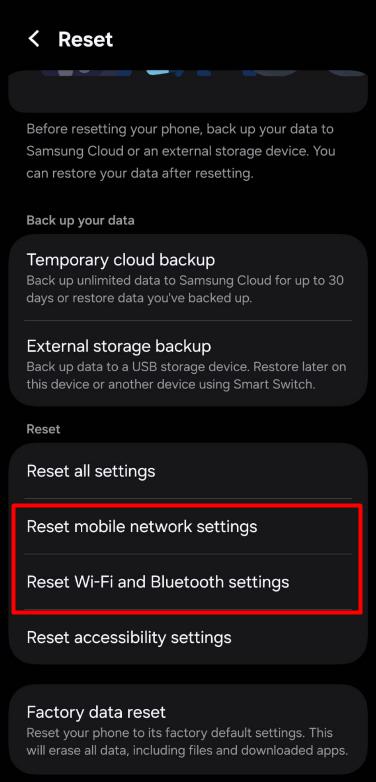
Solution 10: Reset Network Settings (Highly Effective)
This is one of the most reliable fixes.
Steps:
- Settings → System
- Tap Reset options
- Select Reset Wi-Fi, mobile & Bluetooth
- Confirm reset
⚠️ This will remove saved Wi-Fi and Bluetooth connections, but won’t delete personal data.
Solution 11: Update Android Software
Older Android versions may have Wi-Fi bugs.
Steps:
- Settings → Software Update
- Install any pending updates
Many users report Wi-Fi issues disappearing after updates.
Solution 12: Check If ISP Is Blocking Internet
Sometimes ISPs:
- Temporarily suspend service
- Require payment renewal
- Face area outages
Contact your ISP if:
- Wi-Fi connects but no device gets internet
- Router lights show abnormal status
Does This Problem Damage My Phone?
No, This is a network or software issue, not a hardware problem. So, your phone is safe and will not damage.
Best Long-Term Fix Recommendation
✔ Keep Private DNS on Automatic
✔ Avoid unnecessary VPNs
✔ Restart router weekly
✔ Keep Android updated
Conclusion
The issue “Android phone connected to Wi-Fi but no internet” is common issue, but it’s almost always fixable without visiting a service center or any expert.
Start with simple fixes, then move to advanced once only if needed. In most cases, the problem is solved by forgetting the network, disabling Private DNS, or resetting network settings.
Frequently Asked Questions (FAQ)
Usually DNS, VPN, or phone network settings issue.
No. Network reset is enough.
Sometimes, but mostly it’s network-related.