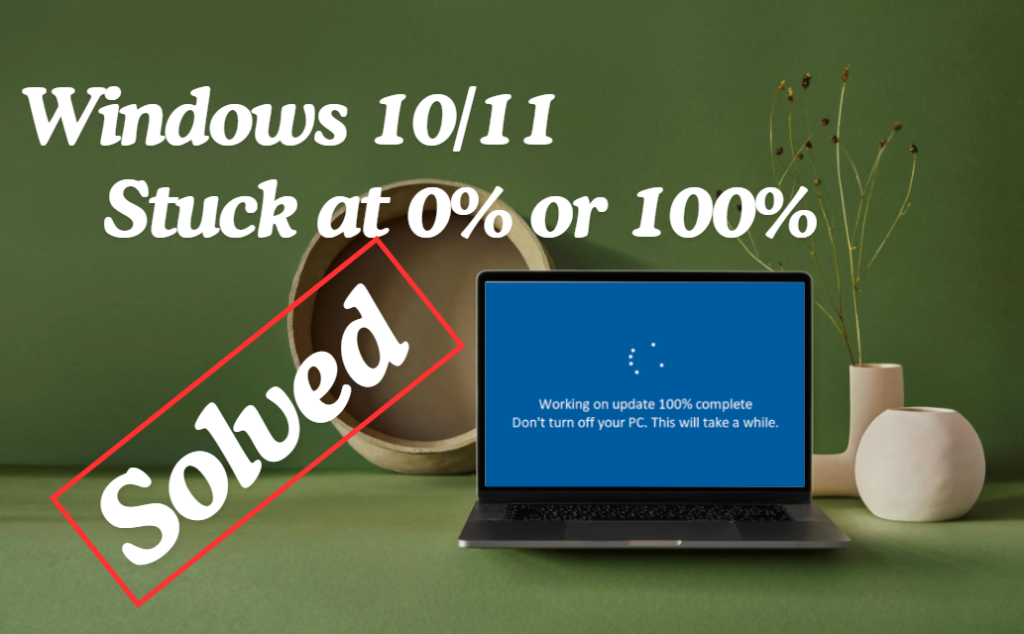
Is your Windows update stuck at 0%, 100%, or somewhere in between for a long time? You’re not alone. Many Windows users face this frustrating issue where updates refuse to download or install properly.
Sometimes the progress stays at 0% for hours. Other times it reaches 100% but never completes. This can prevent important security patches from installing and may even slow down your PC.
The good news? In most cases, this issue is caused by temporary glitches, corrupted update files, or network problems — and it can be fixed without reinstalling Windows.
In this guide, you’ll learn:
- Why Windows updates get stuck
- Quick fixes you should try first
- Advanced troubleshooting solutions
- When to reset Windows Update components
Let’s fix it step by step.
Why Is Windows Update Stuck?
Windows updates may freeze because of:
- Slow or unstable internet connection
- Corrupted update cache
- Insufficient storage space
- Background services not responding
- Antivirus interference
- Windows Update service errors
- Power interruption during update
Understanding the cause helps apply the right solution.
Quick Fixes First
Before trying advanced methods, try these basic steps:
✔ Restart your computer
✔ Check internet connection
✔ Ensure at least 20GB free storage
✔ Disconnect external USB devices
If the update still won’t move, continue below.
Fix 1: Wait (Sometimes It’s Normal)
Large feature updates can take 30–90 minutes depending on:
- PC performance
- SSD vs HDD
- Internet speed
If disk activity is still active (check Task Manager), give it more time. If nothing changes after 1–2 hours, move to the next solution.
Fix 2: Restart Windows Update Service
Sometimes the update service freezes.
Steps:
- Press Windows + R
- Type:
services.msc
- Press Enter
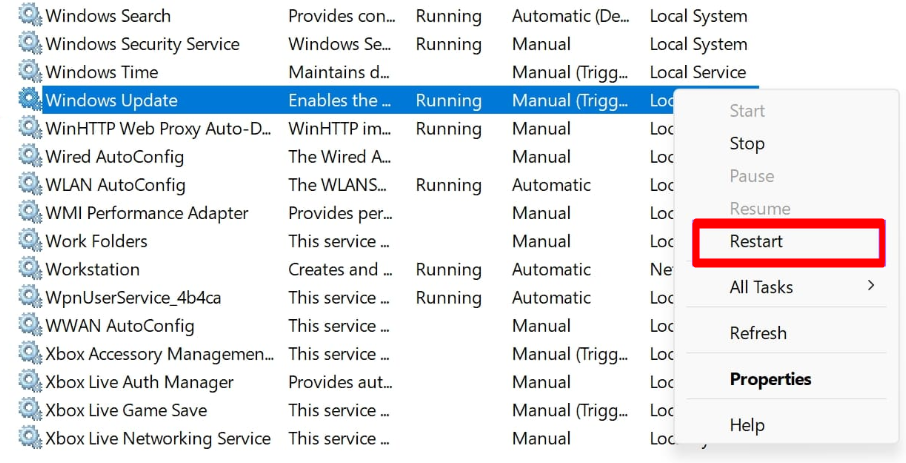
- Find Windows Update
- Right-click → Click Restart
Try updating again.
Fix 3: Run Windows Update Troubleshooter
Windows has a built-in troubleshooting tool.
Steps:
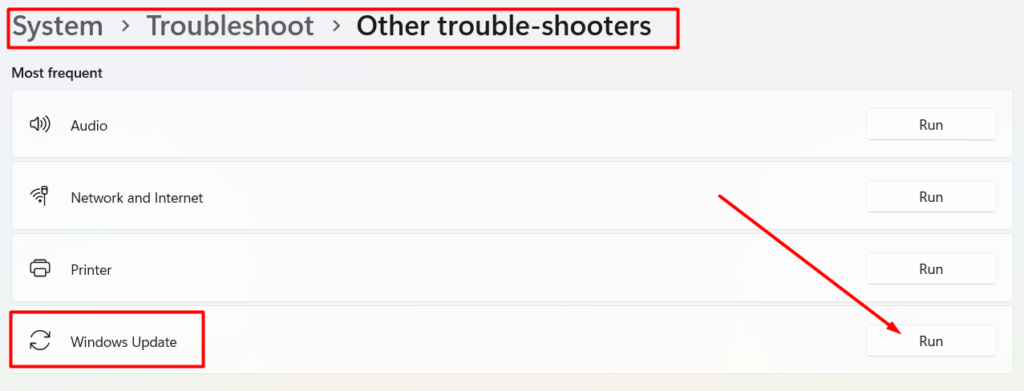
- Open Settings
- Go to System
- Click Troubleshoot
- Select Other troubleshooters
- Click Run next to Windows Update
Let Windows detect and fix issues automatically.
Fix 4: Clear Windows Update Cache
Corrupted update files often cause the update to freeze.
Step 1: Stop Update Services
- Open Command Prompt as Administrator
- Type:
net stop wuauserv
net stop bits
Press Enter after each command.
Step 2: Delete Update Cache
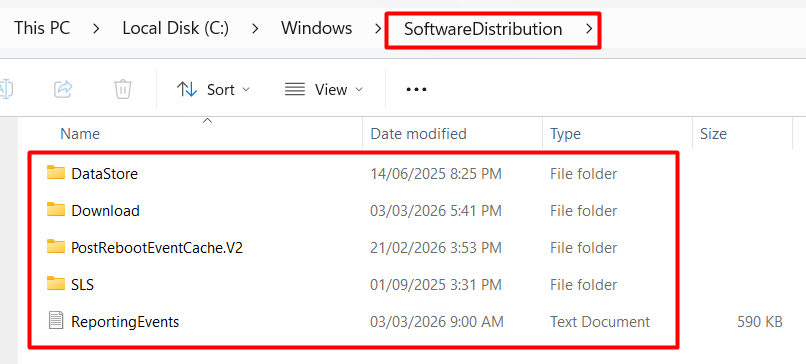
- Open File Explorer
- Go to:
C:\Windows\SoftwareDistribution
- Delete all files inside the folder
Step 3: Restart Services
In Command Prompt, type:
net start wuauserv
net start bits
Restart your PC and try updating again.
Fix 5: Check Disk Space
If your system drive is nearly full, updates may get stuck.
Free up space:
- Use Disk Cleanup
- Delete temporary files
- Remove unused apps
- Empty Recycle Bin
Keep at least 20–30GB free for major updates.
Fix 6: Disable Antivirus Temporarily
Sometimes antivirus software blocks update installation.
- Disable antivirus temporarily
- Try installing the update
- Re-enable antivirus after completion
⚠ Do not browse unsafe websites while antivirus is off.
Fix 7: Run System File Checker
Corrupted system files can prevent updates.
Steps:
- Open Command Prompt as Administrator
- Type:
sfc /scannow
- Press Enter
- Wait for the scan to complete
Restart your PC after the scan.
Fix 8: Run DISM Command (Advanced)
If SFC doesn’t fix it, try DISM.
In Command Prompt (Admin), type:
DISM /Online /Cleanup-Image /RestoreHealth
Press Enter and wait. This repairs Windows system image files.
Fix 9: Perform a Clean Boot
Third-party programs may interfere with updates.
Steps:
- Press Windows + R
- Type:
msconfig
- Go to Services tab
- Check Hide all Microsoft services
- Click Disable all
- Restart PC
Try updating again.
Fix 10: Manually Install the Update
If automatic update fails, manually install it.
Steps:
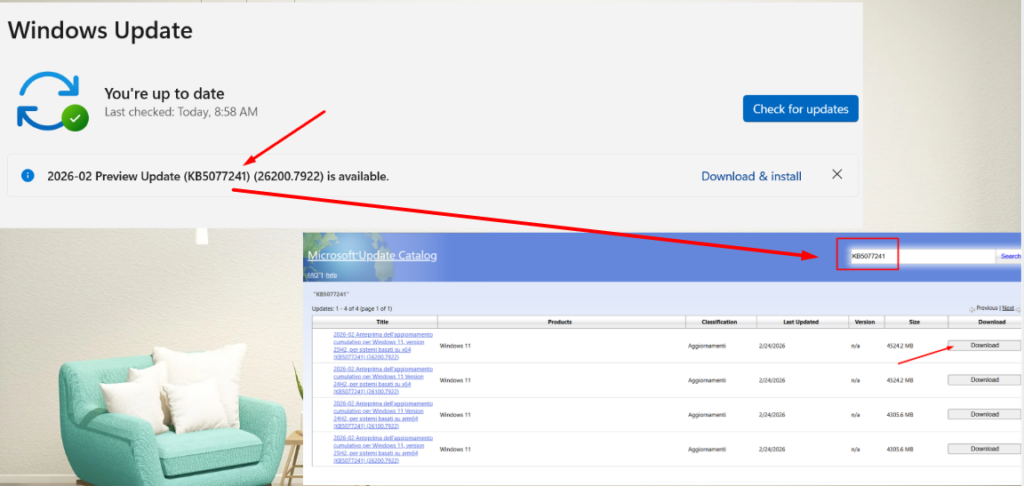
- Go to Settings → Windows Update
- Note the update KB number
- Visit Microsoft Update Catalog
- Search for the KB number
- Download and install manually
Restart after installation.
Fix 11: Reset Windows Update Completely
If nothing works, fully reset update components.
Open Command Prompt as Administrator and run:
net stop wuauserv
net stop cryptSvc
net stop bits
net stop msiserver
Then rename update folders:
ren C:\Windows\SoftwareDistribution SoftwareDistribution.old
ren C:\Windows\System32\catroot2 catroot2.old
Restart services:
net start wuauserv
net start cryptSvc
net start bits
net start msiserver
Restart your PC and check for updates again.
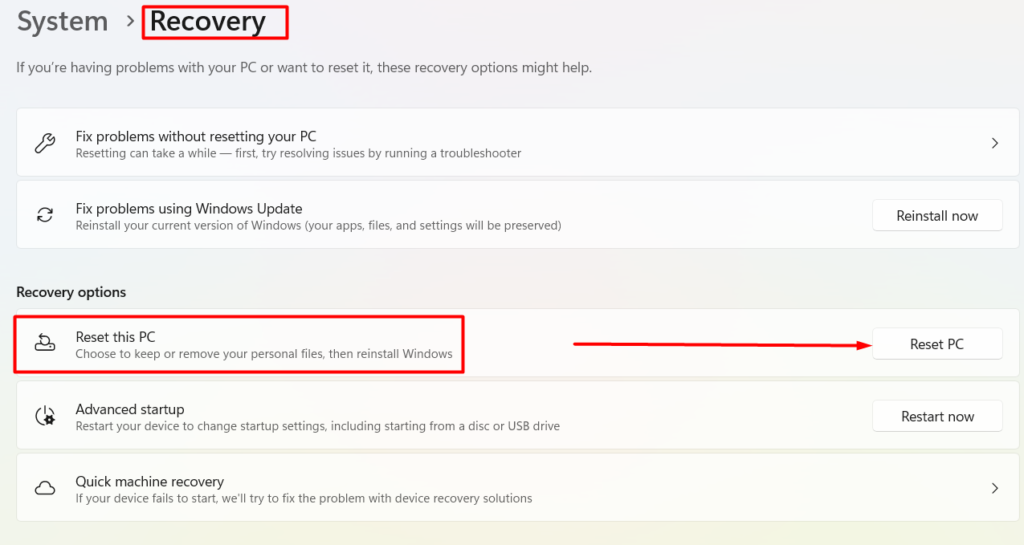
Fix 12: Reset This PC (Last Option)
If updates constantly fail and system becomes unstable:
- Go to Settings
- Click System
- Select Recovery
- Click Reset this PC
- Choose “Keep my files”
Only use this if all other methods fail.
How to Prevent Windows Update from Getting Stuck
✔ Keep enough free disk space
✔ Avoid shutting down during update
✔ Use stable internet connection
✔ Keep drivers updated
✔ Restart PC regularly
✔ Install updates on time
Good maintenance reduces update issues.
Final Thoughts
Windows Update stuck at 0% or 100% can be frustrating, but it’s usually caused by corrupted update files, background service errors, or low storage.
Start with simple fixes like restarting and running the troubleshooter. If necessary, clear update cache or reset Windows Update components.
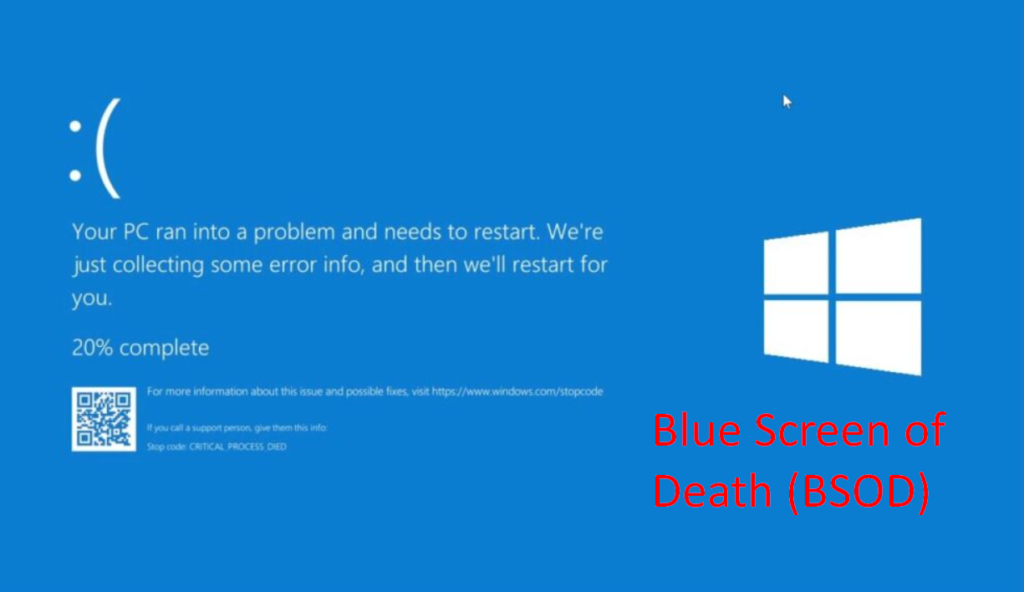
In most cases, you can fix the issue without reinstalling Windows. If you face more windows issues like Windows Blue Screen, visit here to solve
Frequently Asked Questions (FAQ)
Usually due to slow internet, corrupted update cache, or service issues.
The update may be installing in the background. Wait at least 30–60 minutes before troubleshooting.
Only if it’s clearly frozen for hours. Otherwise, avoid interrupting updates.
No, it only deletes temporary update files.
It depends on update size and PC speed — usually 20–60 minutes.
Yes, but use it as a last resort.