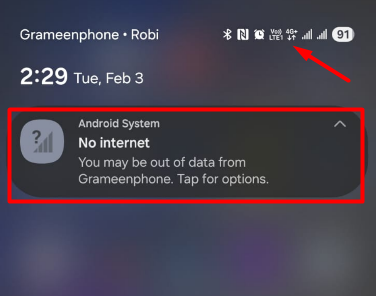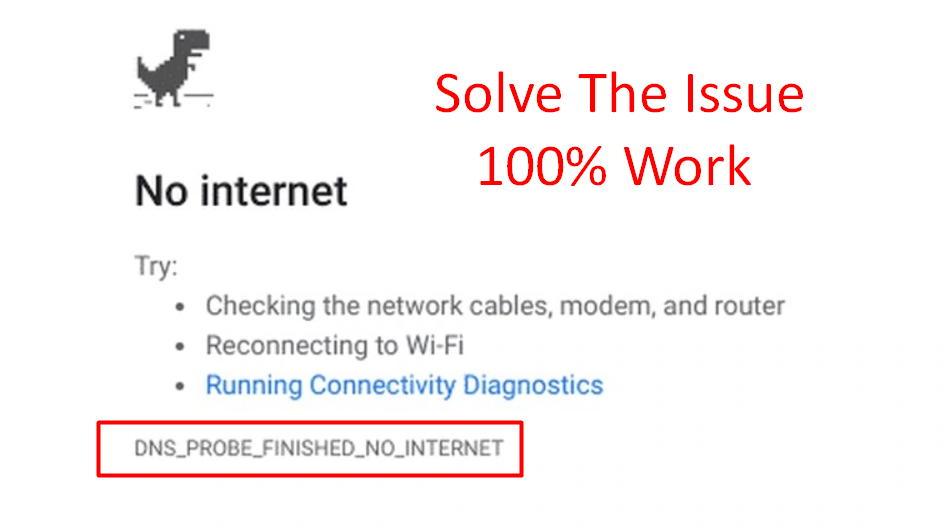
Are you seeing the “DNS Probe Finished No Internet” error in your browser? This message usually appears in Google Chrome and means your computer or phone cannot connect to the internet due to a DNS issue.
Even if your Wi-Fi appears connected, websites won’t load. This error can be frustrating, especially when you urgently need internet access.
The good news is that this issue is usually caused by simple network or DNS configuration problems — and it can be fixed in minutes.
In this guide, you’ll learn:
- What the DNS Probe Finished No Internet error means
- Why it happens
- Step-by-step solutions for Windows and Android
- When to contact your internet provider
Let’s fix it.
What Does DNS PROBE FINISHED NO INTERNET Mean?
DNS stands for Domain Name System. It converts website names like google.com into IP addresses that computers understand.
When you see this error, it means:
- Your device cannot communicate with DNS servers
- DNS settings are incorrect
- Internet connection is unstable
- Router is not responding properly
It is a DNS resolution failure.
Quick Fixes First
Before trying advanced solutions, try these simple steps:
✔ Restart your router
✔ Restart your device
✔ Turn Wi-Fi off and on
✔ Switch to mobile data (to test connection)
If the error continues, follow the detailed fixes below.
How to Fix DNS PROBE FINISHED NO INTERNET on Windows
1. Restart Your Router and Modem
This solves many network-related errors.
Steps:
- Turn off router and modem
- Wait 2–3 minutes
- Turn them back on
- Wait for full reconnection
Try accessing websites again.
2. Flush DNS Cache
Flushing DNS clears corrupted DNS records.
Steps:
- Press Windows + R
- Type cmd
- Press Enter
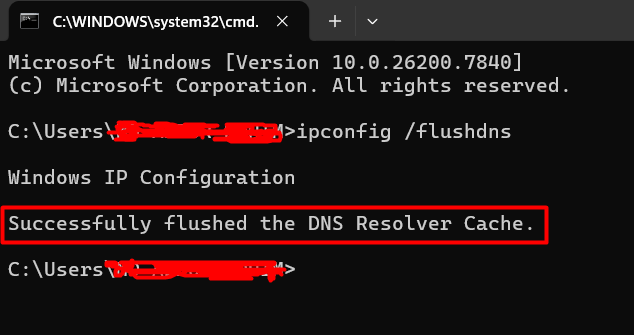
- Type:
ipconfig /flushdns
- Press Enter
You should see “Successfully flushed the DNS Resolver Cache.” Restart your browser and test.
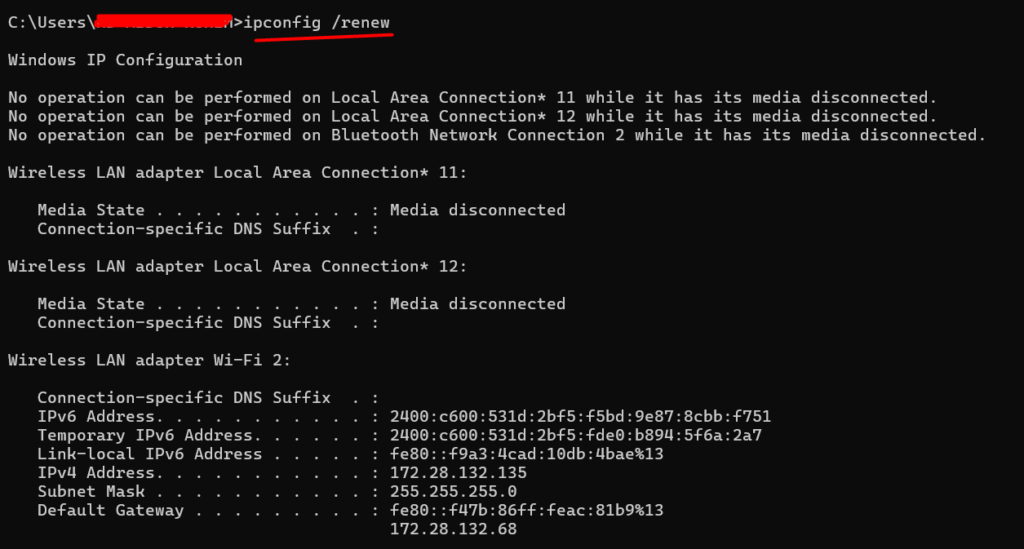
3. Release and Renew IP Address
In Command Prompt, type:
ipconfig /release
ipconfig /renew
Press Enter after each command. This refreshes your network connection.
4. Change DNS Server to Google DNS
Sometimes your ISP’s DNS server is down.
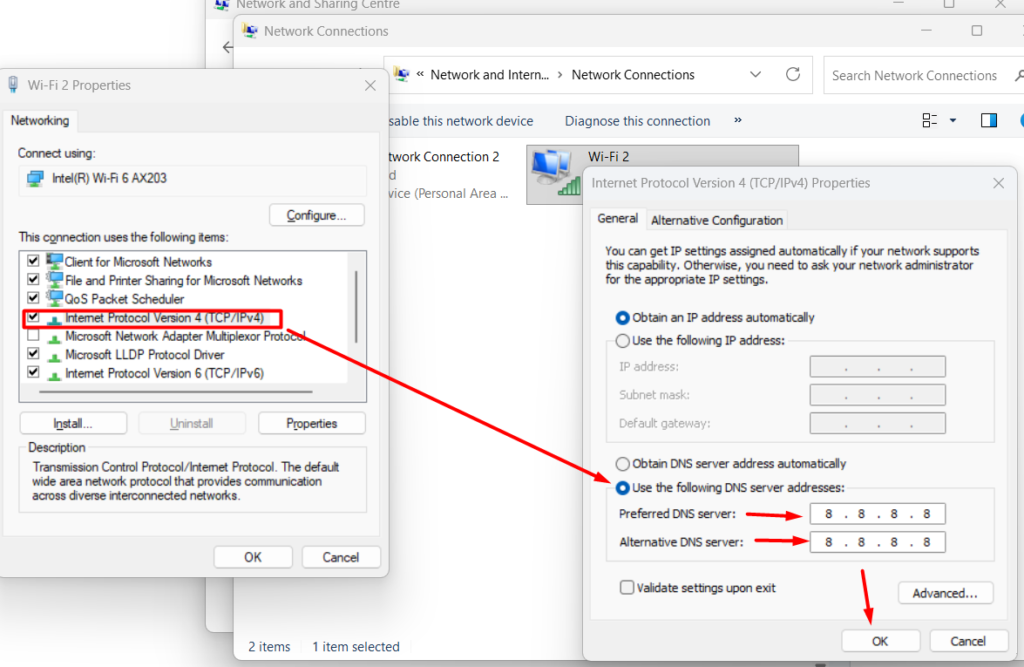
Steps:
- Go to Control Panel
- Click Network and Internet
- Click Network and Sharing Center
- Select Change Adapter Settings
- Right-click your network
- Select Properties
- Double-click Internet Protocol Version 4 (TCP/IPv4)
- Select “Use the following DNS server addresses”
Enter:
Preferred DNS: 8.8.8.8
Alternate DNS: 8.8.4.4
Click OK and restart.
5. Disable VPN or Proxy
VPNs can sometimes interfere with DNS.
- Turn off VPN temporarily
- Disable proxy settings
- Restart browser
Check if the error disappears.
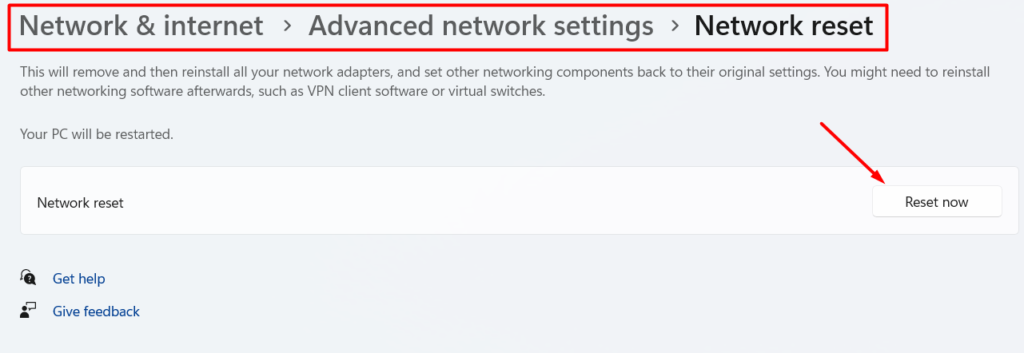
6. Reset Network Settings
Steps:
- Go to Settings
- Click Network & Internet
- Select Advanced Network Settings
- Click Network Reset
- Restart PC
This restores default network configuration.
How to Fix DNS PROBE FINISHED NO INTERNET on Android
1. Restart Your Phone
Simple but effective.
Press and hold Power → Tap Restart.
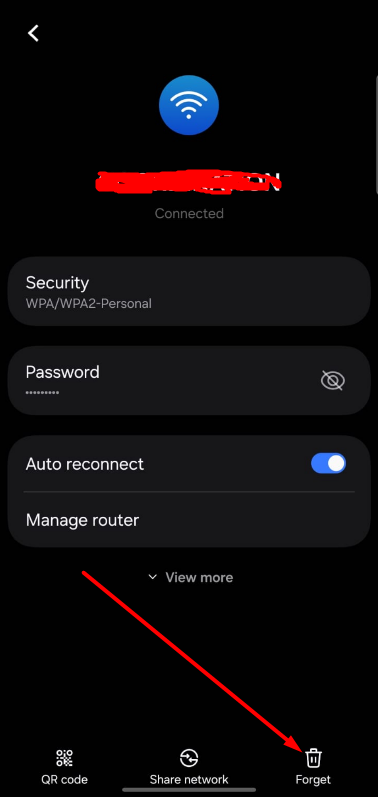
2. Forget and Reconnect Wi-Fi
Steps:
- Go to Settings
- Tap Wi-Fi
- Select your network
- Tap Forget
- Reconnect with password
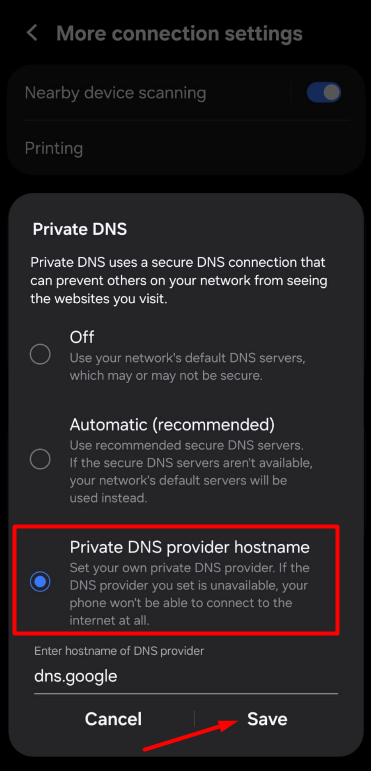
3. Change DNS on Android
Steps:
- Go to Settings
- Tap Network & Internet
- Tap Private DNS
- Choose Private DNS provider hostname
- Enter: dns.google
Save and reconnect. To learn about Private DNS server, visit here
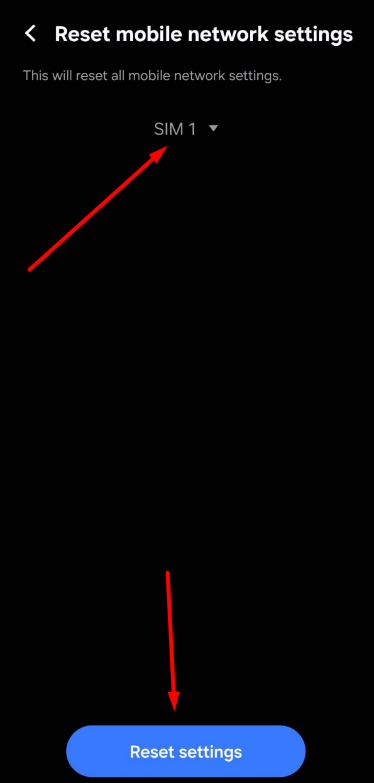
4. Reset Network Settings on Android
Steps:
- Go to Settings
- Tap System
- Select Reset Options
- Tap Reset Wi-Fi, Mobile & Bluetooth
- Confirm
Reconnect to Wi-Fi.
5. Clear Browser Cache
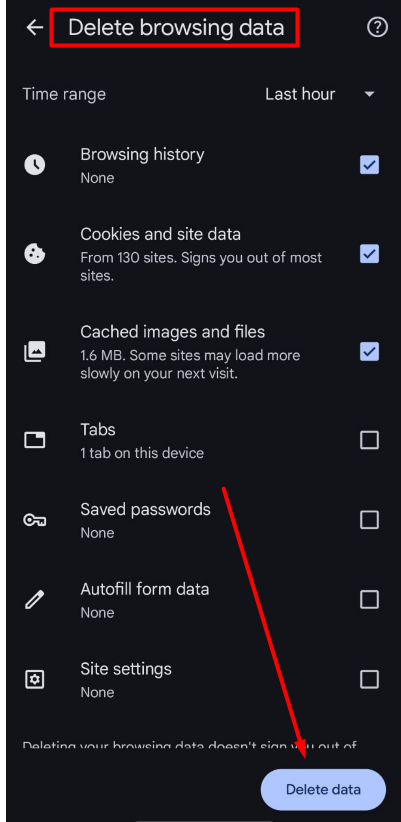
Corrupted browser cache can trigger this error.
In Chrome:
- Tap three dots
- Tap History
- Tap Clear/Delete browsing data
- Select Cached images and files
- delete data
Restart browser.
Additional Fixes
Check Date and Time
Incorrect date/time settings may cause connection errors. Enable automatic date and time in settings.
Disable Firewall or Antivirus Temporarily
Sometimes security software blocks DNS requests.
Disable temporarily to test.
Update Network Drivers (Windows)
- Open Device Manager
- Expand Network Adapters
- Right-click adapter
- Click Update driver
Restart PC.
When to Contact Your Internet Provider
If:
- All devices show the same error
- Router lights show internet disconnection
- DNS change doesn’t work
- Internet is down in your area
Contact your ISP. The issue may be on their side.
How to Prevent DNS Errors
✔ Keep router firmware updated
✔ Restart router occasionally
✔ Use reliable DNS (Google or Cloudflare)
✔ Avoid unstable VPNs
✔ Keep system updated
Stable network configuration reduces DNS issues.
Final Thoughts
The DNS_PROBE_FINISHED_NO_INTERNET error looks serious, but it’s usually caused by minor DNS configuration issues or temporary network glitches.
Start with simple steps like restarting your router. Then flush DNS, change DNS servers, or reset network settings if needed.
In most cases, you can fix this error in under 10 minutes.
Frequently Asked Questions (FAQ)
It happens when your device cannot reach DNS servers due to network misconfiguration.
Yes, switching to Google DNS often solves the issue.
Usually no. It is typically a network or DNS configuration problem.
Because DNS or gateway settings may be incorrect.
Yes, in many cases router restart resolves the issue.
Yes, some VPNs interfere with DNS resolution.