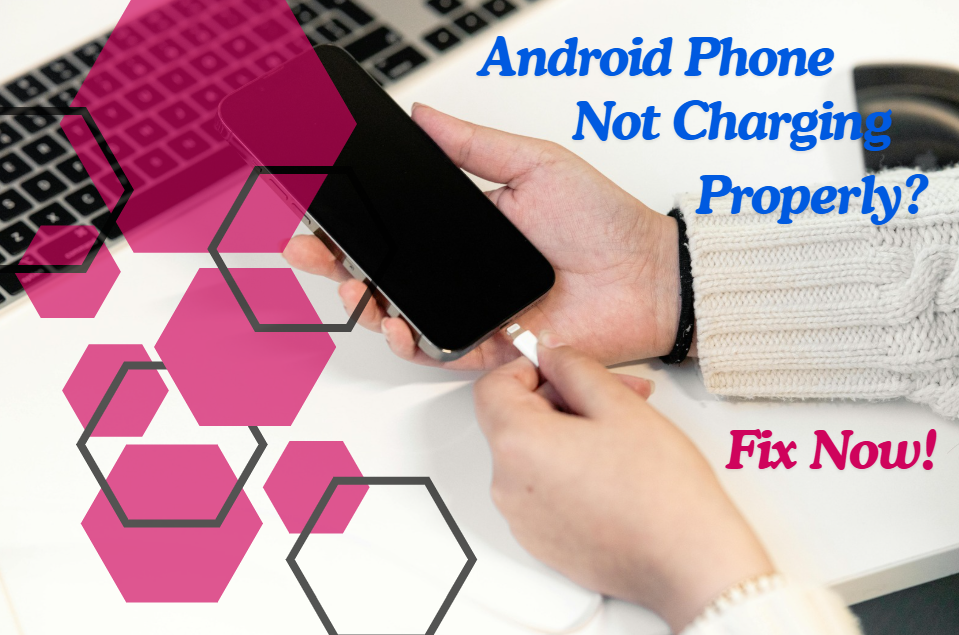
Is your Android phone not charging properly? Maybe it charges very slowly, stops charging randomly, only charges at a certain angle, or doesn’t charge at all. Charging issues are common and can happen to any smartphone over time.
The good news is that most charging problems are caused by minor issues like dust in the charging port, a faulty cable, software glitches, or battery calibration errors not serious hardware damage.
In this step-by-step guide, you’ll learn:
- Why your Android phone isn’t charging properly
- Quick fixes you can try immediately
- Advanced troubleshooting steps
- When it’s time to visit a repair center
Let’s fix your phone.
Why Is My Android Phone Not Charging Properly?
Charging issues usually happen because of:
- Damaged charging cable
- Faulty power adapter
- Dirty charging port
- Software glitch
- Battery health degradation
- Overheating
- Background apps draining power
- Faulty charging port
Before assuming the battery is dead, try the solutions below.
1. Check the Charging Cable
The cable is the most common cause of charging problems.
What to do:
- Inspect the cable for cuts or bends
- Try a different cable
- Use an original or certified charger
If the phone starts charging normally, the cable was the problem.
2. Check the Power Adapter
Sometimes the adapter stops delivering proper power.
Try this:
- Plug the adapter into another device
- Use a different adapter
- Avoid cheap or duplicate chargers
Low-quality chargers can cause slow charging or connection drops.
3. Clean the Charging Port
Dust and lint often accumulate inside the charging port, blocking proper contact.
How to clean safely:
- Turn off the phone
- Use a wooden toothpick or plastic tool
- Gently remove visible debris
- Do NOT use metal objects
After cleaning, plug the charger back in.
4. Try a Different Power Source
The issue may not be your phone.
- Switch wall socket
- Avoid using unstable extension boards
- Try charging via laptop USB
- Avoid damaged power strips
Sometimes unstable voltage affects charging.
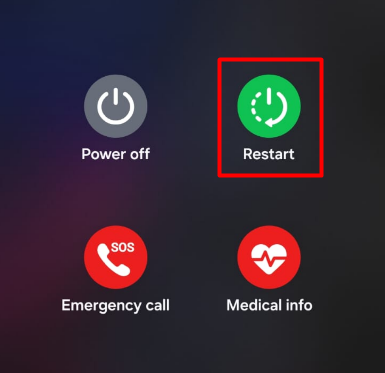
5. Restart Your Phone
A simple restart can fix temporary charging glitches.
Steps:
- Press and hold Power button
- Tap Restart
- Plug in the charger after reboot
6. Check for Overheating
Android phones stop charging when they overheat to protect the battery.
If your phone feels hot:
- Remove the case
- Stop gaming or heavy apps
- Let it cool down for 15–20 minutes
Avoid charging under pillows or in direct sunlight.
7. Enable Airplane Mode While Charging
If charging is very slow, background apps may be consuming power.
Turn on:
- Airplane Mode
- Or turn off Wi-Fi, Bluetooth, and mobile data
This helps the battery charge faster.
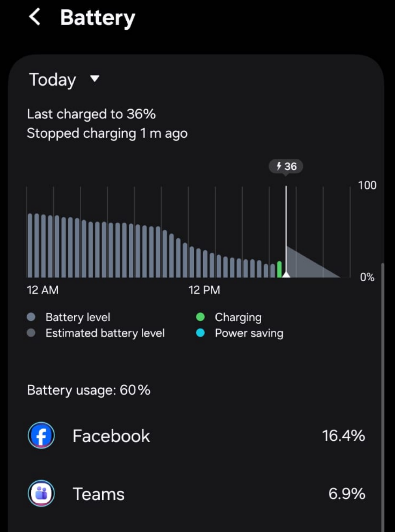
8. Check Battery Usage
Sometimes the phone is charging but draining at the same time.
Steps:
- Go to Settings
- Tap Battery
- Check which apps use the most power
Uninstall or restrict high-drain apps.
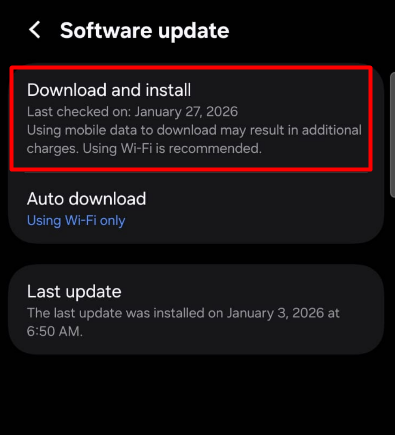
9. Update Android Software
Software bugs can interfere with charging optimization.
Steps:
- Open Settings
- Tap Software Update
- Check for updates
- Install if available
Restart after updating. If you face Apps Crashing after software update, visit here to solve the issue
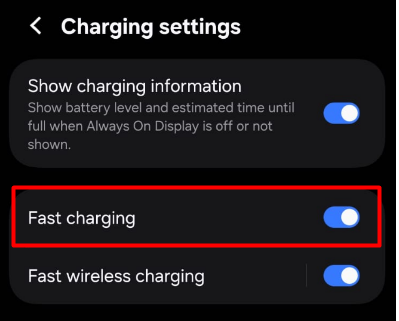
10. Check Fast Charging Settings
Some phones allow you to disable fast charging.
Check:
- Settings
- Battery
- Charging settings
- Enable Fast Charging if available
Also ensure you are using a fast-charging compatible charger.
11. Calibrate the Battery
Battery calibration can fix incorrect charging percentages.
Steps:
- Use phone until it shuts down completely
- Charge to 100% without interruption
- Keep charging for 30 extra minutes
- Restart the phone
This recalibrates battery statistics.
12. Boot Into Safe Mode
A third-party app may interfere with charging.
Enter Safe Mode:
- Press and hold Power button
- Tap and hold Power Off
- Select Safe Mode
If charging works normally, uninstall recently installed apps.
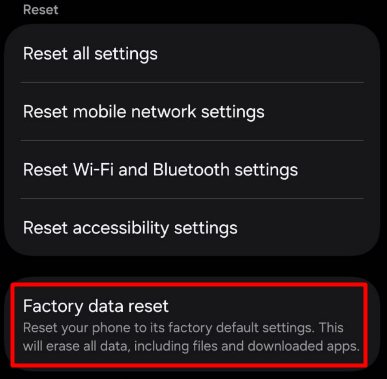
13. Factory Reset (Last Option)
If charging problems started after a system update and nothing works, reset may help.
⚠ Backup your data first.
Steps:
- Go to Settings
- Tap System
- Select Reset
- Tap Factory Data Reset
Only use this if all other methods fail.
When Is It a Hardware Problem?
You may need professional repair if:
- Charging works only at a specific angle
- Phone doesn’t respond to any charger
- Charging port feels loose
- Battery drains extremely fast
- Phone shuts down even when battery shows charge
In these cases, the charging port or battery may need replacement.
How to Prevent Charging Problems
✔ Use original charger
✔ Avoid charging overnight frequently
✔ Keep charging port clean
✔ Avoid overheating
✔ Don’t use phone heavily while charging
✔ Keep software updated
Good habits extend battery life.
Final Thoughts
If your Android phone is not charging properly, don’t panic. Most issues are caused by cables, adapters, dust, or software glitches. Start with simple fixes like changing the cable or cleaning the port before assuming hardware damage.
In most cases, you can fix the issue at home within minutes.
If the problem continues even after trying all solutions, it may be time to visit an authorized service center.
Frequently Asked Questions (FAQ)
Slow charging is usually caused by a weak adapter, damaged cable, or background apps draining power.
This usually indicates a loose or damaged charging port.
Yes, sometimes updates introduce temporary charging bugs.
If the battery drains very quickly or the phone shuts down randomly, the battery may need replacement.
Yes, dust buildup is one of the most common causes of charging problems.
Only if hardware damage is confirmed and software fixes don’t work.