Did your Android Apps Crashing After Update? You open an app, and it immediately closes. Or maybe it freezes, shows an error message, and then crashes.
Don’t worry, this is a common issue after app or system updates. In most cases, the problem is related to compatibility issues, corrupted cache files, or temporary system glitches, not serious damage.
In this guide, you’ll learn:
- Why Android apps crash after updates
- Quick fixes that work instantly
- Advanced troubleshooting steps
- When to consider reinstalling or resetting your phone
Let’s fix the problem step by step.
Why Do Android Apps Crash After an Update?
When you update an app or your Android system, new files replace old ones. Sometimes:
- Old cache files conflict with new data
- The update has bugs
- Your Android version isn’t fully compatible
- Storage is too low
- Background apps overload RAM
- Google Play Services has issues
Understanding the cause helps you apply the right fix.
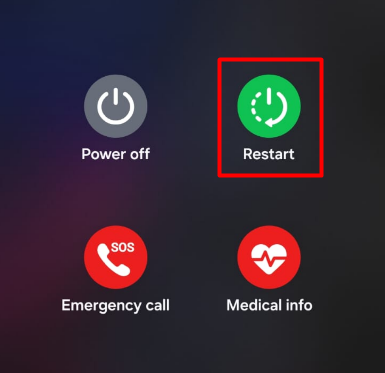
1. Restart Your Android Phone
This may sound simple, but it works surprisingly often.
Restarting clears temporary memory issues that may cause crashes.
Steps:
- Press and hold the Power button
- Tap Restart
- Wait for the phone to reboot
Now open the app again and check if it works.
2. Clear App Cache
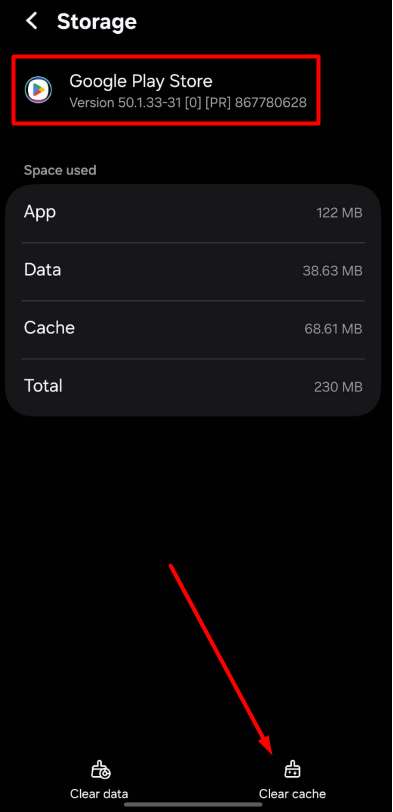
Corrupted cache is the most common reason apps crash after updates.
Steps:
- Go to Settings
- Tap Apps
- Select the crashing app
- Tap Storage
- Tap Clear Cache
⚠ Do NOT tap Clear Data yet (unless needed). Open the app again and test.
3. Force Stop the App
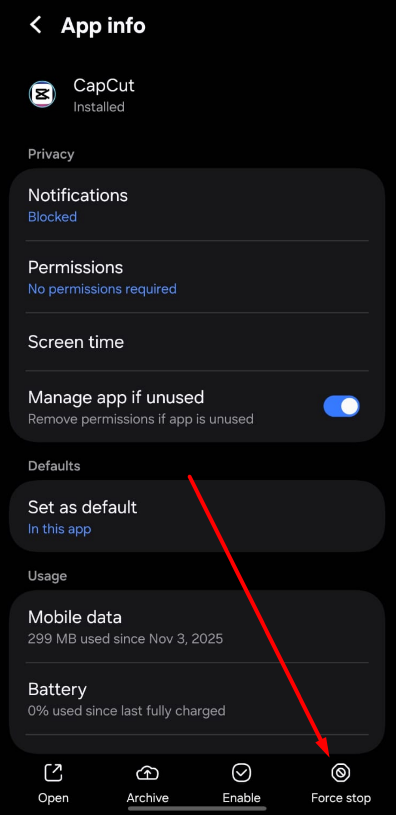
Sometimes the app is stuck in the background.
Steps:
- Go to Settings
- Tap Apps
- Select the app
- Tap Force Stop
- Reopen the app
This refreshes the app session.
4. Update the App Again
Sometimes developers release a quick bug fix update.
Steps:
- Open Google Play Store
- Search for the app
- Tap Update (if available)
Always keep apps updated to avoid compatibility problems.
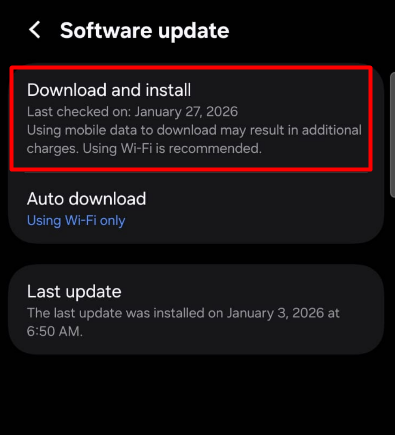
5. Update Android System
If multiple apps are crashing, your Android system might need updating.
Steps:
- Go to Settings
- Tap Software Update
- Check for updates
- Install if available
Restart after updating.
6. Clear Google Play Services Cache
Google Play Services supports many apps. If it’s corrupted, apps may crash.
Steps:
- Go to Settings
- Tap Apps
- Tap Show System Apps
- Find Google Play Services
- Tap Storage
- Tap Clear Cache
Restart your device.
7. Free Up Storage Space
Low storage can cause apps to crash or freeze.
Check storage:
- Go to Settings
- Tap Storage
If storage is nearly full:
- Delete unused apps
- Remove old videos or downloads
- Clear large files
Keep at least 20% storage free for smooth performance.
8. Check App Permissions
Sometimes after updates, app permissions reset.
Steps:
- Go to Settings
- Tap Apps
- Select the app
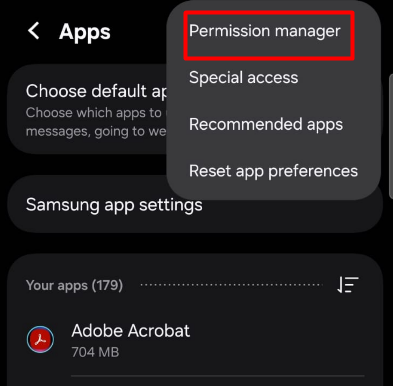
- Tap Permissions manager
- Enable required permissions
Missing permissions can cause sudden crashes.
9. Uninstall and Reinstall the App
If clearing cache doesn’t work, reinstalling often fixes corrupted files.
Steps:
- Go to Settings
- Tap Apps
- Select the app
- Tap Uninstall
- Reinstall from Play Store
This installs a fresh version of the app.
10. Reset App Preferences
If system apps are causing conflicts, reset app preferences.
Steps:
- Go to Settings
- Tap Apps
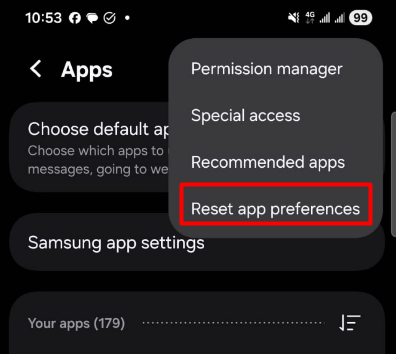
- Tap three-dot menu
- Select Reset App Preferences
This won’t delete personal data but resets default settings.
11. Boot into Safe Mode
If the app crashes due to another app conflict, Safe Mode can help identify it.
Enter Safe Mode:
- Press and hold Power button
- Tap and hold Power Off
- Select Safe Mode
If the app works normally in Safe Mode, a third-party app is causing the issue.
Uninstall recently installed apps.
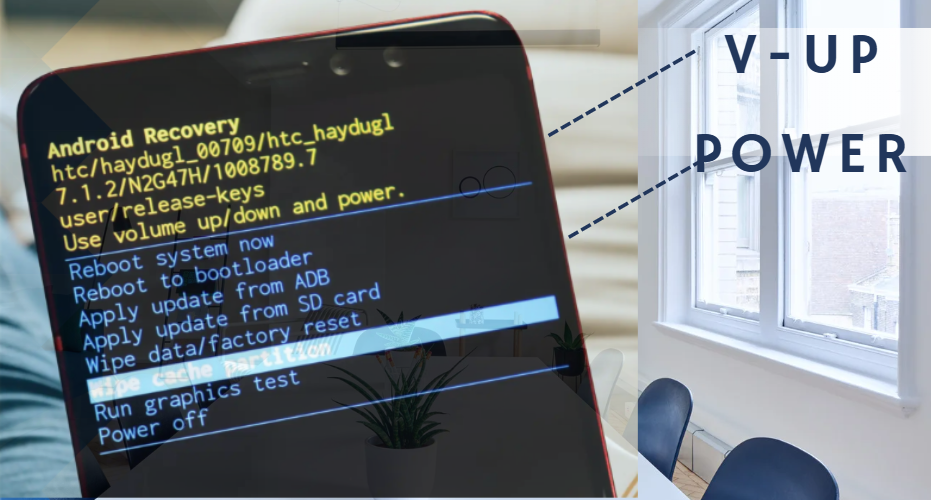
12. Wipe Cache Partition
System cache corruption may affect updated apps.
Steps:
- Turn off phone
- Press Power + Volume Up (varies by device)
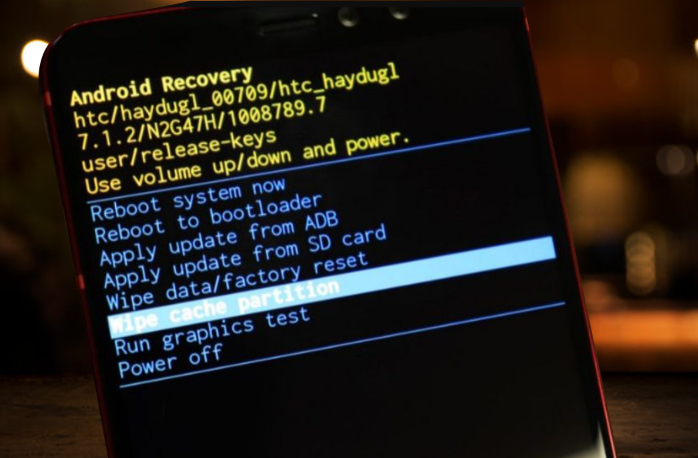
- Enter Recovery Mode
- Select Wipe Cache Partition
- Restart
This does not delete personal data. learn more about cache partition here.
13. Factory Reset (Last Option)
If nothing works and multiple android apps crashing after update constantly, factory reset may be necessary.
⚠ Backup your data first.
Steps:
- Go to Settings
- Tap System
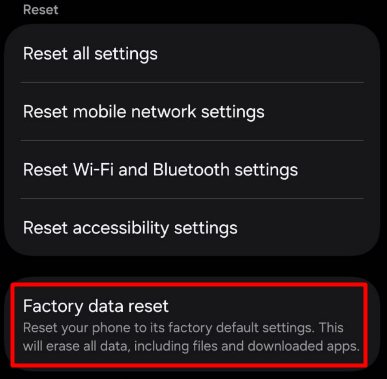
- Select Reset
- Tap Factory Data Reset
Use this only if all other fixes fail.
When Is It a Developer Issue?
Sometimes the problem is not your phone.
If:
- Many users report crashes
- App reviews mention recent update bugs
- App crashes immediately after updating
Then the developer likely needs to fix it. Wait for a patch update.
How to Prevent Apps from Crashing After Updates
✔ Keep Android updated
✔ Maintain enough free storage
✔ Avoid installing unknown apps
✔ Clear cache occasionally
✔ Restart phone once a week
✔ Don’t use modded apps
Preventive maintenance reduces system conflicts.
Final Thoughts
Android apps crashing after update can be frustrating, but the issue is usually temporary and fixable. Most problems are caused by corrupted cache files, compatibility issues, or minor software bugs.
Start with simple steps like restarting and clearing cache. Move to advanced solutions only if necessary.
In most cases, you don’t need professional repair.
Frequently Asked Questions (FAQ)
Usually due to corrupted cache files or compatibility issues with your Android version.
No, clearing cache does not delete personal data. Clearing data does.
It may be a system issue, low storage, or Google Play Services problem.
Yes, reinstalling removes corrupted files and installs a fresh version.
Because Safe Mode disables third-party apps that may be causing conflicts.
Only as a last resort if all troubleshooting steps fail.