Is Bluetooth not working on your Android phone? Maybe it won’t turn on, keeps disconnecting, can’t find devices, or fails to pair with your headphones or car system. Bluetooth problems are common, but the good news is that most of them can be fixed easily without visiting a service center.
In this complete guide, you’ll learn:
- Why Bluetooth stops working on Android
- Quick fixes you should try first
- Advanced troubleshooting steps
- When the issue might be hardware-related
Let’s fix your Bluetooth step by step.
Why Is Bluetooth Not Working on Android?
Bluetooth issues usually happen because of:
- Temporary software glitches
- Outdated Android version
- Corrupted Bluetooth cache
- Interference from other devices
- Low battery
- Incorrect pairing settings
- System bugs after an update
Before assuming hardware damage, try the simple solutions below.
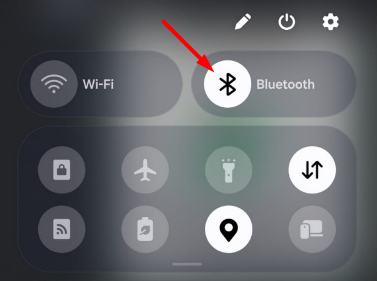
Step 1: Turn Bluetooth Off and On Again
This is the fastest fix.
How to do it:
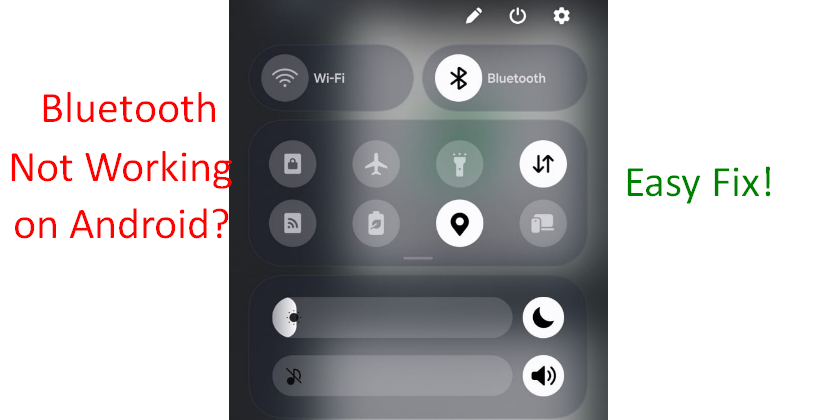
- Swipe down from the top of the screen
- Tap the Bluetooth icon to turn it off
- Wait 10 seconds
- Turn it back on
Try reconnecting your device.
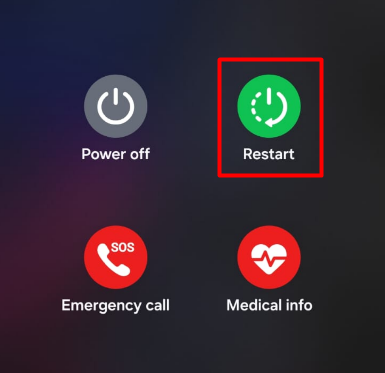
Step 2: Restart Your Android Phone
Restarting clears temporary system errors that may affect Bluetooth.
Steps:
- Press and hold the Power button
- Tap Restart
- Wait for the device to reboot
After restarting, test Bluetooth again.
Step 3: Check If Bluetooth Is Discoverable
Sometimes your phone or the other device isn’t discoverable.
Check this:
- Go to Settings
- Tap Bluetooth
- Make sure visibility/discoverable mode is enabled
Also ensure the other device is in pairing mode.
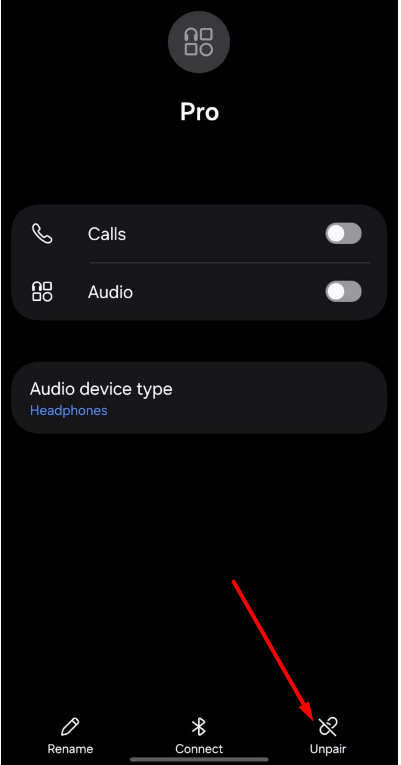
Step 4: Forget and Re-Pair the Device
If your Bluetooth connects but keeps disconnecting, re-pairing often fixes the issue.
Steps:
- Open Settings
- Tap Bluetooth
- Tap the connected device
- Select Forget or Unpair
- Restart your phone
- Pair again from scratch
This refreshes the connection.
Step 5: Check Device Compatibility
Some older Bluetooth devices may not be fully compatible with newer Android versions. Also, ensure:
- The device isn’t connected to another phone
- The device battery isn’t low
- You’re within 10 meters (33 feet) range
Step 6: Clear Bluetooth Cache
Corrupted cache files can cause pairing and connection issues.
Steps:
- Open Settings
- Tap Apps
- Tap Show System Apps (if available)
- Find Bluetooth
- Tap Storage
- Select Clear Cache
Restart your phone after clearing cache.
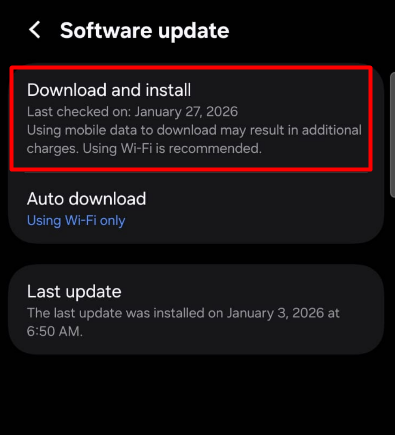
Step 7: Update Android Software
Sometimes Bluetooth stops working due to system bugs that get fixed in updates.
Steps:
- Go to Settings
- Tap Software Update
- Check for updates
- Install if available
Restart your device after updating.
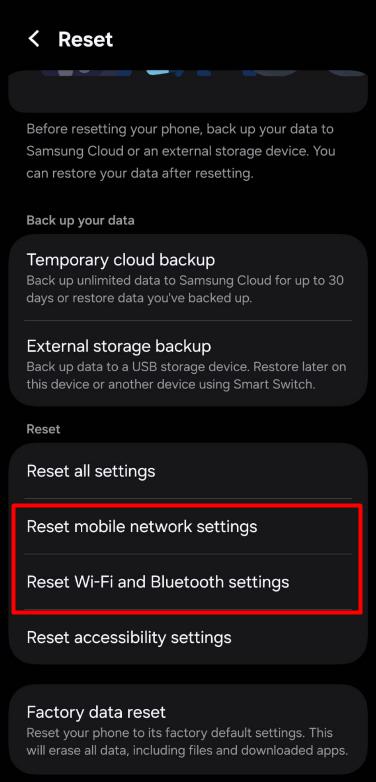
Step 8: Reset Network Settings
If Bluetooth still doesn’t work, reset network settings.
⚠ This will remove saved Wi-Fi networks and Bluetooth pairings.
Steps:
- Open Settings
- Tap System
- Select Reset Options
- Tap Reset Network Settings
- Confirm
Reconnect your Bluetooth devices after resetting. Learn more about internet issues here
Step 9: Turn Off Power Saving Mode
Battery Saver can limit Bluetooth performance.
To check:
- Go to Settings
- Tap Battery
- Turn off Power Saving Mode
Test Bluetooth again.
Step 10: Check for Interference
Bluetooth signals can be disrupted by:
- Wi-Fi routers
- Microwave ovens
- Multiple nearby Bluetooth devices
Try:
- Turning off nearby Bluetooth devices
- Moving away from crowded wireless areas
Step 11: Boot into Safe Mode
If Bluetooth stopped working after installing an app, that app may be causing the problem.
Enter Safe Mode:
- Press and hold Power button
- Tap and hold Power Off
- Select Safe Mode
If Bluetooth works normally in Safe Mode, uninstall recently installed apps.
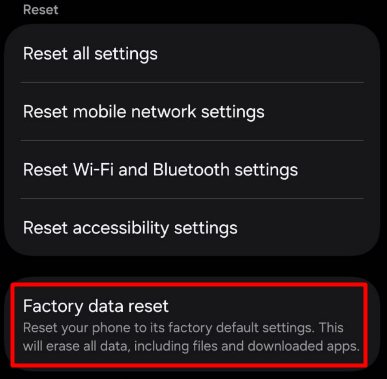
Step 12: Factory Reset (Last Option)
If none of the above fixes work, a factory reset may solve deep software issues.
⚠ Backup your data first.
Steps:
- Go to Settings
- Tap System
- Select Reset
- Tap Factory Data Reset
Only use this as a final solution.
When Is It a Hardware Problem?
Bluetooth hardware failure is rare but possible.
Signs include:
- Bluetooth won’t turn on at all
- Bluetooth toggle is greyed out
- Phone cannot detect any devices
- Issue persists after factory reset
If this happens, visit an authorized service center.
How to Prevent Bluetooth Issues
✔ Keep Android updated
✔ Avoid installing unknown apps
✔ Clear unused paired devices
✔ Keep Bluetooth device battery charged
✔ Avoid heavy wireless interference
Maintaining your phone properly helps prevent connectivity issues.
Final Thoughts
Bluetooth not working on Android can be frustrating, especially when you rely on wireless headphones, smartwatches, or car systems. Thankfully, most issues are caused by minor software glitches and can be fixed in minutes.
Start with simple steps like restarting and re-pairing. Move to advanced fixes like clearing cache or resetting network settings only if necessary.
In most cases, you don’t need professional repair.
Frequently Asked Questions (FAQ)
It may be caused by a software glitch, system bug, or hardware failure. Restarting usually fixes it.
Low battery, interference, or corrupted cache files can cause frequent disconnections.
Forget the device and pair it again. Also ensure the device is in pairing mode.
Yes, it often resolves persistent Bluetooth connection problems.
If it works in Safe Mode, a third-party app is likely causing the issue.
Yes, if the problem is software-related. It will not fix hardware damage.