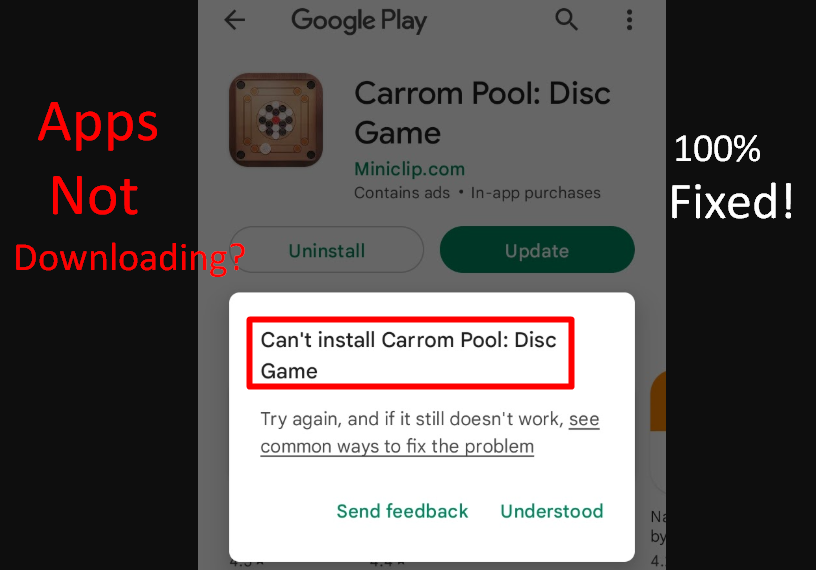
Are your apps stuck on “Pending” or apps not downloading from play store? This is one of the most common Android problems. You tap the Install button, but nothing happens. The download stays at 0%, or it keeps showing an error message.
If your Android apps are not downloading from Play Store, don’t worry. In most cases, this issue is caused by minor glitches, storage problems, network errors, or account sync issues — all of which can be fixed easily at home.
In this complete guide, you will learn:
- Why Play Store apps are not downloading
- The most common causes
- Step-by-step solutions that actually work
- How to prevent the issue in the future
Let’s fix it.
Why Are Apps Not Downloading from Play Store?
When the Play Store fails to download apps, it usually means something is blocking the connection between your device and Google’s servers.
Here are the most common reasons:
- Slow or unstable internet connection
- Insufficient storage space
- Corrupted Play Store cache
- Outdated Play Store version
- Google account sync problems
- Date and time mismatch
- Disabled Download Manager
- Pending system updates
Now let’s go step by step to solve it.
Solution 1: Check Your Internet Connection
A weak or unstable internet connection is the most common cause.
What to do:
- Switch between Wi-Fi and mobile data
- Restart your router
- Turn Airplane Mode on for 20 seconds and off again
- Try loading a website in your browser
If websites are not loading, fix your internet first.
Solution 2: Restart Your Android Phone
A simple restart fixes temporary system bugs.
Steps:
- Press and hold Power button
- Tap Restart
- Wait for reboot
- Try downloading again
Many Play Store issues are solved with this simple step.
Solution 3: Check Storage Space
If your phone storage is full, apps won’t download.
Steps:
- Go to Settings
- Tap Device care
- Tap Storage
- Check available space
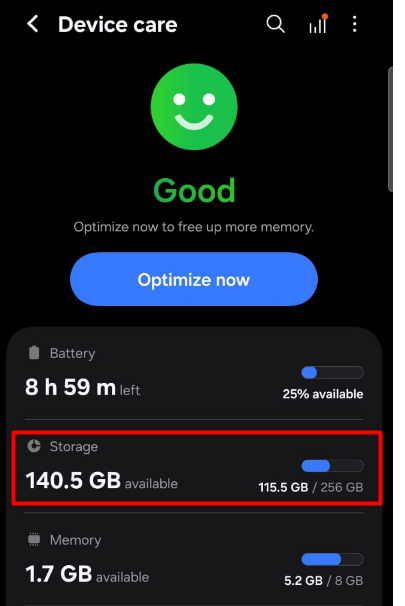
If storage is low:
- Delete unused apps
- Clear photos and videos
- Remove large files
At least 1–2 GB free space is recommended.
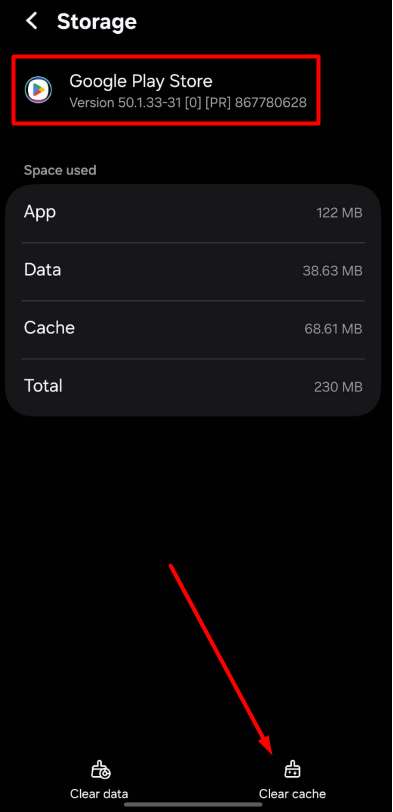
Solution 4: Clear Play Store Cache and Data
Corrupted cache is a major cause of download problems.
Steps:
- Open Settings
- Go to Apps
- Tap Google Play Store
- Tap Storage
- Select Clear Cache
- Then tap Clear Data
Restart phone and try again.
Solution 5: Clear Google Play Services Cache
Play Services controls Play Store functionality.
Steps:
- Go to Settings
- Tap Apps
- Select Google Play Services
- Tap Storage
- Clear Cache
Restart device.
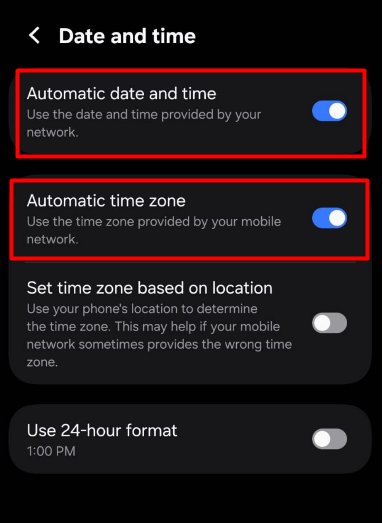
Solution 6: Check Date and Time Settings
Incorrect date and time can block Play Store access.
Steps:
- Go to Settings
- Tap Date & Time
- Enable Automatic date and time
- Enable Automatic time zone
Restart your phone.
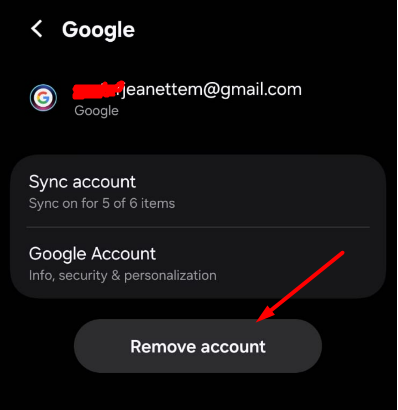
Solution 7: Remove and Re-Add Google Account
Account sync issues may prevent downloads.
Steps:
- Go to Settings
- Tap Accounts & Backup
- Choose Manage Accounts
- Select your Google account
- Tap Remove Account
- Restart phone
- Add account again
This refreshes authentication with Google servers.
Solution 8: Enable Download Manager
If Download Manager is disabled, apps won’t download.
Steps:
- Open Settings
- Tap Apps
- Tap System apps (if needed)
- Find Download Manager
- Make sure it is Enabled
If disabled, enable it and restart.
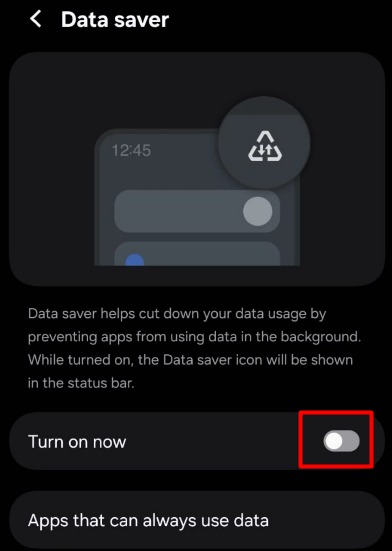
Solution 9: Check Data Usage Restrictions
Data saver may block Play Store.
Steps:
- Go to Settings
- Tap Network & Internet
- Select Data Saver
- Disable it temporarily
Also check if Play Store background data is allowed. If you face internet error, visit here to solve it
Solution 10: Update Android System
Outdated software can cause compatibility issues.
Steps:
- Go to Settings
- Tap Software Update
- Check for updates
- Install if available
Restart and test again.
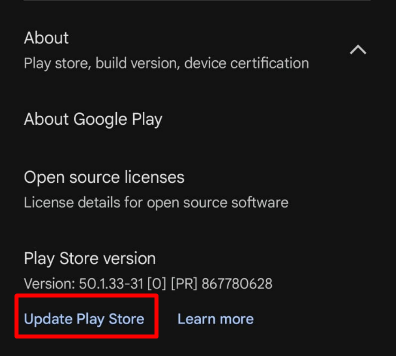
Solution 11: Update Play Store
Sometimes Play Store itself needs updating.
Steps:
- Open Play Store
- Tap Profile icon
- Go to Settings
- Tap About
- Tap Update Play Store
If update is available, install it.
Solution 12: Disable VPN
VPN apps can interfere with downloads.
What to do:
- Turn off VPN
- Restart Play Store
- Try downloading again
If it works, adjust VPN settings.
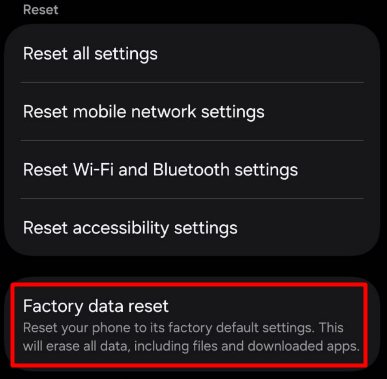
Solution 13: Factory Reset (Last Option)
If nothing works, factory reset may fix deep system problems.
⚠ Backup your data first.
Steps:
- Go to Settings
- Tap System
- Select Reset
- Tap Factory Data Reset
This should be your last solution.
When to Contact Support
Contact Google or device support if:
- Play Store crashes repeatedly
- All downloads fail continuously
- Error messages appear repeatedly
- Device software is corrupted
Tips to Prevent Play Store Download Issues
✔ Keep Android updated
✔ Clear cache regularly
✔ Maintain enough storage space
✔ Avoid installing unknown apps
✔ Use stable internet connection
✔ Restart phone weekly
Final Thoughts
If your Android apps are not downloading from the Play Store, the problem is usually caused by storage issues, corrupted cache, internet problems, or account sync errors.
In most cases, clearing cache, restarting the phone, or checking storage solves the issue quickly.
Always start with simple fixes before trying advanced solutions.
Frequently Asked Questions (FAQ)
This usually happens due to slow internet, background updates, or data restrictions.
No. It only resets the Play Store app settings.
It may be due to weak internet or corrupted cache.
Yes. VPN can block Google servers in some regions.
At least 1–2 GB of free space is recommended.
Only if all other fixes fail.