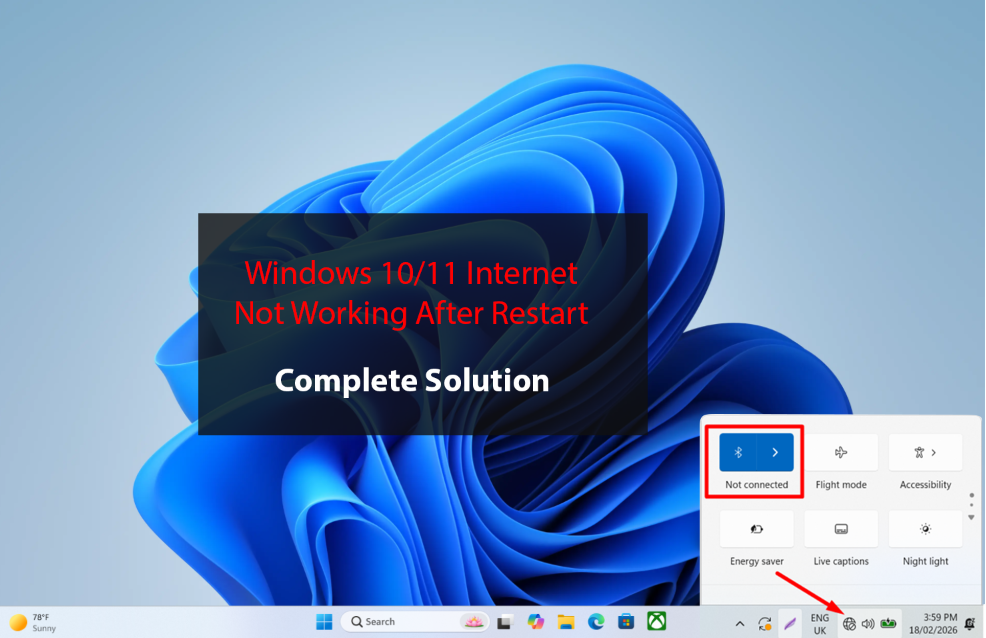
It can be extremely frustrating when your internet works perfectly fine, but Internet Not Working After Restart your PC, it suddenly stops working. No websites load, apps can’t connect, and you may see messages like “No Internet Access”, “Unidentified Network”, or simply no connection at all.
If your Windows 10 or Windows 11 internet is not working after restart, don’t panic. This is a common issue, and in most cases, it is caused by minor system glitches, driver conflicts, or network configuration problems.
In this guide, you’ll learn:
- Why internet stops working after restart
- Common causes of the problem
- Step-by-step solutions that actually work
- How to prevent it from happening again
Let’s fix it.
Why Does Internet Stop Working After Restart?
When you restart your PC, Windows reloads all drivers, services, and network settings. If something fails during this process, your internet connection may not work properly.
Here are the most common reasons:
- Corrupted or outdated network drivers
- Network adapter not starting properly
- Windows update bug
- Incorrect IP configuration
- DNS problems
- Disabled network services
- Power management settings
- VPN or firewall interference
Understanding the cause makes fixing the problem much easier.
Solution 1: Restart Router and Modem
Even if the issue appears after PC restart, start by checking your router.
What to do:
- Turn off router and modem
- Wait 1 minute
- Turn them back on
- Restart your PC again
Sometimes the router fails to assign a new IP address after reboot.
Solution 2: Run Windows Network Troubleshooter
Windows has a built-in tool that fixes common problems automatically.
Steps:
- Open Settings
- Go to Network & Internet
- Click Advanced network settings
- Select Network Troubleshooter
This often repairs DNS and adapter issues.
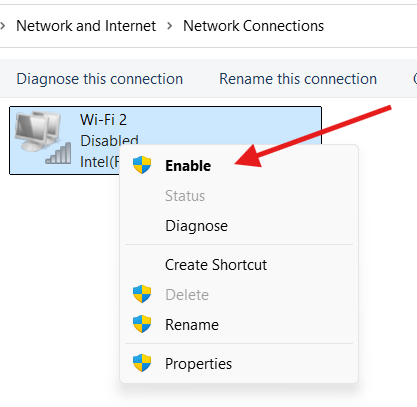
Solution 3: Disable and Re-Enable Network Adapter
Sometimes the adapter does not initialize correctly after restart.
Steps:
- Press Windows + R
- Type
ncpa.cpland press Enter - Right-click your network connections
- Click Disable
- Wait 10 seconds
- Click Enable
Check if internet starts working.
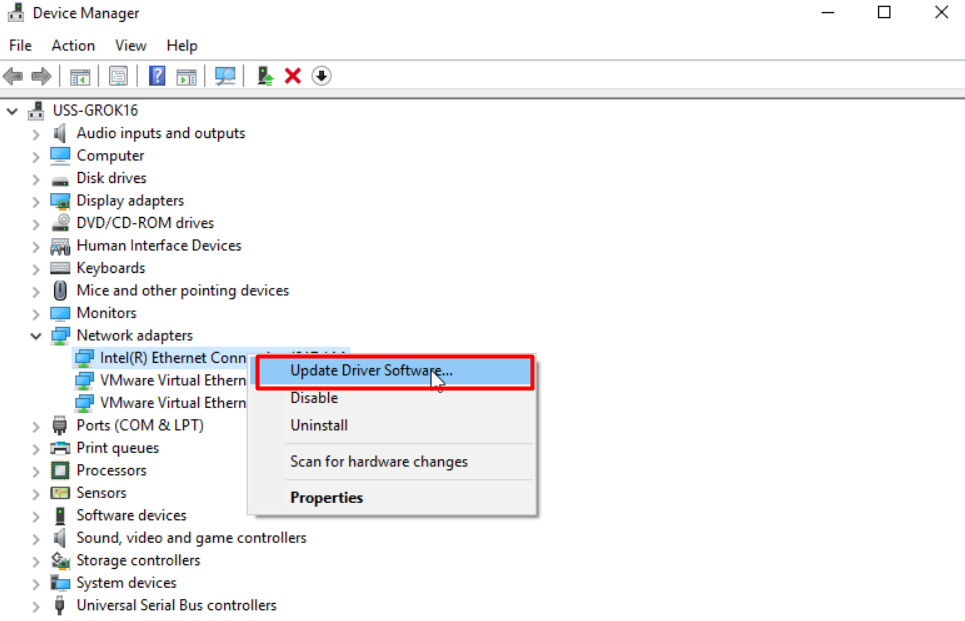
Solution 4: Update Network Drivers
Driver issues are one of the most common causes.
Steps:
- Right-click Start
- Open Device Manager
- Expand Network adapters
- Right-click your adapter
- Click Update driver
- Choose Search automatically
Restart your PC after updating. If problem started after a recent update, try Roll Back Driver instead.
Solution 5: Reset Network Settings
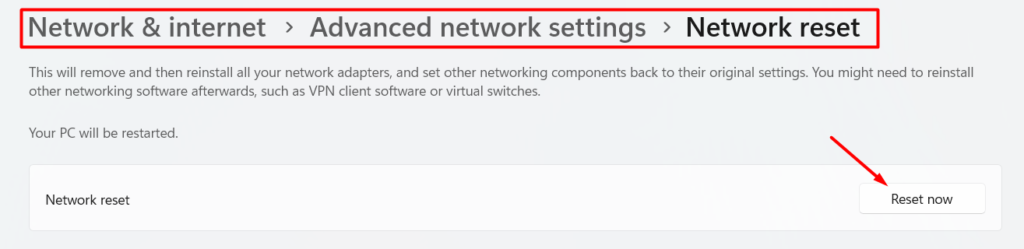
Corrupted network settings may prevent connection after restart.
Steps:
- Open Settings
- Go to Network & Internet
- Click Advanced network settings
- Select Network reset
- Click Reset now
⚠ This removes saved Wi-Fi passwords. Restart and reconnect to Wi-Fi.
Solution 6: Release and Renew IP Address
Incorrect IP configuration can block internet access.
Steps:
- Open Command Prompt as Administrator
- Type the following commands one by one:
ipconfig /release
ipconfig /renew
ipconfig /flushdns
- Restart PC
This refreshes your IP and DNS settings.
Solution 7: Check Network Services
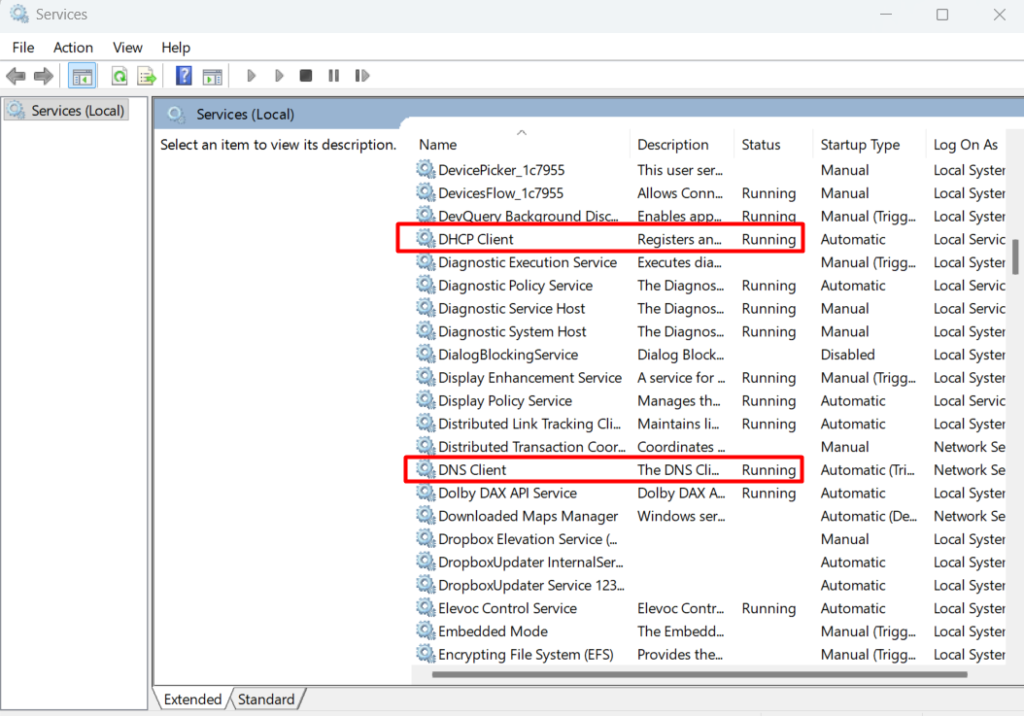
Important services must run for internet to work.
Steps:
- Press Windows + R
- Type
services.msc - Press Enter
- Ensure these services are Running:
- DHCP Client
- DNS Client
- Network Connections
- Network List Service
If stopped, right-click and start them.
Solution 8: Disable Power Saving for Network Adapter
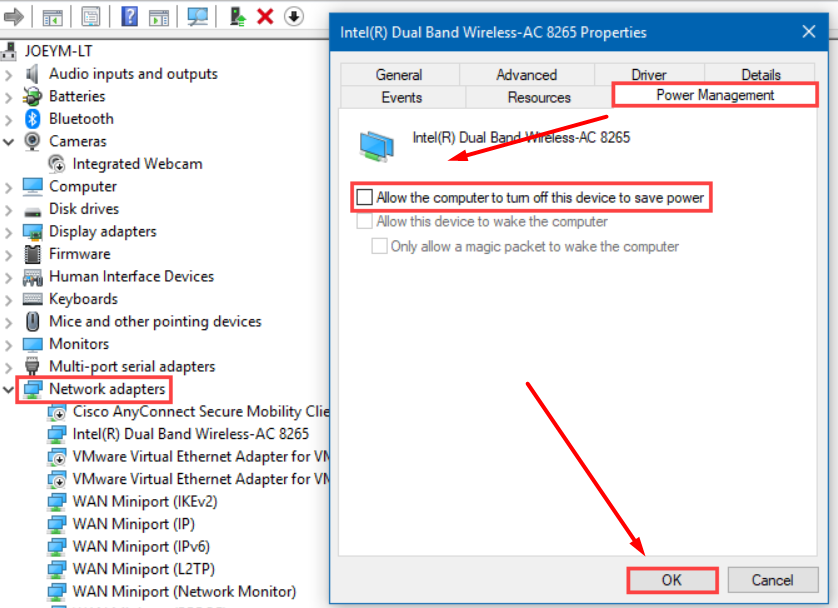
Windows may turn off the adapter to save power.
Steps:
- Open Device Manager
- Right-click Network Adapter
- Select Properties
- Go to Power Management tab
- Uncheck “Allow the computer to turn off this device”
Restart and test.
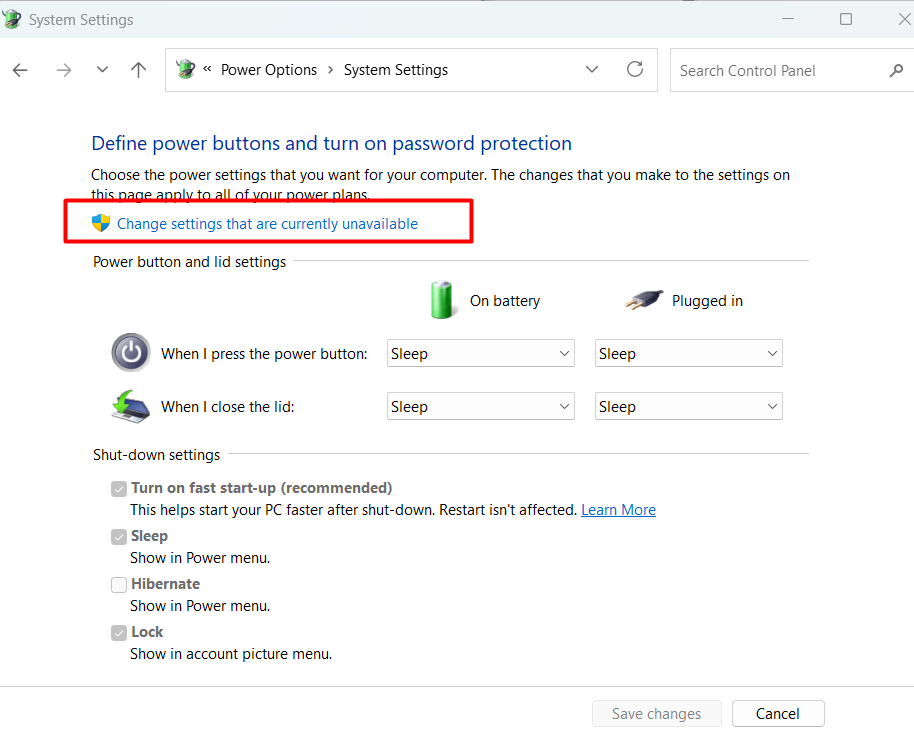
Solution 9: Disable Fast Startup
Fast Startup can sometimes cause internet issues after reboot.
Steps:
- Open Control Panel
- Go to Power Options
- Click Choose what the power buttons do
- Click Change settings that are currently unavailable
- Uncheck Turn on fast startup
- Save changes
Restart PC.
Solution 10: Check VPN and Firewall
VPNs and security software may block connection after restart.
What to do:
- Disable VPN temporarily
- Turn off third-party firewall
- Test connection
If internet works, adjust VPN settings.
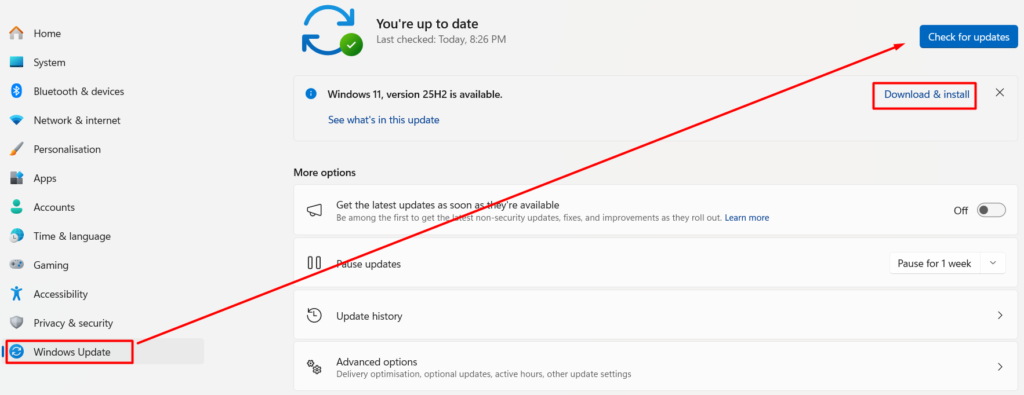
Solution 11: Check Windows Updates
Sometimes Windows updates cause network bugs.
Steps:
- Open Settings
- Go to Windows Update
- Check for updates
- Install latest patches
If issue started after update, consider uninstalling recent update.
Solution 12: Perform System Restore
If internet worked previously, restore your system.
Steps:
- Search “Create restore point”
- Click System Restore
- Choose earlier restore point
- Follow instructions
Your personal files remain safe.
Solution 13: Check Ethernet Cable (For Wired Users)
If you use wired internet:
- Try another Ethernet cable
- Use another LAN port
- Check cable damage
Sometimes the issue is physical, not software.
When to Contact ISP
Contact your internet provider if:
- Other devices also lose connection
- Modem shows red warning light
- Speed is extremely unstable
The issue may be from the service provider side.
How to Prevent Internet Issues After Restart
✔ Keep drivers updated
✔ Disable unnecessary startup apps
✔ Avoid pirated software
✔ Update Windows regularly
✔ Restart router weekly
✔ Avoid aggressive power-saving settings
Final Thoughts
If your Windows 10 or 11 internet stops working after restart, it is usually caused by driver issues, network misconfiguration, or system settings conflicts.
In most cases, updating drivers, resetting network settings, or disabling Fast Startup fixes the issue quickly.
Start with simple solutions and move to advanced fixes only if needed.
Frequently Asked Questions (FAQ)
This usually happens due to driver initialization failure or incorrect IP configuration.
No. It only removes network settings and saved Wi-Fi passwords.
Yes. Some updates may introduce temporary driver bugs.
Yes. It may slightly increase boot time but improves stability.
This usually means DNS or IP configuration problems. for more details visit this solution.
Only as a last option if all other fixes fail.