
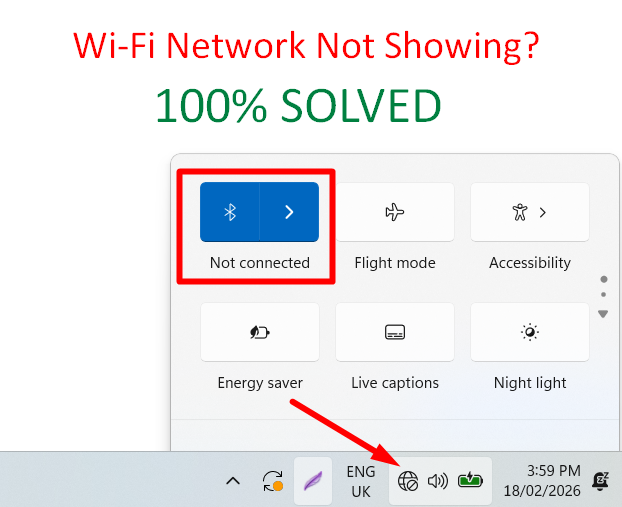
Is your laptop connected to Wi-Fi but not showing wi-fi networks and a error coming like “No networks found” or not displaying any available Wi-Fi connections? This is a common problem faced by many Windows users, and it can be very frustrating especially when other devices are working fine on the same network.
The good news is that in most cases, this issue is caused by simple software, driver, or settings problems that you can fix at home without visiting a technician.
In this complete guide, you will learn:
- Why your laptop can’t see Wi-Fi networks
- Common causes of the problem
- Step-by-step solutions to fix it
- How to prevent it in the future
Let’s get started.
Why Is My Laptop Not Showing Wi-Fi Networks?
When your laptop fails to detect wireless networks, it usually means something is blocking the communication between your system and the Wi-Fi adapter. Some common reasons include:
- Disabled Wi-Fi adapter
- Outdated or corrupted drivers
- Airplane mode enabled
- Network service stopped
- Windows update bugs
- Hardware problems
- Router issues
- Power management restrictions
Understanding the cause will help you fix it faster.
Solution 1: Restart Your Laptop and Router
Before trying advanced fixes, start with the basics.
What to do:
- Turn off your laptop
- Unplug your router
- Wait for 30 seconds
- Turn both devices back on
This clears temporary network glitches and often solves the issue.
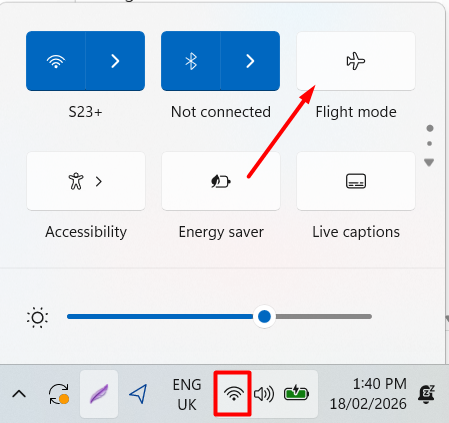
Solution 2: Check Airplane Mode
Sometimes Airplane Mode is enabled accidentally.
Steps:
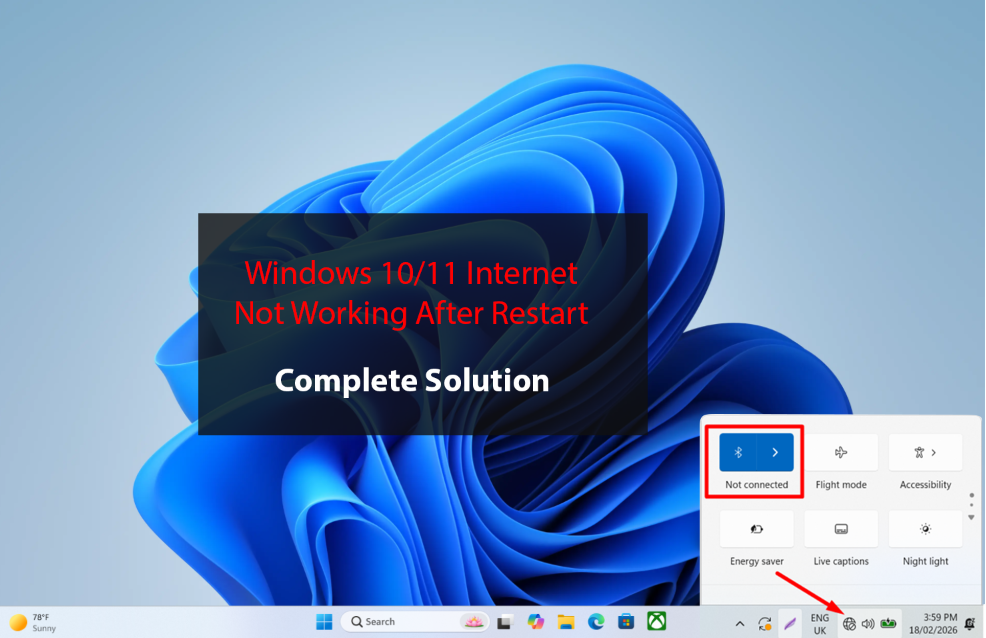
- Click on the network icon
- Check if Airplane Mode is ON
- Turn it OFF
When Airplane Mode is enabled, Wi-Fi is automatically disabled.
Solution 3: Enable Wi-Fi Adapter
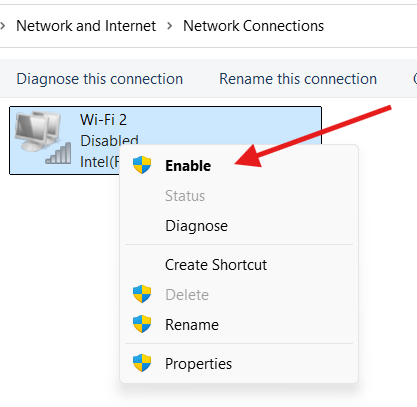
Your wireless adapter may be disabled.
Steps:
- Press Windows + R
- Type
ncpa.cpl - Press Enter
- Right-click Wi-Fi
- Click Enable
If it shows “Disabled,” enabling it may instantly fix the problem.
Solution 4: Use the Keyboard Wi-Fi Shortcut
Many laptops have a Wi-Fi on/off key.
Look for keys like:
- Fn + F2
- Fn + F5
- Fn + F12
Press the correct combination to enable wireless.
Solution 5: Update Wi-Fi Drivers
Outdated drivers are one of the biggest causes of missing networks.
Steps:
- Right-click Start
- Open Device Manager
- Expand Network adapters
- Right-click Wi-Fi adapter
- Click Update driver
Select “Search automatically for drivers.” If Windows finds an update, install it and restart.
Solution 6: Reinstall Wi-Fi Driver
If updating doesn’t work, reinstall the driver.
Steps:
- Open Device Manager
- Right-click Wi-Fi adapter
- Select Uninstall device
- Restart laptop
Windows will reinstall the driver automatically.
Solution 7: Check Network Services
Some background services are required for Wi-Fi to work.
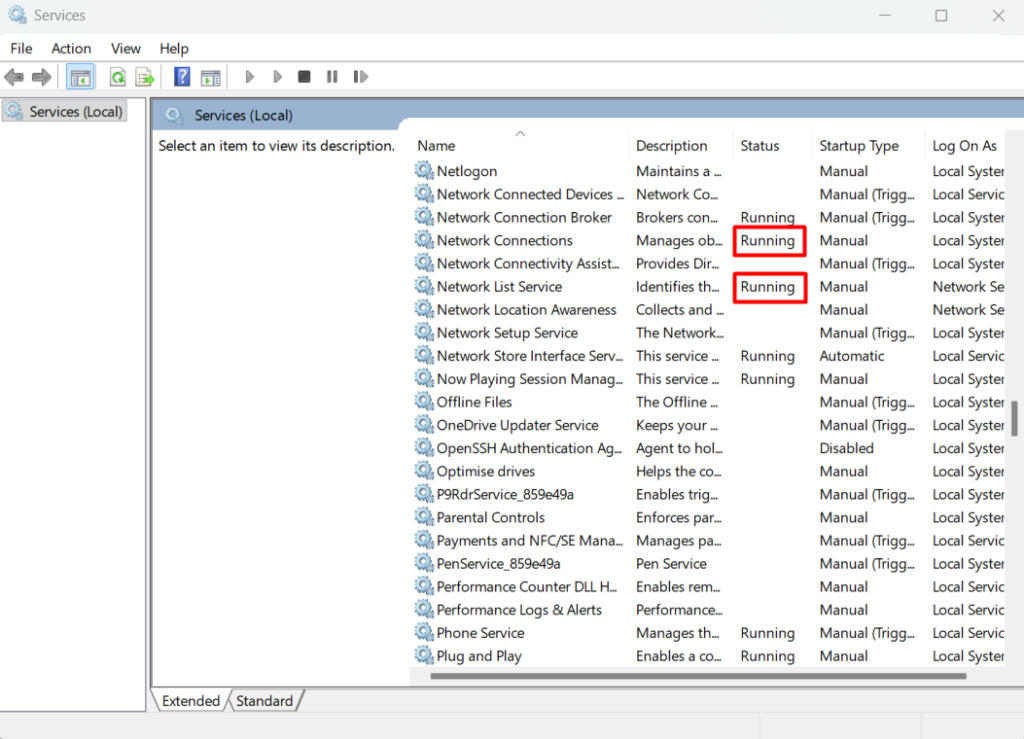
Steps:
- Press Windows + R
- Type
services.msc - Press Enter
- Find these services:
- WLAN AutoConfig
- Network Connections
- Network List Service
- Make sure they are Running
If stopped, right-click and start them.
Solution 8: Run Network Troubleshooter
Windows has a built-in network fixer.
Steps:
- Open Settings
- Go to Network & Internet
- Click Network Troubleshooter
- Follow instructions
This tool automatically detects common problems.
Solution 9: Reset Network Settings
If your network settings are corrupted, resetting helps.
Steps:
- Open Settings
- Go to Network & Internet
- Click Advanced network settings
- Select Network reset
- Click Reset now
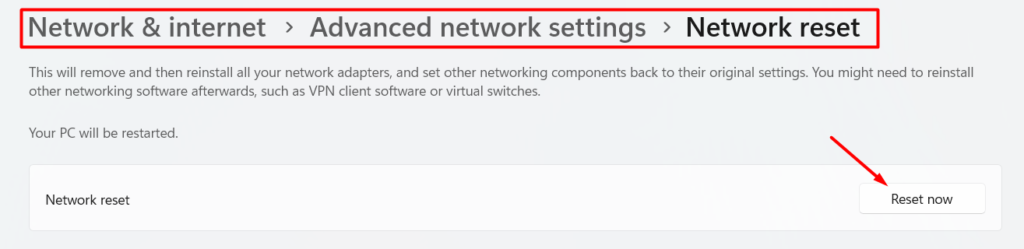
⚠️ This removes saved Wi-Fi passwords.
Solution 10: Disable Power Saving for Wi-Fi
Windows may turn off Wi-Fi to save battery.
Steps:
- Open Device Manager
- Right-click Wi-Fi adapter
- Open Properties
- Go to Power Management
- Uncheck “Allow computer to turn off…”
Click OK and restart.
Solution 11: Check BIOS Settings
Sometimes Wi-Fi is disabled in BIOS.
Steps:
- Restart laptop
- Press F2, F10, Del, or Esc (depends on brand)
- Enter BIOS
- Find Wireless or Network section
- Enable Wi-Fi
Save and exit.
Solution 12: Check Router Settings
If no device can see your Wi-Fi:
- Restart router
- Check if SSID broadcast is enabled
- Reset router if needed
Also, make sure your router is working properly.
Solution 13: Scan for Malware
Some malware disables network access.
- Run a full scan using Windows Defender or trusted antivirus.
- Remove any threats found.
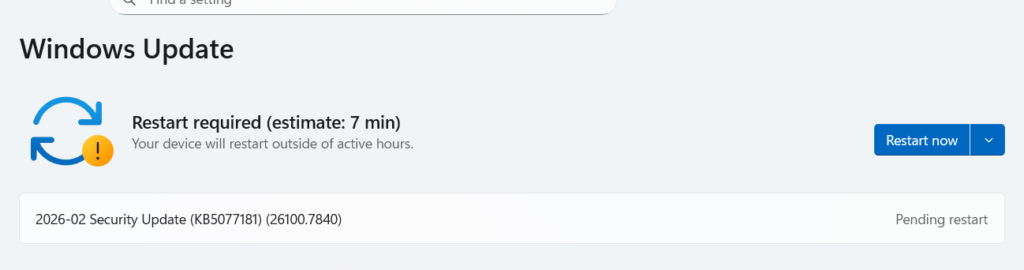
Solution 14: Update Windows
System bugs can cause Wi-Fi issues.
Steps:
- Open Settings
- Go to Windows Update
- Click Check for updates
- Install all updates
Restart after updating.
Solution 15: Hardware Problem Check
If nothing works, your Wi-Fi card may be damaged.
Signs:
- Adapter missing in Device Manager
- No wireless option anywhere
- Frequent disconnections
In this case, visit a technician or use a USB Wi-Fi adapter.
How to Prevent Wi-Fi Detection Problems
✔ Keep drivers updated
✔ Avoid pirated software
✔ Install Windows updates
✔ Use antivirus protection
✔ Handle laptop carefully
✔ Avoid overheating
✔ Restart router weekly
Final Thoughts
When your laptop does not show available Wi-Fi networks, it is usually caused by driver issues, disabled adapters, or system settings.
By following this guide step by step, you can solve most wireless detection problems without professional help.
Always start with simple fixes and move to advanced solutions only if needed.
Frequently Asked Questions (FAQ)
This means the problem is in your laptop’s driver or settings.
No. It only removes network-related configurations
Yes. Sometimes buggy updates affect drivers.
If it doesn’t appear in Device Manager, hardware failure is likely.
Yes. It is a good temporary or permanent solution.
Every 2–3 months or when facing issues.
Some antivirus programs may block network access temporarily.

Pingback: Windows 10/11 Internet Not Working After Restart – Fix Guide