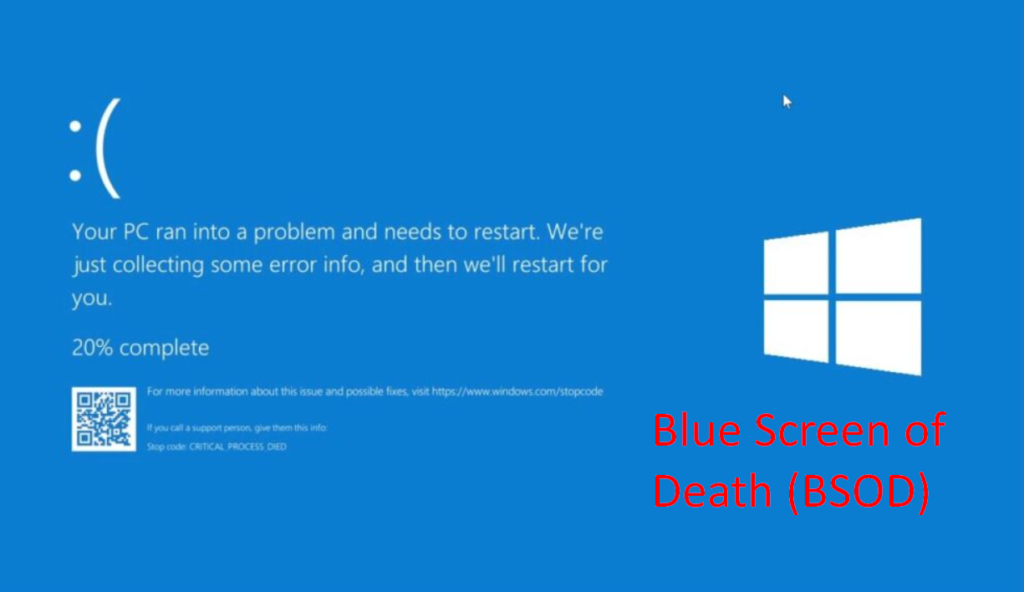
The Windows Blue Screen Error, also known as the Blue Screen of Death (BSOD), is one of the most frustrating problems for computer users. Suddenly, your screen turns blue, your system crashes, and your computer restarts without warning. Any unsaved work may be lost, and repeated crashes can make your PC unusable.
If you are facing blue screen errors on your Windows computer, don’t panic. In most cases, the problem is caused by software, driver, or hardware issues that can be fixed easily.
In this complete guide, you will learn:
- What causes Windows blue screen errors
- Common BSOD messages
- Step-by-step solutions to fix them
- How to prevent future crashes
Let’s begin.
What Is a Windows Blue Screen Error?
A Blue Screen Error appears when Windows encounters a serious problem that it cannot recover from safely. To protect your system from damage, Windows stops working and displays a blue screen with an error code.
This error usually forces your computer to restart automatically.
Some common BSOD messages include:
- MEMORY_MANAGEMENT
- IRQL_NOT_LESS_OR_EQUAL
- SYSTEM_SERVICE_EXCEPTION
- DRIVER_POWER_STATE_FAILURE
- PAGE_FAULT_IN_NONPAGED_AREA
These codes help identify the cause of the problem.
Common Causes of Windows Blue Screen Errors
Understanding the cause makes fixing the issue easier.
- Faulty or Outdated Drivers: Drivers control hardware devices. If they are outdated, corrupted, or incompatible, they can crash Windows.
- Hardware Problems: Bad RAM, failing hard drives, overheating CPU, or faulty motherboard can cause BSOD.
- Software Conflicts: Some apps, antivirus programs, or system tools may conflict with Windows.
- Windows Update Issues: Incomplete or buggy updates sometimes lead to crashes.
- Malware and Viruses: Malicious software can damage system files.
- Overheating: Excessive heat causes system instability.
- Corrupted System Files: Damaged Windows files can trigger blue screen errors.
- Overclocking: Pushing hardware beyond limits increases crash risk.
Solution 1: Restart Your Computer
Sometimes, BSOD happens due to temporary glitches.
What to do:
- Restart your PC
- Use normally
- See if error appears again
If it was a one-time issue, no further action is needed.
Solution 2: Note Down the Error Code
When a blue screen appears, note the error message. Search this code later to find specific solutions.
Example:IRQL_NOT_LESS_OR_EQUAL
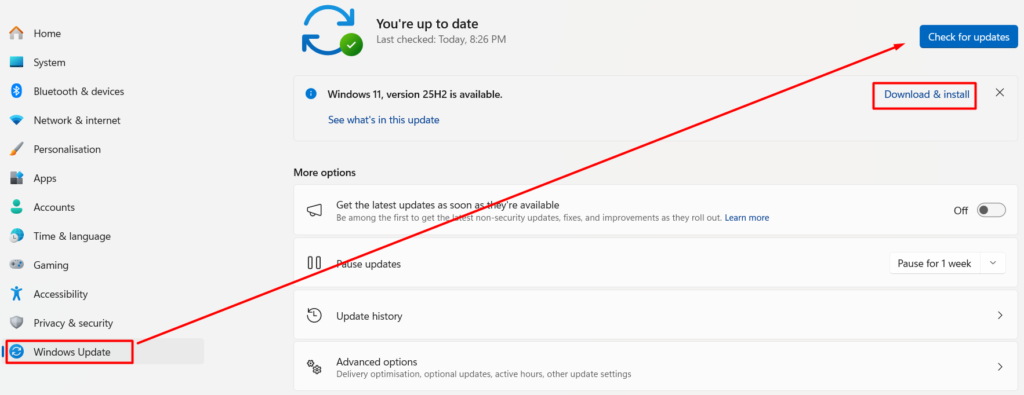
Solution 3: Update Windows
Microsoft releases fixes regularly.
Steps:
- Open Settings
- Go to Windows Update
- Click Check for updates
- Install all updates
This often solves system bugs.
Solution 4: Update Device Drivers
Outdated drivers are the biggest cause of BSOD.
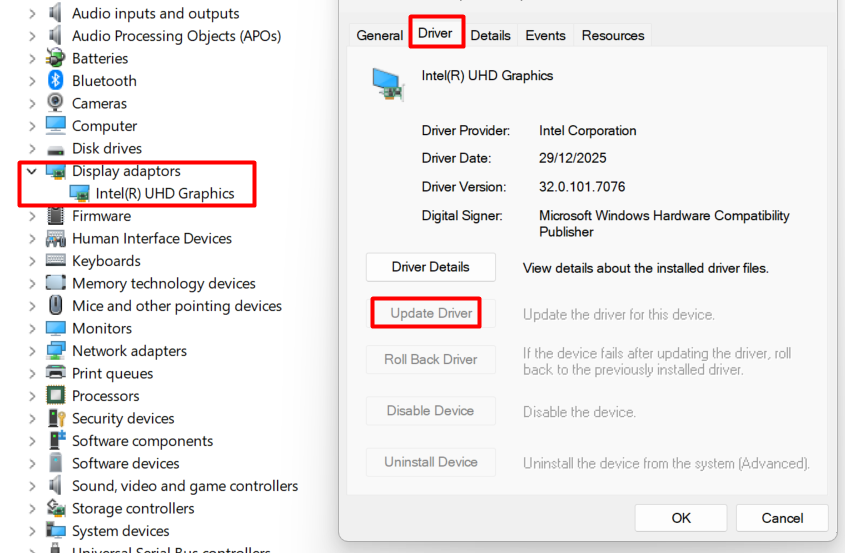
Steps:
- Right-click Start
- Open Device Manager
- Click Driver
- Select Update driver
Update graphics, network, and chipset drivers first.
Solution 5: Run Windows Memory Diagnostic
To check RAM problems:
Steps:
- Press Windows + R
- Type mdsched.exe
- Press Enter
- Restart and scan
Replace RAM if errors are found.
Solution 6: Check Hard Drive Health
Bad sectors cause system crashes.
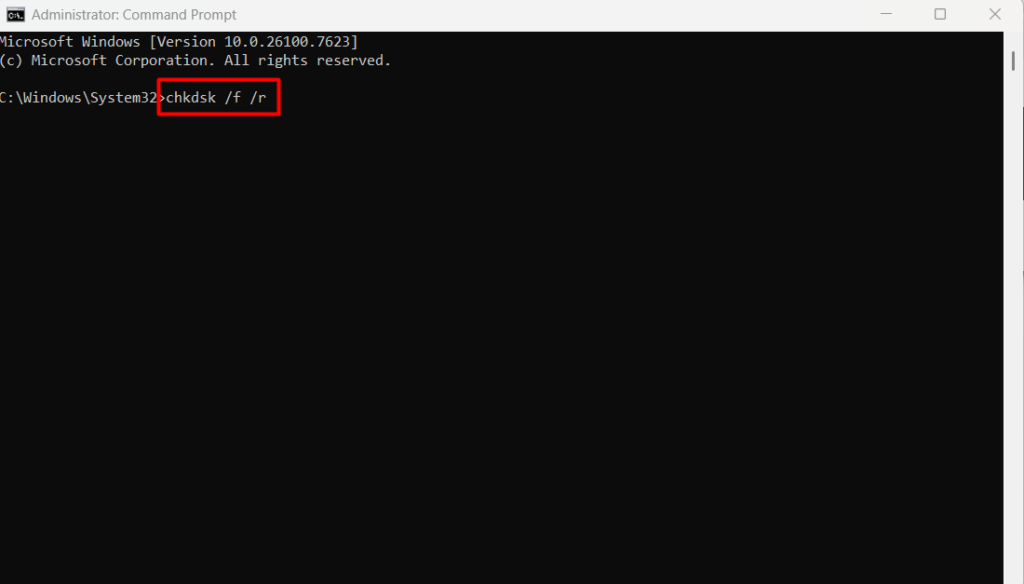
Steps:
- Open Command Prompt as Admin
- Type:
chkdsk /f /r - Press Enter
- Restart PC
This scans and repairs disk errors.
Solution 7: Run System File Checker (SFC)
This repairs corrupted Windows files.
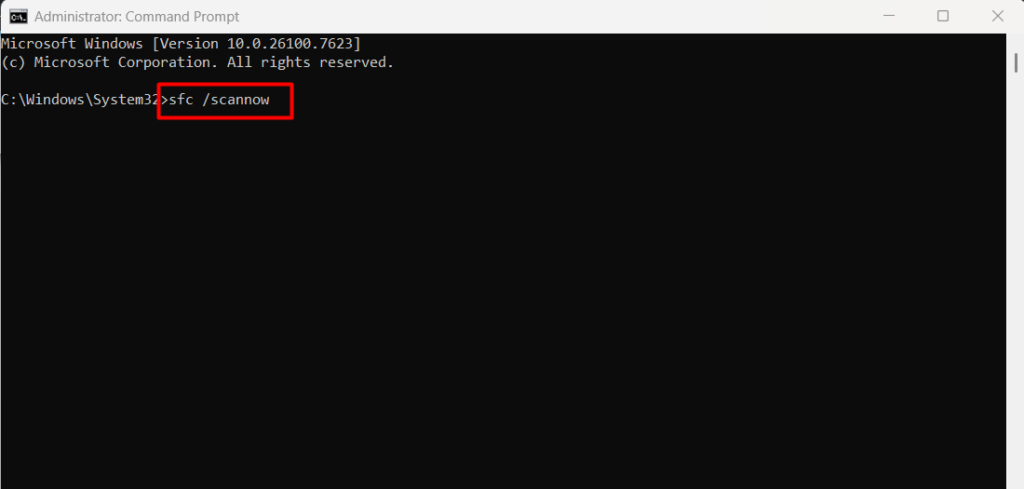
Steps:
- Open Command Prompt as Admin
- Type:
sfc /scannow - Press Enter
- Wait for completion
Restart after scan.
Solution 8: Scan for Malware
Viruses damage system files.
Steps:
- Use Windows Defender
- Run Full Scan
- Remove detected threats
Avoid cracked software and unsafe downloads.
Solution 9: Uninstall Problematic Software
If BSOD started after installing a program:
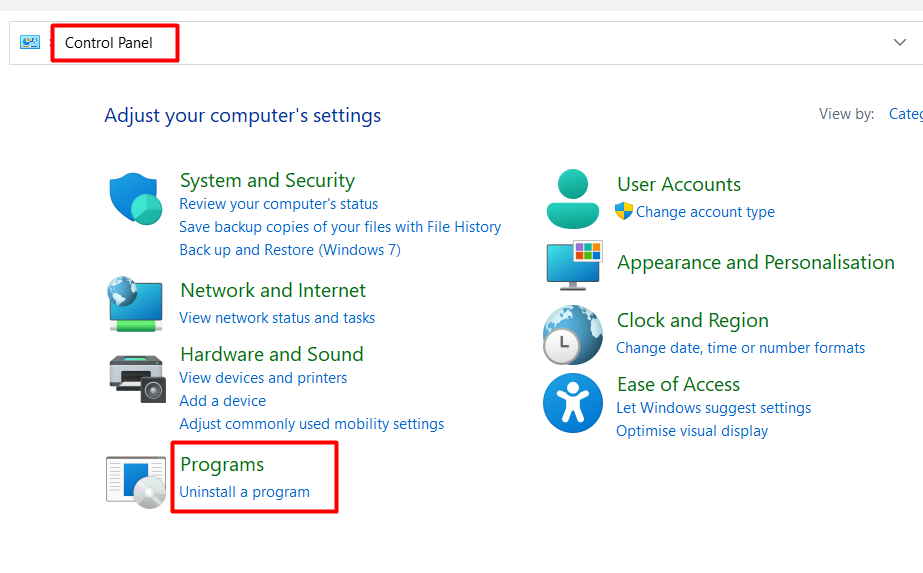
Steps:
- Control Panel → Programs
- Uninstall recent apps
- Restart PC
Antivirus and system tools are common causes.
Solution 10: Check CPU and GPU Temperature
Overheating causes crashes. Use monitoring tools to check temperature.
Normal range:
- CPU: Under 80°C
- GPU: Under 85°C
Clean fans and improve airflow if needed.
Solution 11: Disable Overclocking
Overclocking makes system unstable. Enter BIOS and reset to default settings. This improves stability.
Solution 12: Use System Restore
Restore Windows to a previous working state.
Steps:
- Search “System Restore”
- Open Restore Point
- Select previous date
- Restore system
No personal files will be deleted.
Solution 13: Reinstall Windows (Last Option)
If nothing works, reinstall Windows. Before that, ⚠️ Backup important data first.
A fresh installation removes deep system problems.
How to Prevent Blue Screen Errors
✔ Update drivers regularly
✔ Keep Windows updated
✔ Use reliable antivirus
✔ Avoid pirated software
✔ Clean PC hardware
✔ Monitor temperature
✔ Avoid unnecessary overclocking
Final Thoughts
Windows Blue Screen Error can look scary, but most of the time, it is caused by simple problems like driver issues, corrupted files, or overheating.
By following the solutions in this guide, you can fix most BSOD problems and keep your system running smoothly.
Start with basic fixes and move to advanced ones only if needed.
Frequently Asked Questions (FAQ)
No. BSOD is a safety feature to protect your system from damage.
This usually means there is a serious driver or hardware problem.
Yes. A clean installation removes most software-related causes.
Yes. Faulty RAM is a common reason for crashes.
Sometimes. Poorly optimized antivirus programs may conflict with Windows.
Check for updates every 2–3 months or when facing issues.