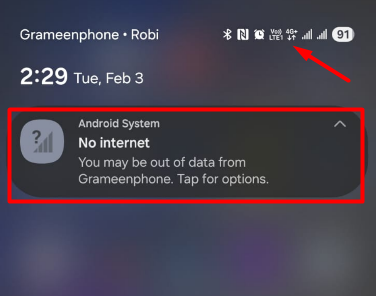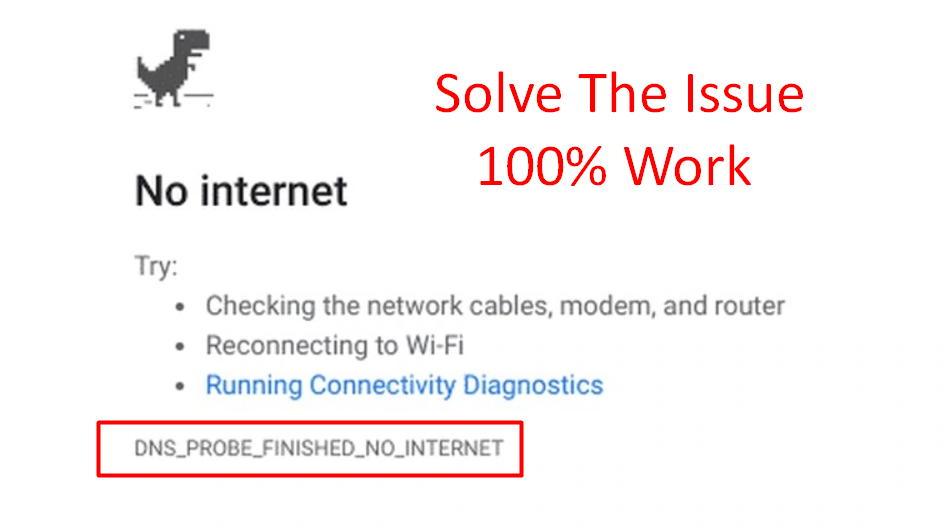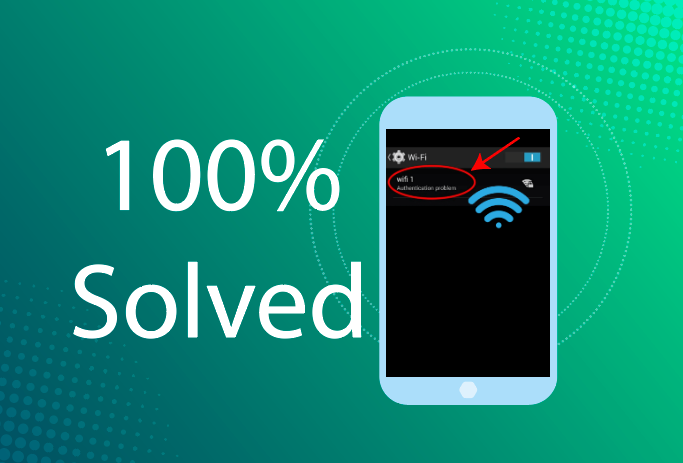
Seeing a “Wi-Fi Authentication Error” on your Android phone can be extremely frustrating, irritating matters. Your phone finds the Wi-Fi network, tries to connect, and then suddenly shows this error — again and again.
I’ve personally faced this problem at home and on public Wi-Fi networks. Many times it happen after changing the Wi-Fi password, updating Android, or restarting the router. The good news is, in most cases, this issue is easy to fix without technical person help.
In this complete guide, you’ll learn:
- What Wi-Fi authentication error means
- Why it happens
- And step-by-step solutions that actually work
Let’s solve it properly.
What Is Wi-Fi Authentication Error on Android?
When you connect to a available Wi-Fi network, your phone sends the password to the router for verification. This process is called authentication.
If the router cannot verify your password or settings, Android shows following errors:
“Authentication error”
“Couldn’t authenticate”
“Connection failed”
This means your phone and router are not communicating properly.
Why Does Wi-Fi Authentication Error Occur?
This error usually happens because of the following reasons:
- Wrong Wi-Fi password
- Changed router password
- Corrupted saved network data
- Router software problems
- IP conflict
- Android network cache issues
- MAC address filtering
- Security mismatch (WPA2/WPA3)
Understanding the cause helps choose the right fix.
Solution 1: Re-Enter the Wi-Fi Password Carefully
Most of the time, the problem is simply a wrong password.
What to do:
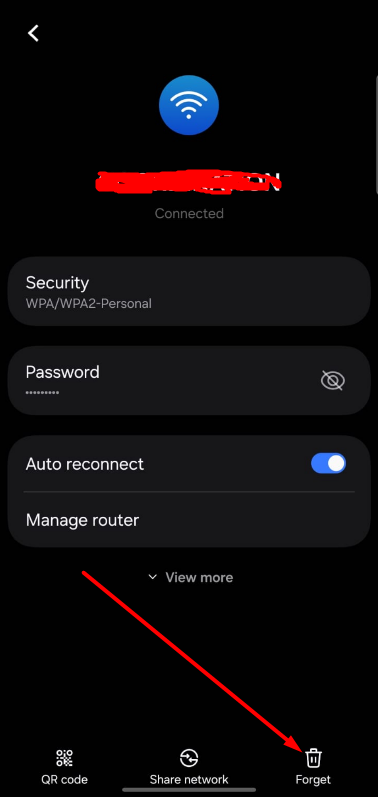
- Go to Settings → Wi-Fi
- Tap the network
- Select Forget
- Reconnect
- Type password carefully
⚠️ Check:
- Capital letters
- Numbers
- Special characters
- No extra spaces
Solution 2: Restart Your Phone and Router
Restarting refreshes both devices.
Steps:
- Restart your Android phone
- Turn off router for 1 minute
- Turn it on again
- Reconnect after lights stabilize
This fixes temporary network conflicts.
Solution 3: Forget and Reconnect to Wi-Fi Network
Saved network data may become corrupted.
Steps:
- Settings → Wi-Fi
- Tap connected network
- Select Forget
- Restart phone
- Reconnect
This forces Android to create a fresh connection profile.
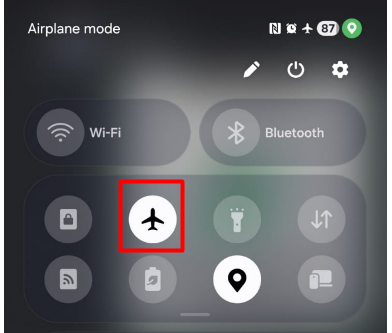
Solution 4: Turn Airplane Mode On and Off
This resets network modules.
Steps:
- Enable Airplane Mode
- Wait 20 seconds
- Disable it
- Turn Wi-Fi on
Many users solve the issue this way.
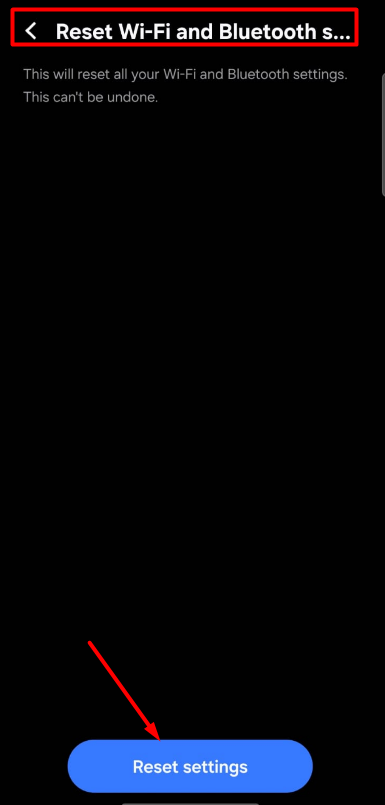
Solution 5: Reset Network Settings (Highly Recommended)
This clears all network conflicts.
Steps:
- Settings → System
- Reset options
- Reset Wi-Fi, mobile & Bluetooth
- Confirm
Your personal data remains safe.
Solution 6: Check Router Security Settings
Some Android phones struggle with advanced security modes.
Check in router admin panel:
- Set security to WPA2-PSK
- Avoid mixed WPA2/WPA3 mode
- Disable MAC filtering
Restart router after changes.
Solution 7: Change IP Settings to Static (Advanced)
IP conflict may cause authentication failure.
Steps:
- Long press Wi-Fi network
- Tap Modify network
- Show advanced options
- Change IP settings to Static
- Enter IP, Gateway, DNS (from router)
- Click Save
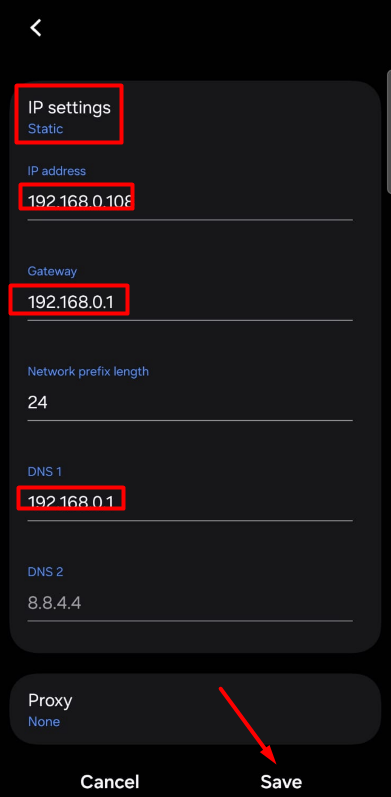
Use this only if other methods fail.
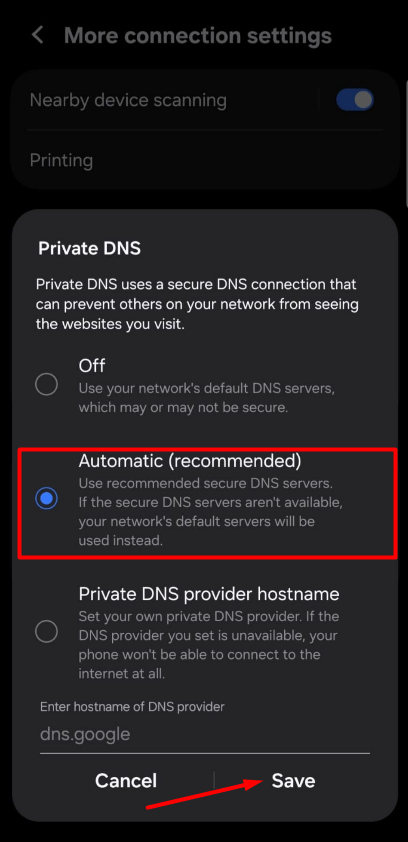
Solution 8: Disable VPN and Private DNS
VPNs and DNS services can block Wi-Fi login. For more details about private DNS visit here
What to do:
- Turn off VPN apps
- Settings → Private DNS → Automatic/Off
- Reconnect Wi-Fi
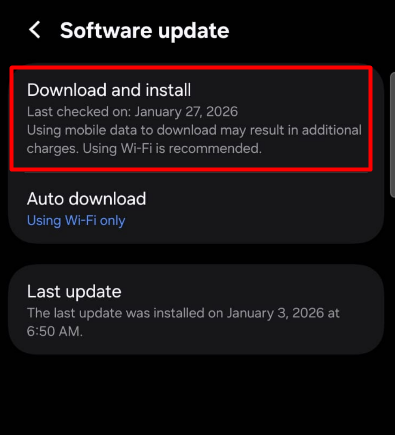
Solution 9: Update Android Software
System bugs may affect Wi-Fi authentication.
Steps:
- Settings → Software Update
- Install updates
- Restart phone
Updates often fix connection issues.
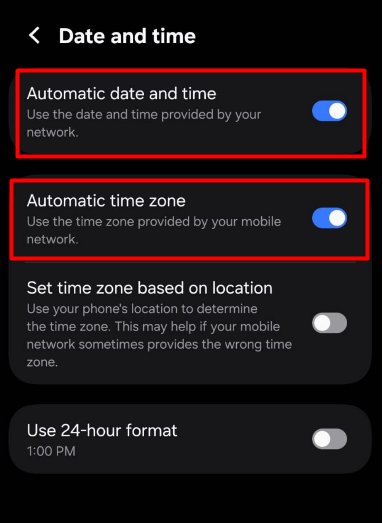
Solution 10: Check Date and Time Settings
Wrong time can break secure authentication.
Steps:
- Settings → General Management
- Date & Time
- Enable Automatic time
- Enable Automatic timezone
Reconnect after adjusting.
Solution 11: Reset Router (Last Option)
If no device connects properly, reset router.
⚠️ This deletes router settings.
Steps:
- Press reset button 10–15 seconds
- Reconfigure Wi-Fi
- Set new password
- Reconnect devices
When to Contact Internet Provider
Contact ISP if:
- All devices show authentication error
- Router can’t connect to internet
- Network is unstable
Does This Error Damage Your Phone?
No.
This is a network configuration issue, not hardware damage.
Your phone is safe.
Best Tips to Prevent Wi-Fi Authentication Error
✔ Don’t change router password frequently
✔ Restart router weekly
✔ Keep Android updated
✔ Avoid unknown VPN apps
✔ Use WPA2 security
Final Thoughts
The Wi-Fi authentication error on Android is annoying, but it’s usually caused by simple issues like wrong password, corrupted network data, or router settings.
In most cases, forgetting the network, restarting devices, or resetting network settings solves the problem very quickly.
Try these above steps in order before visiting a technician, it will save you time and money.
Frequently Asked Questions (FAQ)
It may be due to corrupted network cache, router bugs, or security mismatch.
No. It only removes network configurations.
Yes. Updating router firmware can fix compatibility issues
Some older phones struggle with WPA3. Switching to WPA2 helps.
Your router settings may be misconfigured or outdated.
No. Try network reset first. Factory reset is last option.