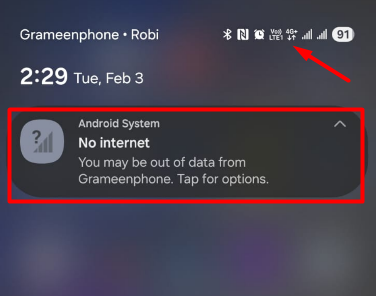
Have you ever seen full signal bars on your Android phone, but the mobile data connected but no internet mobile data still doesn’t work? Social media won’t load, websites won’t open, and apps keep showing “No Internet Connection” even though your phone says it’s connected.
I’ve faced this type of problem many times, especially after changing SIM cards, changing data to another sim, wifi or updating Android. The good news is, in most cases, this issue is easy to fix even without visiting a mobile service center.
In this complete guide, you’ll learn:
- Why mobile data connects but doesn’t work
- What to check first
- And step-by-step solutions that actually fix the problem
Let’s get started.
Why Is Mobile Data Connected but No Internet?
This problem usually happens because of:
- Incorrect APN (Access Point Name) settings
- Network configuration errors
- Temporary system glitches
- VPN or Private DNS conflicts
- SIM card issues
- Carrier network problems
- Outdated Android software
Your phone may show “4G/5G” or “LTE,” but data cannot properly reach the internet.
Step 1: Check If Your Data Plan Is Active
Before changing any settings, confirm that:
- Your data balance is available
- Your package has not expired
- You haven’t reached daily/monthly limits
Try opening your carrier’s app or contacting customer support. Many times, “no internet” is simply due to expired data.
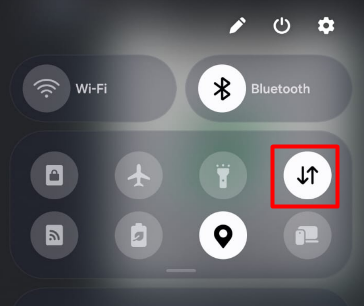
Solution 1: Turn Mobile Data Off and On
This refreshes your network connection.
Steps:
- Swipe down notification panel
- Turn Mobile Data OFF
- Wait 10 seconds
- Turn it ON again
Test your internet after reconnecting.
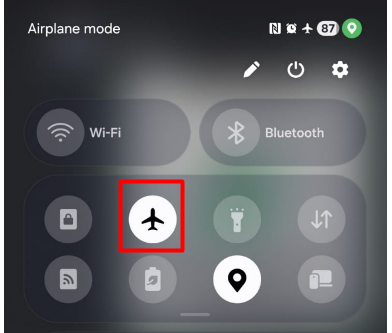
Solution 2: Enable and Disable Airplane Mode
This resets all network connections.
Steps:
- Turn ON Airplane Mode
- Wait 20 seconds
- Turn it OFF
- Enable mobile data
This is one of the fastest fixes.
Solution 3: Restart Your Android Phone
Restarting clears temporary bugs and background conflicts.
Steps:
- Hold Power button
- Tap Restart
- Wait for reboot
Many users ignore this, but it works surprisingly well.
Solution 4: Check APN Settings (Very Important)
Wrong APN is a major reason for mobile data issues.
Steps:
- Settings → Network & Internet
- Mobile Network
- Access Point Names (APN)
- Compare with carrier’s official APN
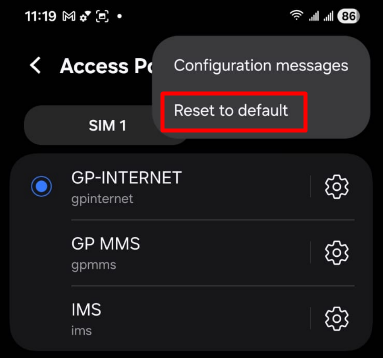
If incorrect, reset APN to default.
To Reset APN:
- Tap three dots → Reset to default
You can find correct APN on your carrier’s website.
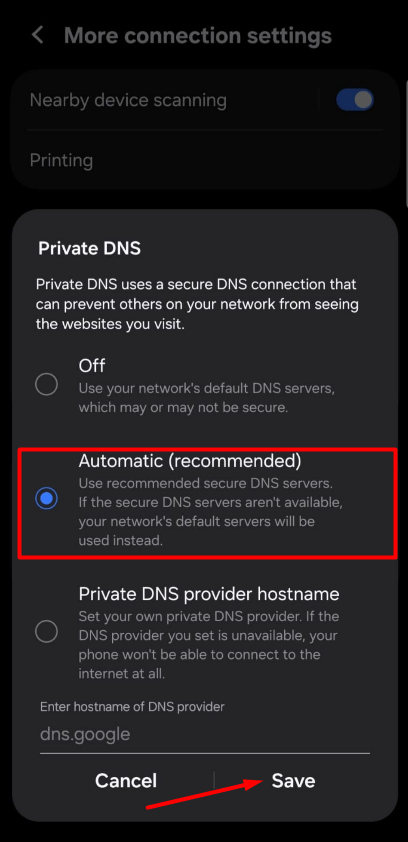
Solution 5: Disable VPN and Private DNS
VPN and Private DNS often block mobile data.
What to do:
- Turn OFF VPN apps
- Settings → Private DNS → Set to Automatic or Off
Restart mobile data after disabling.
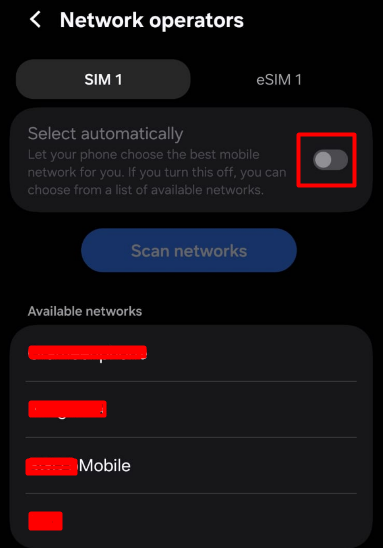
Solution 6: Select Network Manually
Sometimes automatic network selection fails.
Steps:
- Settings → Mobile Network
- Network operators
- Disable automatic selection
- Select your carrier manually
Wait until network registers.
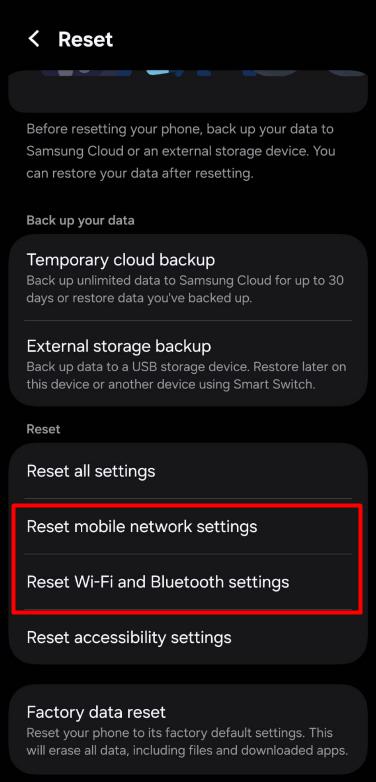
Solution 7: Reset Network Settings (Highly Effective)
If nothing works, this is your best solution.
Steps:
- Settings → System
- Reset options
- Reset Wi-Fi, mobile & Bluetooth
- Confirm reset
⚠️ This removes saved Wi-Fi and Bluetooth devices only. For more details visit here
Solution 8: Check SIM Card
SIM card issues can cause data failure. try following steps
- Removing SIM
- Cleaning gently
- Reinsert properly
- Try SIM in another phone
If SIM doesn’t work elsewhere, replace it.
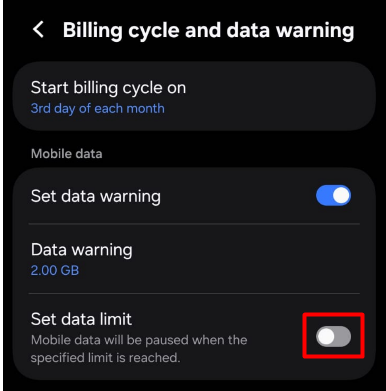
Solution 9: Check Data Usage Restrictions
Android may block data if limits are set.
Steps:
- Settings → Data Usage
- Check data limit
- Disable warning/limit temporarily
Also check if background data is restricted.
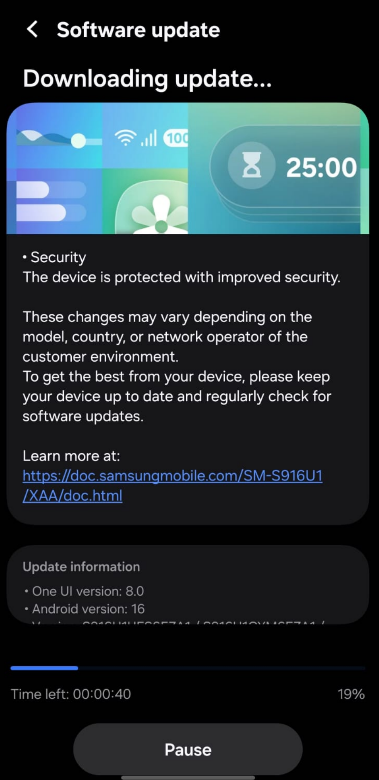
Solution 10: Update Android Software
System bugs may affect mobile data.
Steps:
- Settings → Software Update
- Install latest version
Updates often fix network bugs.
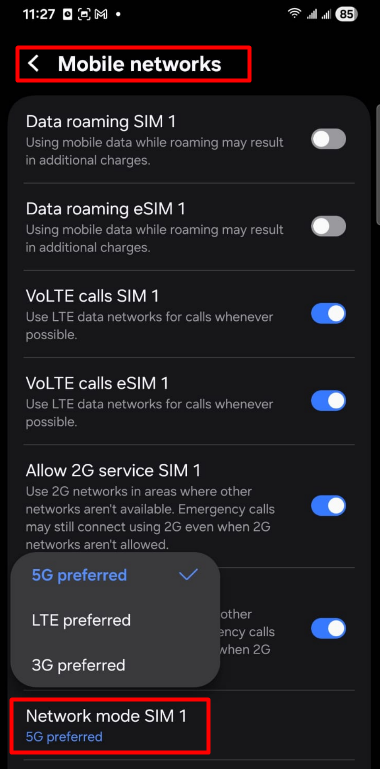
Solution 11: Check Network Mode (4G/5G/3G)
Wrong network mode may cause issues.
Steps:
- Settings → Mobile Network
- Preferred network type
- Select LTE/4G/5G (Auto)
Avoid locking to unsupported modes.
When to Contact Your Carrier
Contact customer support if:
- SIM works on no device
- Network outage in your area
- Account blocked
- IMEI blocked
No phone fix can solve these issues.
Does This Problem “Data Connected but No Internet” Damage Your Phone?
No, this is a software or network configuration issue, not hardware damage. Your phone is safe.
Best Long-Term Tips to Avoid This Issue
✔ Keep APN settings default
✔ Avoid unnecessary VPNs
✔ Restart phone weekly
✔ Keep Android updated
✔ Use official carrier SIM
These habits prevent future problems.
Final Thoughts
The issue “Mobile data connected but no internet on Android” is frustrating, but almost always fixable.
In most cases, the problem is solved by:
- Resetting APN
- Disabling VPN/Private DNS
- Resetting network settings
Try these before going to a service center — it can save you time and money.
Frequently Asked Questions (FAQ)
This usually happens because of incorrect APN settings, VPN or Private DNS conflicts, network glitches, expired data plans, or temporary carrier issues.
No. Resetting network settings only removes Wi-Fi, mobile network, and Bluetooth configurations. Your photos, videos, apps, and contacts will remain safe.
Yes. Many VPN apps interfere with mobile networks and block internet access. Turn off your VPN and test your connection again.
This indicates a phone-specific issue. Reset network settings, check APN, disable VPN/Private DNS, and update Android to resolve the problem.
If mobile data doesn’t work on any device using your SIM, contact your carrier. They can check for account suspension, data limits, or network outages.
Yes. Removing and reinserting the SIM is safe and can fix loose connection issues. Always power off your phone before doing it.
No. Always try network reset, APN reset, and software updates first. Factory reset should be the last option.
Only when you face serious connectivity issues. There is no fixed limit, and it’s safe to do when needed.