
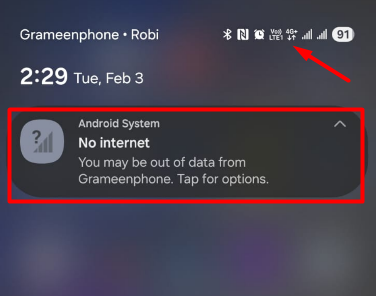
If your Android phone is facing issues like Wi-Fi not connecting, mobile data not working, Bluetooth problems, or frequent network errors, reset network settings can be one of the safest and most effective solutions.
I’ve personally used this method many times especially when Wi-Fi shows “Connected but no internet” or mobile data refuses to work even with signal bars. The best part? It fixes network problems without deleting your personal data.
In this guide, you’ll learn:
- What resetting network settings actually does
- When you should reset them
- And how to resetting network settings on Android safely, step by step
Let’s dive in.
What Does “Reset Network Settings” Mean on Android?
Resetting network settings restores all network-related configurations to their default state. This includes:
- Wi-Fi settings
- Mobile data settings
- Bluetooth connections
- VPN and APN settings
❗ Important: This reset does NOT delete:
- Apps
- Photos
- Videos
- Contacts
- Files
It only clears network configurations.
When Should You Reset Mobile Network Settings?
You should consider resetting network if you are facing following issues:
- Wi-Fi connected but no internet
- Mobile data not working
- Slow or unstable internet
- Bluetooth not pairing
- VPN causing internet issues
- Network problems after Android update
- Private DNS or APN errors
First, you should on-off airplane mode. If simple fixes like restarting or toggling airplane mode don’t work, this should be your next step.
Is Resetting Network Settings Safe?
Yes, 100% safe. This is one of the safest troubleshooting steps on Android because:
- It doesn’t erase personal data
- It doesn’t affect installed apps
- It doesn’t reset system settings
Think of it as a fresh start for your phone’s connectivity.
Things to Know Before Resetting Network Settings
Before you proceed, keep these points in mind:
- Saved Wi-Fi networks will be deleted
- Bluetooth devices will be removed
- VPN configurations will be erased
📌 Tip: Make sure you know your Wi-Fi passwords before resetting.
How to Reset Network Settings on Android (General Method)
This method works on most Android phones, including Samsung, Xiaomi, Realme, Oppo, Vivo, Motorola, OnePlus, and Pixel.
Step-by-Step Instructions:
- Open Settings
- Go to System (or General Management on Samsung)
- Tap Reset options
- Select Reset Wi-Fi, mobile & Bluetooth
- Tap Reset settings
- Enter your PIN or fingerprint
- Confirm reset
Your phone will reset network and configure within a few seconds.
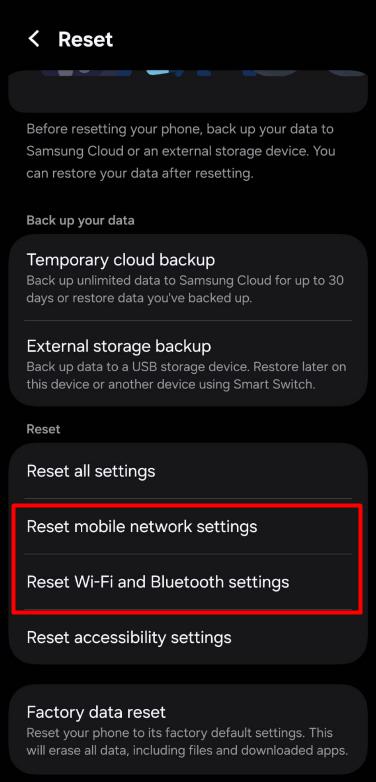
Reset Network Settings on Samsung Phones
Steps:
- Settings → General Management
- Tap Reset
- Select Reset network settings
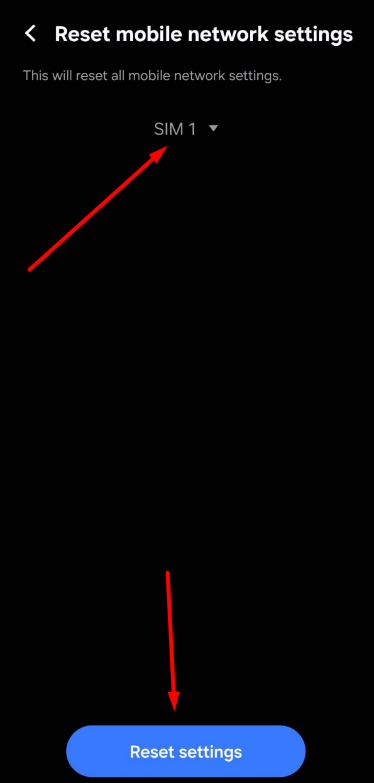
- Choose SIM (if dual SIM)
- Tap Reset settings
Samsung phones may ask which SIM to reset if you’re using dual SIM. This will not delete your contact and any data.
Reset Network Settings on Xiaomi / Redmi / POCO
Steps:
- Settings → Connection & sharing
- Tap Reset Wi-Fi, mobile networks, and Bluetooth
- Confirm reset
What Happens After Reset?
After the reset:
- Wi-Fi and mobile data turn off briefly
- You’ll need to reconnect to Wi-Fi
- Bluetooth devices need re-pairing
- Internet issues are often resolved immediately
Your phone may feel smoother then previous, because corrupted network cache is cleared.
Problems That Can Fix by Resetting Network Settings
Resetting network settings can fix:
- Android phone connected to Wi-Fi but no internet
- Mobile data connected but not working
- DNS and Private DNS errors
- VPN blocking internet
- Bluetooth connection failures
- Network issues after system update
It’s one of the most recommended fixes by Android technicians.
What Reset Network Settings Does NOT Fix
While powerful, this reset won’t fix:
- Hardware issues (damaged antenna)
- SIM card faults
- ISP outages
- Router hardware problems
If issues continue after reset, check:
- SIM card
- Router
- ISP service status
Network Reset vs Factory Reset
| Feature | Network Reset | Factory Reset |
|---|---|---|
| Deletes data | ❌ No | ✅ Yes |
| Fixes network issues | ✅ Yes | ✅ Yes |
| Risk | Very Low | High |
| Recommended first | ✅ Yes | ❌ No |
👉 Always try network reset first.
Best Practices After Resetting Network Settings
To avoid future issues:
- Keep Private DNS on Automatic (Check step-by-step guide for DNS setting)
- Avoid unnecessary VPN apps
- Restart phone weekly
- Update Android regularly
Final Thoughts
Knowing how to reset network settings on Android safely can save you from unnecessary frustration and even avoid a factory reset. which will keep your personal data, contact, photos etc. safely after resetting the network settings.
If your phone is struggling with Wi-Fi, mobile data, or Bluetooth issues, this should be one of the first fixes you try. It’s quick, safe, and highly effective.
Frequently Asked Questions (FAQ)
It only resets network-related settings.
There’s no limit. You can do it whenever needed.
Yes, in many cases it resets DNS conflicts
Yes, if you face internet or connectivity problems
No, the reset works offline.

Pingback: Mobile Data Connected but No Internet on Android – Fix Guide
Pingback: Android Apps Not Downloading from Play Store – Fix Now