
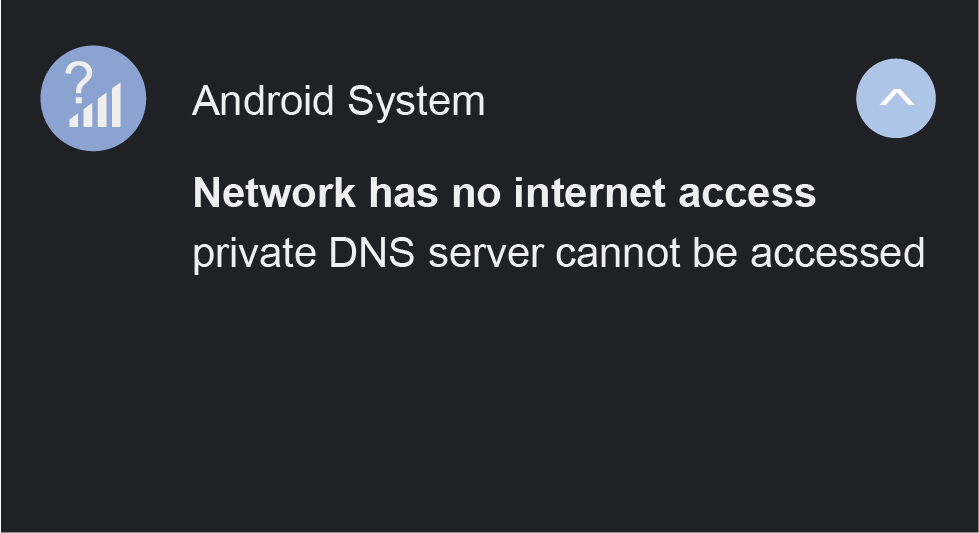
If you are using an Android phone and see the error message like “Private DNS server cannot be accessed”. Just assured that you are not facing this type of problems alone. I personally faced this issue while switching between Wi-Fi and mobile data, and it completely blocked my internet connection.
The good news is the problem is easy to fix, even if you are not tech-savvy.
In this guide, I will explain:
- What this error means
- Why it happens
- And multiple proven solutions that actually work
Let’s fix it step by step.
What is Private DNS on Android?
Private DNS is an Android feature that uses DNS over TLS (DoT) to keep your internet activities more secure and private. Instead of using your network provider’s default DNS, Android connects to a secure DNS server (like Google DNS or Cloudflare).
Though this is a great feature, sometimes Android fails to connect to the selected DNS server and that is why the error appears.
Why Does “Private DNS Server Cannot Be Accessed” Appear?
This error usually happens due to one or more of the following reasons:
- Incorrect Private DNS hostname
- Weak or unstable internet connection
- Network provider blocking DNS over TLS
- VPN or firewall interference
- Temporary system or cache issues
- Android software bugs
Understanding this helps us to choose the right fix, instead of randomly changing settings. Let’s check the step-by-step process and solve the issue to make your android experience better.
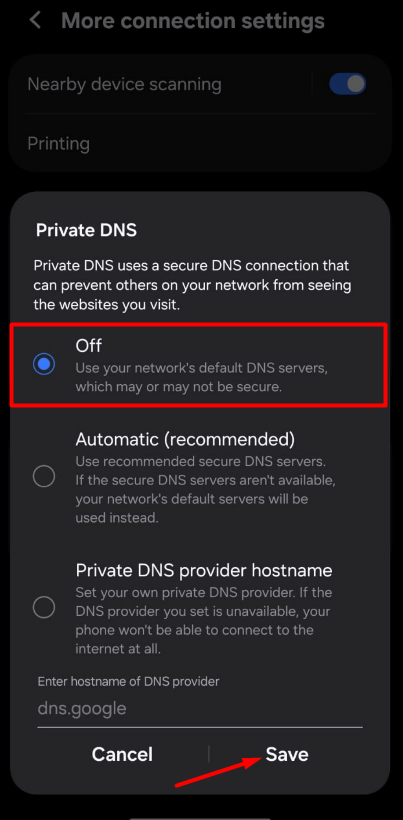
Solution 1: Turn Off Private DNS (Fastest Fix)
This is the most effective and fastest solution which works for most users.
Steps:
- Open Settings on your android phone
- Go to Network & Internet setting
- Tap Private DNS
- Select Off and
- Tap Save
Now turn Airplane Mode ON for 10 seconds, then turn it OFF and check if the error has been fixed. If not, then go the next solution.
📌 Why this works:
Your phone stops trying to connect to a secure DNS server and uses your ISP’s default DNS instead.
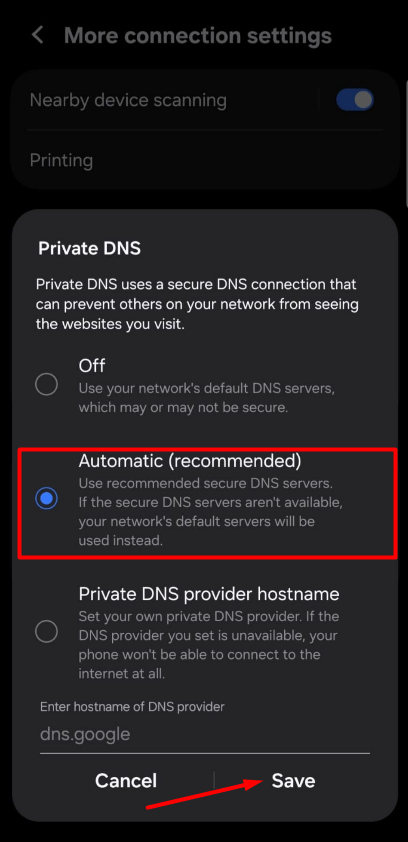
Solution 2: Set Private DNS to “Automatic”
If you want to keep Private DNS enabled but avoid errors, you may follow this option and this is a safer option.
Steps:
- Settings → Network & Internet
- Tap Private DNS
- Select Automatic
- Save and restart your phone
This allows Android to automatically choose a compatible DNS server and solve the issue.
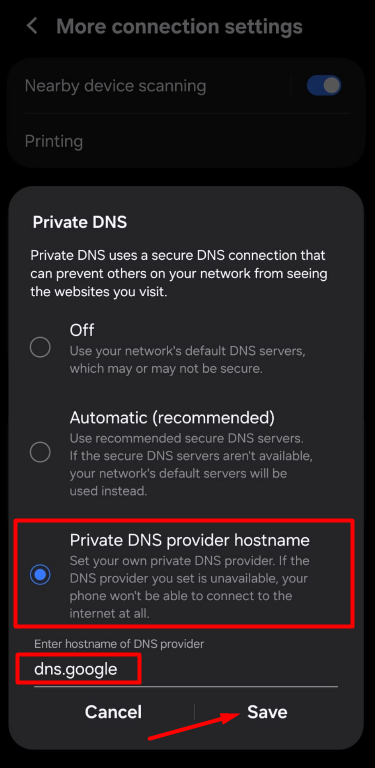
Solution 3: Use a Reliable Private DNS Hostname (Manual)
If you prefer manual DNS, make sure you are using a valid and trusted hostname.
Recommended DNS Hostnames:
- dns.google
- 1dot1dot1dot1.cloudflare-dns.com
- dns.quad9.net
Steps:
- Private DNS → Select Private DNS provider hostname
- Enter one of the hostnames above
- Save and restart device
⚠️ Avoid random DNS hostnames from unknown websites.
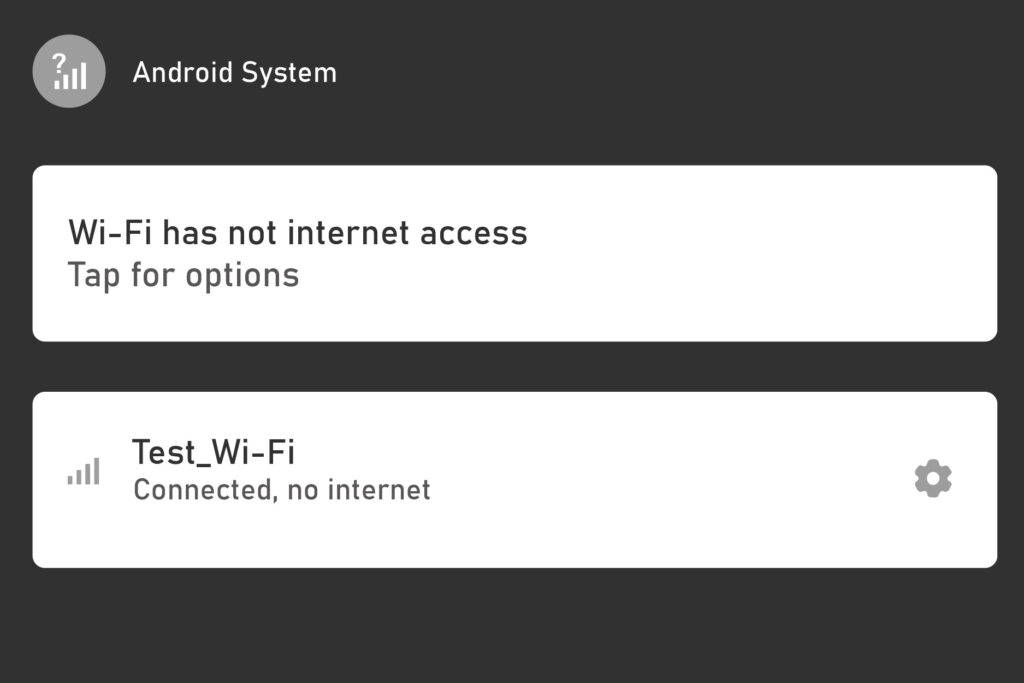
Solution 4: Check Your Internet Connection
Private DNS will not work on unstable or restricted networks.
Try this:
- Switch from Wi-Fi to mobile data
- Try a different Wi-Fi network
- Restart your router
If the error disappears on another network, the problem is network-related, not your android phone.
Solution 5: Disable VPN or Firewall Apps
VPN apps often override DNS settings.
What to do:
- Turn OFF any VPN
- Disable firewall or ad-blocking apps (temporarily)
- Recheck internet connection
After disabling, go to:
Settings → Private DNS → Automatic
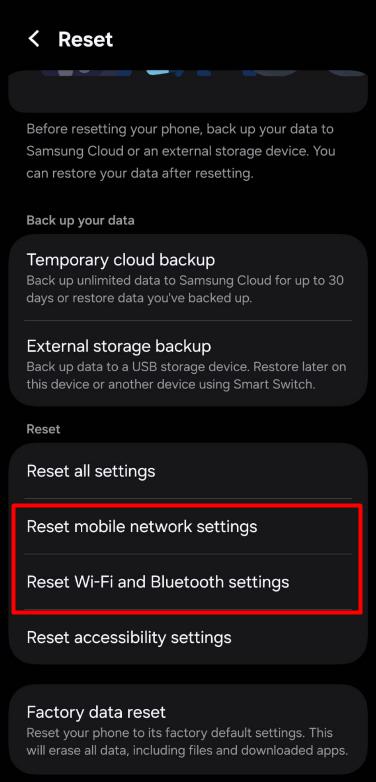
Solution 6: Reset Network Settings (Very Effective)
This solution worked for me when nothing else helped. So, you may follow this option when all above are not worked.
Steps:
- Settings → System
- Tap Reset options
- Select Reset Wi-Fi, mobile & Bluetooth
- Confirm reset
📌 Note: Ensure that, this will remove saved Wi-Fi networks and Bluetooth devices, but it does NOT delete personal data.
Solution 7: Clear Android System Cache (Advanced Users)
Sometimes corrupted system cache causes DNS issues. In that case, follow the step below if your phone supports it:
- Power off device
- Press Power + Volume Up (varies by brand)
- Enter Recovery Mode
- Select Wipe cache partition
- Reboot device
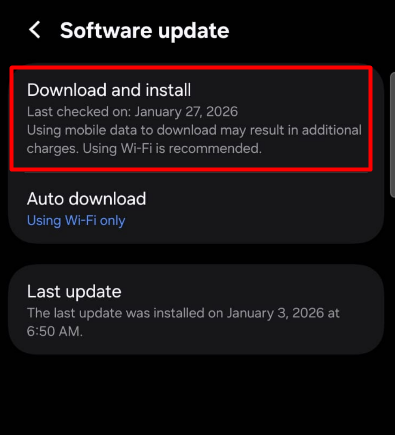
Solution 8: Update Android Software
Outdated Android versions may contain DNS bugs.
Steps:
- Settings → Software Update
- Download & install latest update
Many users report the issue disappearing after an update.
Does This Error Damage My Phone?
No, this is a software/network configuration issue, not a hardware problem. So, it will not harm your device.
When Should You Use Private DNS?
Use Private DNS if:
- You value privacy
- You use public Wi-Fi
- You want encrypted DNS traffic
Avoid it if:
- Your ISP blocks DoT
- You face frequent network drops
Final Thoughts
The “Private DNS server cannot be accessed” error looks like scary, but it is actually very common and fixable issue.
💡 Best Recommendation:
Set Private DNS to Automatic or Off unless you truly need a custom DNS.
If you’re still facing issues, your network provider may not support DNS over TLS properly.
Frequently Asked Questions (FAQ)
Your internet will still work normally.
Google DNS (dns.google) and Cloudflare DNS are reliable.
Yes — Samsung, Xiaomi, Realme, Pixel, and others.
Pingback: Android Phone Connected to Wi-Fi but No Internet – Fix Guide
Pingback: How to Reset Network Settings on Android 2026?
Pingback: Wi-Fi Authentication Error on Android – How to Solve
Pingback: Slow Internet Speed on Android – Causes and Fixes